
Trusted and Accurate Bottleneck Calculator
We have expanded our component database with recently released desktop processors, laptop chips, integrated graphics, and dedicated GPUs from AMD, Intel, NVIDIA, and Apple.
The calculator now considers resolution, workload, memory configuration, and expected CPU–GPU performance balance. Use the results to compare configurations before building a PC or planning an upgrade. Actual performance may vary depending on cooling, drivers, power limits, and application settings.
What is a Bottleneck Calculator?
A bottleneck calculator is a free online tool that estimates how well your CPU, GPU, RAM, resolution, and intended workload may perform together. It compares the relative capabilities of these components to identify which part could limit performance. The result can help you plan a new PC, assess an upgrade, or explore ways to reduce bottlenecks without upgrading hardware.
The calculator can be used for gaming, video editing, 3D rendering, streaming, programming, content creation, and everyday multitasking. In games such as Cyberpunk 2077, Red Dead Redemption 2, God of War, Forza Horizon 5, and Microsoft Flight Simulator, an unsuitable hardware combination may contribute to lower frame rates, inconsistent frame times, stuttering, or underused components.
Select your CPU, GPU, RAM, resolution, storage, and main workload to receive a configuration-based estimate. Keep in mind that the result is a planning guide rather than a guaranteed FPS measurement. Cooling, drivers, power limits, graphics settings, background applications, and individual game engines can cause two systems with similar hardware to perform differently.
The video below explains how to enter your system details, understand the reported bottleneck, and use the result when comparing components or planning an upgrade.
Core Features of Our PC Bottleneck Calculator
Our PC Bottleneck Calculator has been designed with features that make it easy for almost any beginner user.
Why Choose Us
Our PC Bottleneck Calculator delivers better response times and more reliable analysis than many other tools available online. It is currently among the top-rated options because users benefit from our strong calculation logic and consistent performance results. These are some of the reasons why many users prefer our calculator over others.
How to Interpret Bottleneck Calculator Results?
Start by selecting your CPU (Central Processing Unit), GPU (Graphics Processing Unit), and RAM (Random Access Memory). These are primary components for bottleneck detection. For more accurate analysis, you can also select additional factors like RAM, Windows version, storage type, resolution, use case, and operating system architecture. The more accurate your inputs, the more precise your results will be.
Once all fields are set, click “Calculate Bottleneck.” Our bottleneck calculator instantly processes your inputs and provides an overall performance analysis of your entire PC. It uses an advanced calculation mechanism based on component benchmark scores for reliable results.
Performance Analysis
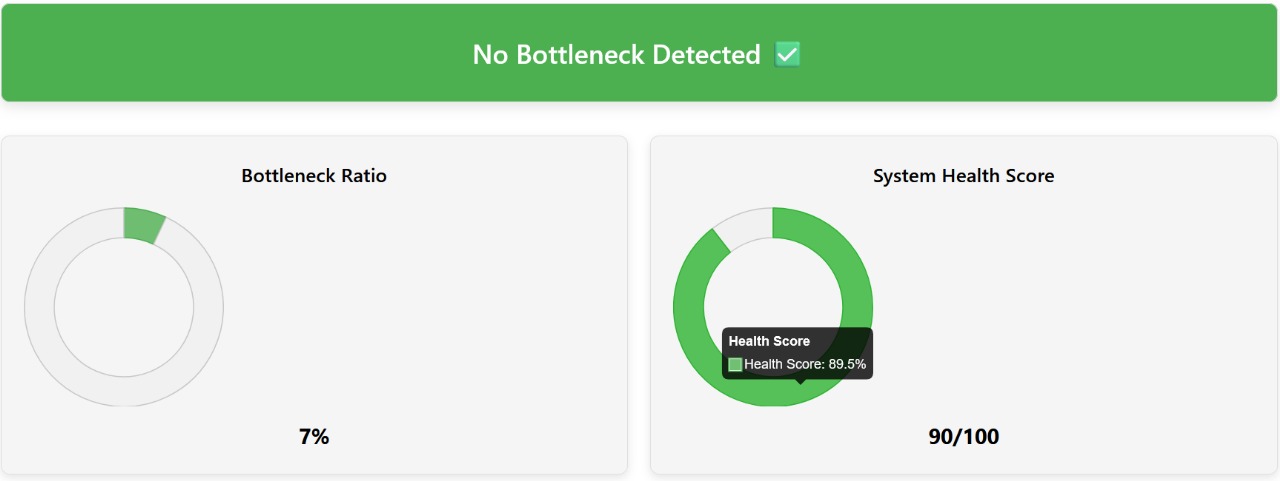
At the top of your results, you’ll see a quick snapshot of how balanced your system is. A simple status label, such as No Bottleneck Detected, Moderate Bottleneck, or Bottleneck Detected, makes it easy to understand performance at a glance.



Below, you’ll see a percentage-based bottleneck ratio indicating how much one component is limiting the other’s performance, and the system health score representing the overall stability and performance efficiency of your pc. Furthermore, there is a general use analysis section which provides a summary of your system’s performance, capabilities, and suggests quick upgrades to prevent your PC from bottlenecks. If you selected a primary use case, this summary will be tailored to match that specific scenario (e.g., gaming, editing, or productivity).
Utilization Insights
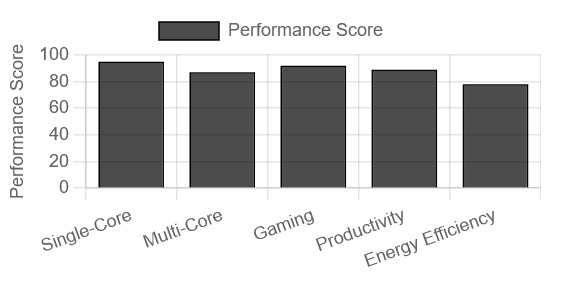
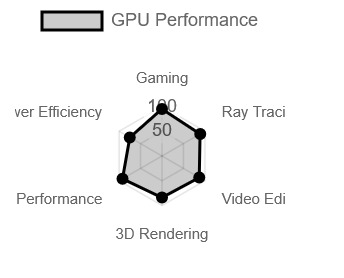
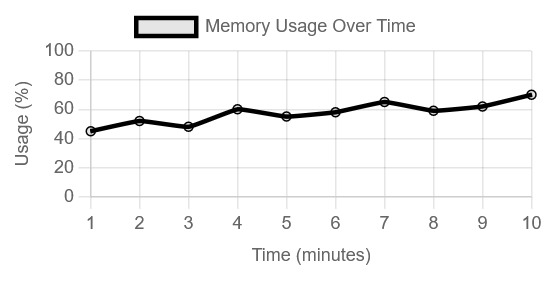
This section contains the visual representation of the usage levels of CPU, GPU, and RAM. These visualizations illustrate the efficiency of each system component. Clicking on any graph expands it into a more detailed breakdown, revealing hidden performance trends and helping you pinpoint where slowdowns occur.
Comparison Section
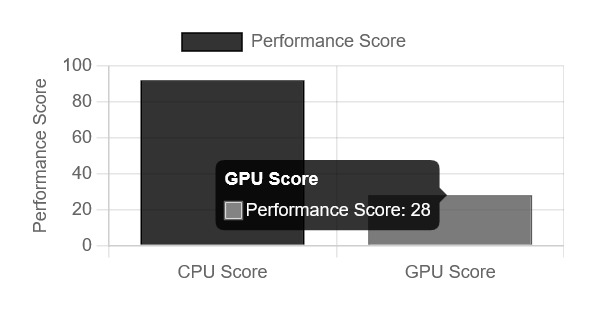
The comparison chart places your CPU and GPU side by side, highlighting how well they complement each other. A large performance gap usually signals a mismatch that could be causing bottlenecks. This insight helps you decide whether a CPU or GPU upgrade will deliver the most noticeable performance boost.
System Information
The System Info section shows a clear summary of the components and settings you selected for the analysis. Double-checking this data ensures your results are accurate and relevant. Even a small error in component selection can lead to misleading conclusions.

Optimization & Upgrade Recommendations
Finally, in this section, you will get the solution to your problems and learn how to resolve the bottleneck in your system. The advice is further divided into three portions, like…

Real-Life Example
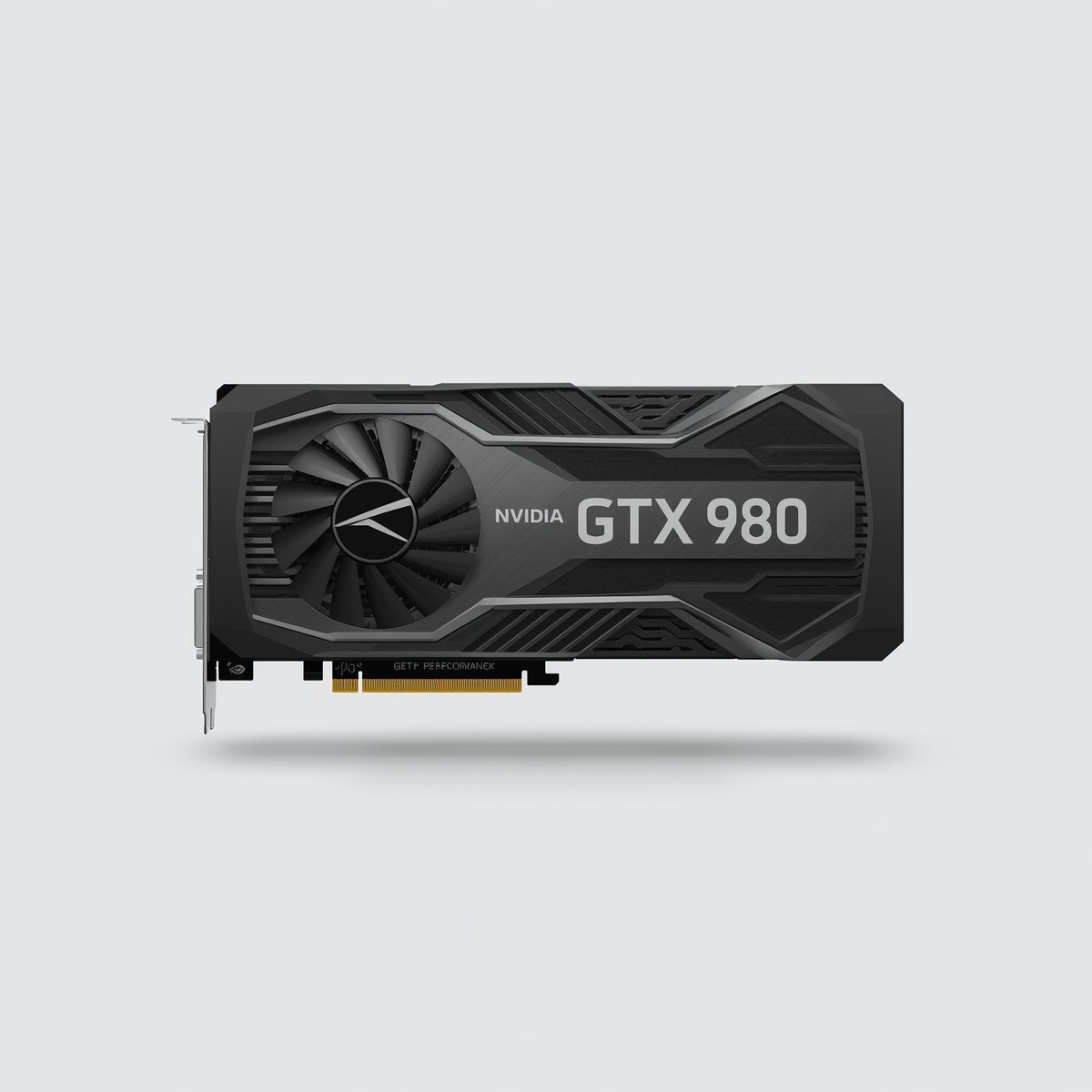
My friend Irfan, who is a professional gamer, was playing top 4K games like Red Dead Redemption 2 on high settings, but he was experiencing FPS drops and occasional lag. He told me that there might be a problem with his PC, so I asked him to try our bottleneck calculator. He selected his hardware components in the calculator, such as an Intel Core i3-13100 CPU and an NVIDIA GTX 980 GPU, and the results showed a 42% severe bottleneck. In the performance analysis section of our tool, it indicated that both the CPU and GPU were mismatched and affecting each other’s performance.


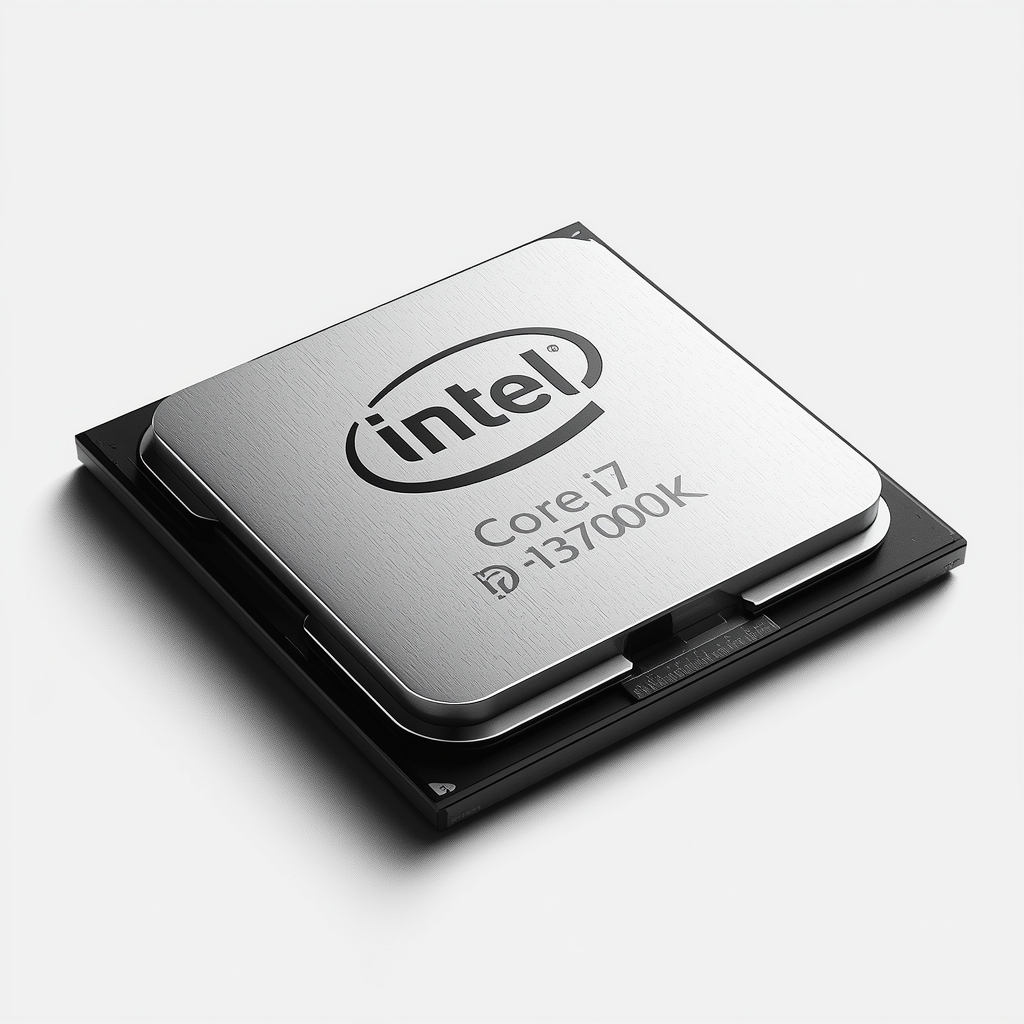
In the Optimization & Upgrades section of the bottleneck calculator, the tool recommended upgrading his hardware to an Intel Core i7-13700K CPU and an NVIDIA RTX 4080 GPU. After upgrading these components, he recalculated his system, and the results showed a 99% system health with only a 1% bottleneck.
He then played the same game on ultra settings, and all the issues he previously faced—FPS drops and lag—had disappeared. Now, he could multitask on his PC, enjoy smooth gameplay, and handle heavy workloads efficiently.

This example demonstrates how he resolved the bottlenecking issue on his PC by following smart recommendations provided by our calculator. With just a few clicks, our calculator identifies performance issues and suggests practical solutions to fix them, saving you time & money.
What is PC Bottleneck?
A PC bottleneck occurs when one component in your system slows down another or prevents your PC from running at its full potential. It’s not always about the age or quality of your parts; sometimes, even brand-new hardware can hold each other back if they aren’t balanced.
Consider a PC with a powerful graphics card and an older processor. In a competitive game at 1080p, the graphics card may be ready to produce 240 FPS, while the processor can prepare only 140 frames per second. The GPU must wait for the CPU, so the system remains close to 140 FPS. This is a CPU bottleneck.
The same PC may behave differently at 4K. Higher resolution, ray tracing, shadows, and detailed textures increase the graphics workload. The GPU may then reach its limit before the processor, creating a GPU bottleneck. This is why one hardware combination cannot have a fixed bottleneck percentage for every game and setting.
Modern upscaling and frame-generation features can increase the displayed FPS by reconstructing images or inserting additional frames. However, the processor must still handle game logic, physics, draw calls, and the base rendered frames. A higher displayed FPS number does not always mean that the original CPU limitation has been removed.
VRAM, system RAM, storage, cooling, and the monitor can also restrict the experience. Insufficient VRAM may cause texture problems or stuttering, while high temperatures can reduce CPU or GPU clock speeds. A 60Hz monitor can also prevent the user from seeing the full benefit of hardware producing a much higher frame rate.
Every PC has a limiting component under a particular workload. A balanced system keeps that limitation suitable for the selected resolution, target FPS, game type, graphics quality, and budget. A bottleneck calculator helps identify the most likely limitation, but the result may still change with game updates, drivers, temperatures, power limits, and background applications.
Signs of a PC Bottleneck
- One component stays close to full usage while the other remains underused.
- FPS does not improve much after upgrading the CPU or GPU.
- Gameplay feels uneven despite showing a high average frame rate.
- FPS drops sharply in crowded cities, battles, or simulation-heavy scenes.
- Lowering the resolution produces little or no performance improvement.
- Increasing graphics quality causes an unusually large FPS drop.
- Textures appear late, blurry, or repeatedly reload during gameplay.
- Performance becomes unstable when browsers or recording software are open.
- CPU or GPU clock speeds fall after the system becomes hot.
- The gap between average FPS and 1% low FPS remains unusually large.
Causes of a PC Bottleneck
- The CPU and GPU have a large difference in performance capability.
- A high-refresh-rate target places more pressure on the processor.
- Higher resolutions and ray tracing increase the graphics card workload.
- Limited VRAM cannot hold all the required textures and graphical data.
- Insufficient system RAM forces the PC to rely more heavily on storage.
- Single-channel or slow RAM reduces available memory bandwidth.
- Weak cooling causes the CPU or GPU to lower its operating speed.
- Laptop power limits restrict the performance of internal components.
- Background programs consume resources required by the game.
- Slow or nearly full storage delays loading and asset delivery.
- Poor game optimization creates unnecessary CPU or GPU pressure.
- Incorrect drivers, power settings, or memory profiles reduce system performance.
Types of Bottlenecks
There are many types of PC bottlenecks, and the major ones are listed below. We will also explain the reasons behind each bottleneck, how to identify them, and the solutions to fix them effectively.
1. CPU Bottleneck
A CPU bottleneck occurs when the processor cannot prepare game instructions as quickly as the graphics card can render them. The CPU manages game logic, physics, character behaviour, draw calls, and background processes. When these tasks take too long, the GPU receives fewer frames to process, reducing overall performance.
For example, a graphics card may be capable of producing 220 FPS in a competitive game, while the processor can prepare only 150 FPS. The system will remain close to 150 FPS because the GPU must wait for new instructions from the CPU.
A CPU bottleneck does not always require total CPU usage to reach 100%. Some games depend heavily on one or two cores, so individual cores may reach their limit while total CPU usage remains lower.
Signs of a CPU Bottleneck
CPU Bottleneck Causes and Solutions
| Cause | Why It Creates a Bottleneck | Recommended Solution |
|---|---|---|
| Low Core / Thread Count | Modern games and multitasking workloads rely on parallel processing; fewer cores and threads struggle to handle simultaneous tasks. | Upgrade to a modern CPU with at least 6 cores and 12 threads for balanced performance. |
| Low Clock Speeds or Weak IPC | Low clock speeds or poor instructions-per-clock (IPC) limit performance in CPU-intensive tasks. | Choose a CPU with strong single-core performance and higher IPC instead of relying only on overclocking. |
| Small CPU Cache | Limited cache increases memory access latency, reducing efficiency in games and productivity workloads. | Upgrade to a newer CPU architecture with a larger and faster L3 cache. |
| Thermal Throttling | Poor cooling causes the CPU to reduce clock speeds to prevent overheating. | Improve cooling with better airflow, quality CPU coolers, and proper Thermal paste. |
| Excessive Background Processes | Background applications consume CPU resources needed for active workloads. | Disable unnecessary startup programs and close unused background apps. |
2. GPU Bottleneck
A GPU bottleneck occurs when the graphics card takes longer than the processor to complete each frame. The GPU handles textures, lighting, shadows, shaders, reflections, ray tracing, and the final image shown on the screen. When this workload exceeds the card’s processing power or available VRAM, the CPU must wait for the GPU before the next frame can be displayed.
For example, a processor may be capable of preparing 180 frames per second, while the graphics card can render only 95 FPS at 4K Ultra settings. The system will remain close to the GPU’s limit because the graphics card cannot complete frames any faster.
A GPU bottleneck becomes more likely at higher resolutions and graphics settings. Moving from 1080p to 1440p or 4K increases the number of pixels the GPU must process, while ray tracing, high-quality shadows, and detailed effects add further load. Limited VRAM can also cause stuttering, texture pop-in, or sudden frame-time spikes when the game requires more graphics memory than the card can provide.
Upscaling may reduce the GPU workload by rendering the game at a lower internal resolution. Frame generation can increase the displayed FPS, but it does not increase the graphics card’s base rendering performance in the same way as a faster GPU.
Signs of a GPU Bottleneck
GPU Bottleneck Causes and Solutions
| Cause | Why It Creates a Bottleneck | Recommended solution |
|---|---|---|
| Old/Weak GPU | Can’t handle modern games or high-resolution workloads, causing low FPS and stuttering. | Upgrade to a latest GPU like RTX 3060/4070 or RX 6700 XT/7800 XT. |
| Low VRAM | Limited video memory slows rendering of high-resolution textures and large models. | Choose a GPU with 6GB+ VRAM (8GB+ for 4K or professional tasks). |
| Ultra Settings | Pushing graphics settings to ultra can overwhelm the GPU, causing heat and frame drops. | Reduce graphics settings to High or Medium for smoother performance and upgrade your GPU to handle Ultra settings smoothly. |
| High Resolution | More pixels to render increases GPU workload, reducing FPS. | Lower resolution or use a more powerful GPU. |
| Overheating | Poor airflow or dust causes thermal throttling, lowering GPU performance. | Clean the GPU/case, improve airflow, or upgrade cooling solution. |
| Outdated Drivers | Old or missing GPU drivers reduce stability and performance. | Keep drivers updated using GeForce Experience or AMD Adrenalin. |
3. RAM Bottleneck
A RAM bottleneck occurs when the system lacks enough memory capacity or memory bandwidth for the active workload. RAM stores the data currently used by games, applications, the operating system, and background processes.
When available RAM becomes too low, Windows moves less-used data to the page file on the storage drive. SSDs and HDDs are much slower than RAM, so frequent paging can cause stuttering, freezing, delayed app switching, and unstable frame times.
For example, a PC with 8GB of RAM may run a game normally until a browser, recording software, and background applications are opened. Once memory usage reaches its limit, the system begins transferring data to storage, causing pauses even when the CPU and GPU are capable of higher performance.
RAM performance also depends on memory channels, frequency, timings, and processor compatibility. Single-channel memory provides less bandwidth than a properly configured dual-channel setup, which can reduce performance in CPU-heavy games and systems using integrated graphics.
Memory latency measures how long RAM takes to respond to a request from the processor. Frequency and timings such as CL, tRCD, and tRP work together, so a lower CAS latency number alone does not always mean faster memory. DDR4 and DDR5 should be compared through effective latency, bandwidth, platform support, and workload performance.
Enabling XMP or EXPO allows compatible memory to run at its rated speed instead of the motherboard’s default settings. However, memory profiles must remain stable and supported by the processor and motherboard.
Signs of a RAM Bottleneck
RAM Bottleneck Causes and Solutions
| Cause | Why It Creates a Bottleneck | Recommended solution |
|---|---|---|
| Low RAM Capacity | System runs out of memory for active tasks and starts relying on slower storage. | Upgrade to 16GB for gaming or 32GB for multitasking and content creation. |
| Single-Channel Memory | Limited bandwidth slows data transfer between RAM and CPU. | Install RAM in a dual-channel configuration for better performance. |
| Slow RAM Speed | Lower memory frequency increases latency and delays data access. | Use faster RAM (3200MHz or higher) supported by your motherboard. |
| XMP / DOCP Disabled | RAM runs at default speeds instead of its rated performance. | Enable XMP (Intel) or DOCP (AMD) in BIOS. |
| Background Apps | Unnecessary programs consume RAM needed for games and workloads. | Close unused apps and reduce startup programs. |
4. Storage Bottleneck
A storage bottleneck occurs when a drive cannot read or write data quickly enough for the current workload. It mainly affects boot time, application loading, file transfers, game loading, asset streaming, and system responsiveness.
For example, a modern open-world game installed on an HDD may pause while loading textures, map data, or new areas. Moving the same game to an SSD can shorten loading times and reduce delays caused by asset delivery. However, replacing an HDD with an NVMe SSD will not always increase average FPS because the CPU and GPU still control most frame-rendering performance.
HDDs use moving mechanical parts, which makes them slower when accessing many small files. SATA SSDs provide faster access and are suitable for general use and gaming, while NVMe SSDs use PCIe bandwidth to handle heavier transfers and frequent data requests more efficiently.
Modern games can load assets while the player moves through large environments. A slow drive may cause texture pop-in, delayed objects, short pauses, or uneven frame delivery when the game cannot access the required files on time.
DirectStorage allows supported games to use high-speed storage with lower CPU overhead. Microsoft’s 2026 DirectStorage 1.4 public preview also introduced Zstandard compression support to improve asset compression and streaming, but the game must implement DirectStorage before the feature can provide a benefit.
SSD performance can also fall because of high temperature, limited free space, outdated firmware, shared motherboard bandwidth, or an incorrect PCIe connection. NVMe drives may reduce their operating speed when thermal limits are reached.
Signs of a Storage Bottleneck
Storage Bottleneck Causes and Solutions
| Cause | Why It Creates a Bottleneck | Recommended solution |
|---|---|---|
| Using an old or slow HDD | Limits read/write speeds, causing slow boot, loading, and file transfers | Upgrade to a faster SSD (preferably NVMe) |
| Low available storage | System and applications can’t cache data efficiently, slowing performance | Free up space or add additional storage |
| Fragmented files on HDD | Files are spread across the disk, increasing access time | Defragment the HDD using built-in OS tools |
| Outdated storage drivers | Old drivers reduce compatibility and slow down data access | Update drivers via manufacturer software (Intel, AMD, or motherboard vendor) |
| Incorrect BIOS storage mode | Using IDE mode instead of AHCI limits SSD performance | Switch BIOS mode from IDE to AHCI for better SSD speed |
| Excessive background disk usage | Other apps (updates, antivirus, downloads) compete for storage I/O | Pause or close unnecessary background applications |
| Slow external storage | External HDD or SD cards have lower throughput than internal drives | Use faster external drives (USB 3.2 / NVMe / Thunderbolt) |
5. Power Supply/Wattage Bottleneck
A power or wattage bottleneck occurs when the power supply cannot deliver stable power for the CPU, GPU, and other components during demanding workloads. The result may be reduced performance, crashes, restarts, or complete system shutdowns.
A higher-wattage PSU does not force unnecessary power into the hardware because each component draws power according to its needs. The important factors are usable wattage, 12V output, build quality, connector support, protection features, and the PSU’s ability to handle sudden changes in demand.
For example, a gaming PC may use around 500 watts during normal gameplay but briefly require more power when the GPU load rises. A weak or undersized 550W PSU may trigger its protection system and restart the computer, while a suitable 750W unit may handle the same load without interruption. The exact requirement depends on the selected CPU, GPU, cooling system, storage devices, and overclocking settings.
Modern graphics cards can create short power spikes that are higher than their usual operating consumption. ATX 3.1 power supplies include updated guidance for these power excursions and newer GPU power connections, including 12V-2×6 support.
The PSU must also provide the correct connectors for the graphics card. Some GPUs use standard PCIe 8-pin cables, while others require a 12V-2×6 connector or an approved adapter. NVIDIA advises users to check both the graphics card requirements and the PSU manual before connecting the card.
Signs of a Power or Wattage Bottleneck
A hot, discoloured, or damaged power connector is a safety issue rather than a normal performance limitation, so the system should be switched off until the connection is inspected.
Power/Wattage Bottleneck Causes and Solutions
| Causes | Why It Creates Bottleneck | Recommended Solution |
|---|---|---|
| Low PSU wattage | Components cannot receive enough power to perform at maximum potential | Use PSU Calculator to determine the optimal wattage for your system and upgrade the PSU accordingly |
| High-end GPU/CPU combination | The total power demand of the system exceeds the capacity of the power supply | Choose a higher-wattage PSU from a reliable PSU Tier List and ensure it meets your system requirements |
| Aging or degraded PSU | Older PSUs lose efficiency and may deliver unstable voltage to components | Replace the PSU with a newer and more efficient unit; ensure proper cooling and airflow around the PSU |
6. Thermal Bottleneck
A thermal bottleneck occurs when a component becomes too hot and automatically lowers its clock speed, voltage, or power consumption to remain within a safe temperature range. This process is called thermal throttling.
The CPU, GPU, SSD, and motherboard power-delivery components can all be affected by heat. When throttling begins, the system may lose performance even though the hardware is capable of running faster under proper cooling conditions.
For example, a processor may start a game at a big boost clock and deliver stable performance. After several minutes, its temperature may reach the thermal limit, causing the clock speed to fall. FPS and 1% low performance may then decrease until the component cools down.
High temperature alone does not always confirm a thermal bottleneck. The problem begins when heat causes clock speeds or power levels to drop, and performance becomes lower during sustained workloads.
Signs of a Thermal Bottleneck
Thermal Bottleneck Causes and Solutions
| Cause | Why It Creates a Thermal Bottleneck | Recommended Solution |
|---|---|---|
| Dust buildup | Dust blocks airflow through fans, heatsinks, filters, and ventilation openings, preventing heat from leaving the system efficiently. | Clean the fans, heatsinks, filters, and vents using compressed air while the PC is powered off. |
| Insufficient case airflow | Poor intake and exhaust airflow traps hot air inside the case, increasing CPU, GPU, motherboard, and storage temperatures. | Add correctly positioned intake and exhaust fans and keep cable routing clear of major airflow paths. |
| Weak CPU cooler | A cooler with insufficient heat-dissipation capacity may allow the CPU to reach its thermal limit during gaming, rendering, or other sustained workloads. | Install a CPU cooler rated for the processor’s power and heat output. |
| Old or poorly applied thermal paste | Dried, excessive, insufficient, or uneven thermal paste reduces heat transfer between the processor and cooler. | Remove the old paste, clean both surfaces, and apply a suitable amount of fresh thermal compound. |
| Incorrect cooler installation | Uneven mounting pressure or incomplete contact leaves gaps between the cooler and processor, causing temperatures to rise quickly. | Reinstall the cooler evenly and confirm that all mounting screws or clips are properly secured. |
| Aggressive overclocking or voltage | Higher clock speeds and voltage increase power consumption and heat, which may force the CPU or GPU to reduce performance. | Reduce the overclock, lower unnecessary voltage, or apply a stable undervolt after proper testing. |
| Incorrect fan settings | Slow or unsuitable fan curves may not increase cooling speed early enough when component temperatures begin to rise. | Adjust the fan curve through the BIOS or supported control software so fan speed increases gradually with temperature. |
| Blocked laptop ventilation | Using a laptop on a bed, sofa, carpet, or lap can block its intake vents and restrict the cooling system. | Place the laptop on a hard, flat surface and use a suitable cooling stand or pad when required. |
| High room temperature | Warm surrounding air reduces the temperature difference needed for the cooling system to remove heat efficiently. | Improve room ventilation, lower the ambient temperature, and keep the PC away from heaters or direct sunlight. |
| Failing or damaged cooling fan | A slow, damaged, or non-working fan reduces airflow across the component and may cause rapid temperature increases. | Check fan operation and replace any fan that stops, produces unusual noise, or cannot maintain its expected speed. |
| GPU heatsink or cooler limitation | A restricted heatsink, damaged fan, or weak graphics-card cooler may cause GPU clocks to fall during visually demanding workloads. | Clean the GPU cooler, improve case airflow, adjust its fan curve, or have the cooling assembly inspected when temperatures remain excessive. |
| NVMe SSD overheating | Sustained file transfers can raise the SSD controller temperature, causing the drive to reduce read and write speeds. | Install a compatible NVMe heatsink and ensure airflow reaches the storage area of the motherboard. |
| Restricted PC placement | Placing the case inside a closed cabinet or too close to a wall prevents hot exhaust air from escaping. | Leave sufficient space around the intake and exhaust vents and avoid enclosed placement. |
7. Network Bottleneck
A network bottleneck occurs when the connection between your PC, router, internet provider, and game server cannot transfer data at a sufficient speed or stability. It affects online gaming, cloud gaming, voice chat, downloads, and live streaming. Unlike a CPU or GPU bottleneck, it usually does not reduce local FPS, but it can make online gameplay feel delayed or unstable.
Network quality depends on bandwidth, latency, jitter, and packet loss. Bandwidth shows how much data the connection can transfer each second, while latency measures how long data takes to travel between your PC and the server. Jitter shows how much the latency changes, and packet loss occurs when some data fails to reach its destination.
Low Mbps becomes a problem when the connection is shared between gaming, streaming, downloads, updates, and other devices. Online games may not require very high bandwidth, but limited upload or download speed can increase delay when the connection is already busy. Cloud gaming requires more bandwidth because the full game video is streamed continuously.
Weak Wi-Fi signals can also create a network bottleneck. Distance from the router, thick walls, crowded channels, and nearby electronic devices can reduce signal quality. When wireless data is lost or damaged, it must be sent again, which can increase ping, jitter, and packet loss.
For example, a player may have a 100 Mbps internet plan but use weak Wi-Fi from another room. The speed may appear sufficient, but unstable ping can cause delayed shots, rubber-banding, missed commands, and sudden disconnections. In this case, the problem is connection stability rather than the internet plan’s maximum speed.
Signs of a Network Bottleneck
Network Bottleneck Causes and Solutions
| Cause | Why It Creates a Network Bottleneck | Recommended Solution |
|---|---|---|
| Low internet bandwidth | Limited download or upload speed may become insufficient when gaming, voice chat, streaming, updates, and other devices use the connection at the same time. | Pause unnecessary downloads and streams or upgrade to an internet plan with suitable download and upload speeds. |
| Weak Wi-Fi signal | A weak signal can reduce connection speed and cause wireless data to be retransmitted, increasing delay and connection instability. | Move closer to the router, reposition it in an open area, or use a properly placed mesh access point. |
| High latency or ping | High latency delays communication between the PC and game server, causing movement, shots, and commands to register late. | Select the nearest server region, use Ethernet, and avoid VPN routes that increase the connection distance. |
| Unstable latency or jitter | Frequent changes in ping make data arrive at uneven intervals, which can cause rubber-banding, delayed actions, and inconsistent gameplay. | Use a wired connection, reduce network congestion, and test the router for unstable wireless performance. |
| Packet loss | Missing data packets can cause teleporting players, incomplete voice chat, delayed hit registration, or disconnections from online matches. | Test through Ethernet, restart the network equipment, replace damaged cables, and contact the internet provider if loss continues. |
| Background downloads and uploads | Game updates, cloud backups, video uploads, and file transfers consume bandwidth that would otherwise be available for online gameplay. | Pause background transfers and schedule large downloads or backups outside gaming hours. |
| Upload saturation | When the upload connection becomes fully occupied, game packets must wait in a queue, causing sudden ping increases even if download speed remains available. | Limit upload speeds, pause cloud synchronization, or enable router QoS to prioritize gaming traffic. |
| Wireless interference | Nearby routers, Bluetooth devices, microwaves, and other electronics can interfere with Wi-Fi communication and increase packet retransmissions. | Change the Wi-Fi channel, move the router away from interfering devices, or use the less crowded 5 GHz or 6 GHz band. |
| Too many connected devices | Multiple phones, TVs, computers, and smart devices may compete for the router’s bandwidth and processing capacity. | Disconnect unused devices, limit nonessential traffic, or upgrade to a router designed for more simultaneous connections. |
| Distant game server | A distant server increases the physical distance that data must travel, resulting in higher ping that cannot be corrected by additional Mbps. | Select the closest available server, matchmaking region, or data center in the game’s network settings. |
| Poor ISP routing | An inefficient route between the internet provider and game server can increase latency or packet loss despite a fast home connection. | Compare different server regions, report the route problem to the provider, or test another connection to confirm the cause. |
| Outdated or overloaded router | An older router may struggle to manage modern connection speeds, several devices, and continuous gaming traffic. | Update the router firmware or replace the device with a model suitable for the internet speed and number of connected devices. |
| Wi-Fi extender delay | Some wireless extenders receive and retransmit data through the same channel, which can reduce speed and add latency. | Use a wired access point, Ethernet backhaul, or a properly configured mesh system instead of a basic repeater. |
| Damaged Ethernet cable or port | A faulty cable or network port may cause transmission errors, packet loss, disconnections, or a lower negotiated connection speed. | Replace the cable with a suitable Cat5e or better cable and test another router or motherboard port. |
| Unnecessary VPN connection | A VPN sends game traffic through an additional server, which may increase routing distance, latency, and connection instability. | Disable the VPN while gaming unless it provides a verified improvement for a specific routing problem. |
| Outdated network drivers | Old or incompatible drivers may reduce adapter stability, connection speed, or support for newer router features. | Install the latest network-adapter driver from the motherboard, laptop, or adapter manufacturer. |
| Game server congestion | An overloaded or faulty game server can cause delayed responses, disconnections, and rubber-banding for several players at once. | Check the game’s service status, try another server region, or play after the server-side problem has been resolved. |
| Insufficient cloud-gaming connection | Cloud gaming continuously transfers video and control data, so limited bandwidth or unstable latency can cause blurry visuals, input delay, and stream interruptions. | Use Ethernet or stable high-frequency Wi-Fi, stop competing traffic, and meet the cloud platform’s recommended connection requirements. |
Conclusion
Identifying and fixing PC bottlenecks is key to maximizing system performance. Whether caused by the CPU, GPU, RAM, or storage, etc. Bottlenecks can slow down even powerful setups. Bottleneck Calculator makes it easy to pinpoint issues and suggest practical upgrades or optimizations. By addressing these weak points, you can ensure smooth multitasking, faster gaming, and unlock the full potential of your PC.