How to Fix PC Bottlenecks Without Upgrading Hardware?
Many people think a slow computer always needs new parts, but that’s not true. Most performance issues are caused by system bottlenecks, and you can fix PC bottlenecks with smart adjustments rather than spending money on upgrades.
Simple steps like closing heavy background apps, updating drivers, and disabling unnecessary startup programs can quickly reduce system load. For even better performance, clean up storage, improve cooling, and adjust Windows settings.
How to Identify a PC Bottleneck Before Fixing It
Before you try to fix PC bottlenecks, you need to know which part of your system is slowing things down. You can check this using our tool, The PC Bottleneck Calculator, which analyzes your CPU, GPU, RAM, and storage usage. In the results section, if you see that one component reaches 90–100% usage while the others stay low, that component is causing the slowdown.
Common bottleneck signs include stuttering during gameplay, slow loading times, sudden FPS drops, or your PC becoming unresponsive when multiple apps are open. Once you know which area is overloaded, you can apply changes to fix that without upgrading any hardware.
Practical Ways to Fix PC Bottlenecks Without Upgrading Hardware
You can fix PC bottlenecks by reducing the load on the part of your system that is struggling for your PC to run smoothly. First of all, close heavy background apps like Chrome tabs, game launchers, and unnecessary tools that quietly eat CPU and RAM. Reducing your PC’s graphics settings, such as resolution, shadows, and textures, can help your GPU run more smoothly, which will improve game performance.
Updating your drivers, especially GPU, chipset, and storage, also removes software issues that slow down your PC components. Most drivers are automatically updated when Windows is updated. On the other hand, disabling startup programs, cleaning temporary files, and freeing up storage can give your system more breathing room. Even improving airflow, reducing dust, or adjusting power settings to “High Performance” can help your hardware deliver better speed without any upgrades.
Reduce Background Load
A heavy background load is one of the most common causes of slow performance. When apps like Chrome, Discord, game launchers, or update services keep running in the background, they quietly consume CPU and RAM that your system needs for gaming or work.
To fix PC bottlenecks in this situation, open Task Manager and close anything you’re not using. You should also disable startup programs you don’t need so your PC launches with fewer apps that are already running. This simple cleanup gives your processor and memory more room to handle the tasks that truly matter, often improving speed within seconds.
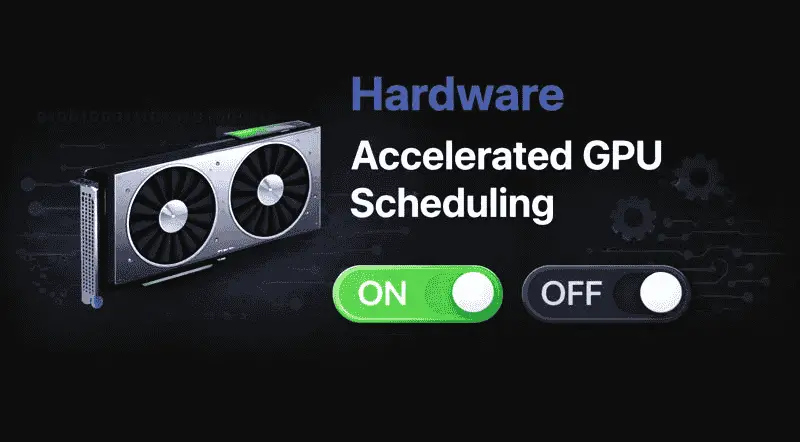
Enable hardware acceleration where supported, because applications that support hardware acceleration can offload processing tasks from the CPU to the GPU. This reduces CPU saturation in scenarios such as video playback, rendering, and browser-based workloads. Enabling these settings in software like Chrome, Adobe applications, or game launchers helps stabilize performance analytics distribution across components.
Update Drivers and System Software
Outdated drivers can slow down your system more than you might expect. When your GPU, chipset, or storage drivers are old, they can’t communicate properly with Windows, which often creates unnecessary bottlenecks.
To fix PC bottlenecks caused by software issues, make sure your graphics drivers, motherboard drivers, and Windows version are all up to date. These updates include performance improvements, bug fixes, and better compatibility for new games and apps.
Optimize Graphics Settings (Fix GPU Bottleneck)
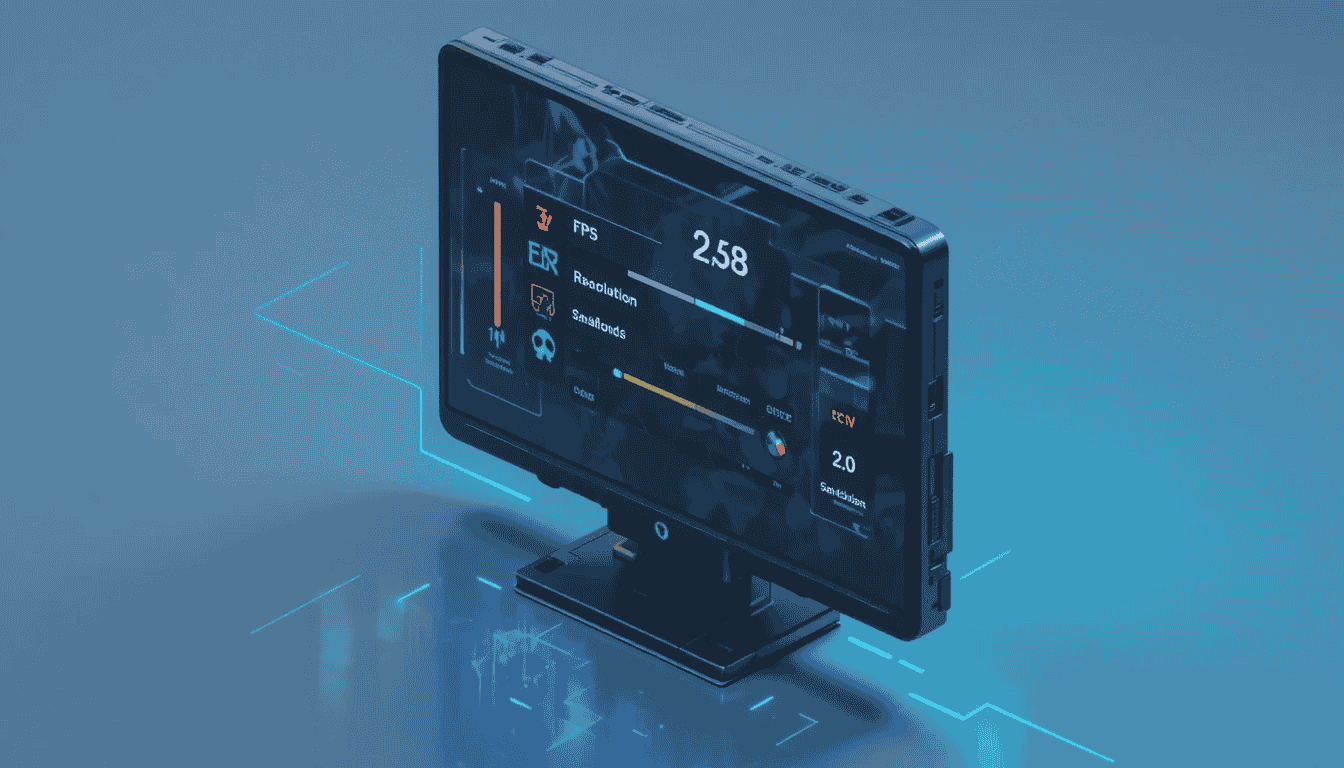
A graphics bottleneck occurs when your GPU is working harder than the rest of your system components, especially during gaming or other intensive visual tasks. If your FPS drops when the screen is busy or your GPU is running at almost 100%, it means the graphics card is working too hard.
To fix PC bottlenecks on the GPU side, start by lowering the most demanding settings like resolution, shadows, anti-aliasing, and texture quality. These adjustments reduce the workload without ruining the overall look of your game.
Enabling options like DLSS, FSR, or in-game upscaling can get a big performance boost without upgrading your hardware components. Small changes like capping your FPS or turning off motion blur help your GPU maintain a stable, smooth output instead of constantly struggling at full load.
Improve Storage Performance (Fix HDD/SSD Bottleneck )
When it comes to storage, a slow drive can make your whole system feel laggy. This occurs when you open multiple programs, load games, or transfer files. An HDD that’s constantly reading and writing data can slow down your system even if your CPU and RAM are working fine.
To fix PC bottlenecks caused by storage, start by deleting unused files, clearing temporary data, and keeping at least 15–20% of your drive free. For HDD users, defragmenting can also help speed up file access. For SSD users, enabling TRIM and avoiding constant heavy writes can help maintain long-term performance.
Fix Thermal Throttling (Fix Heat Bottleneck )
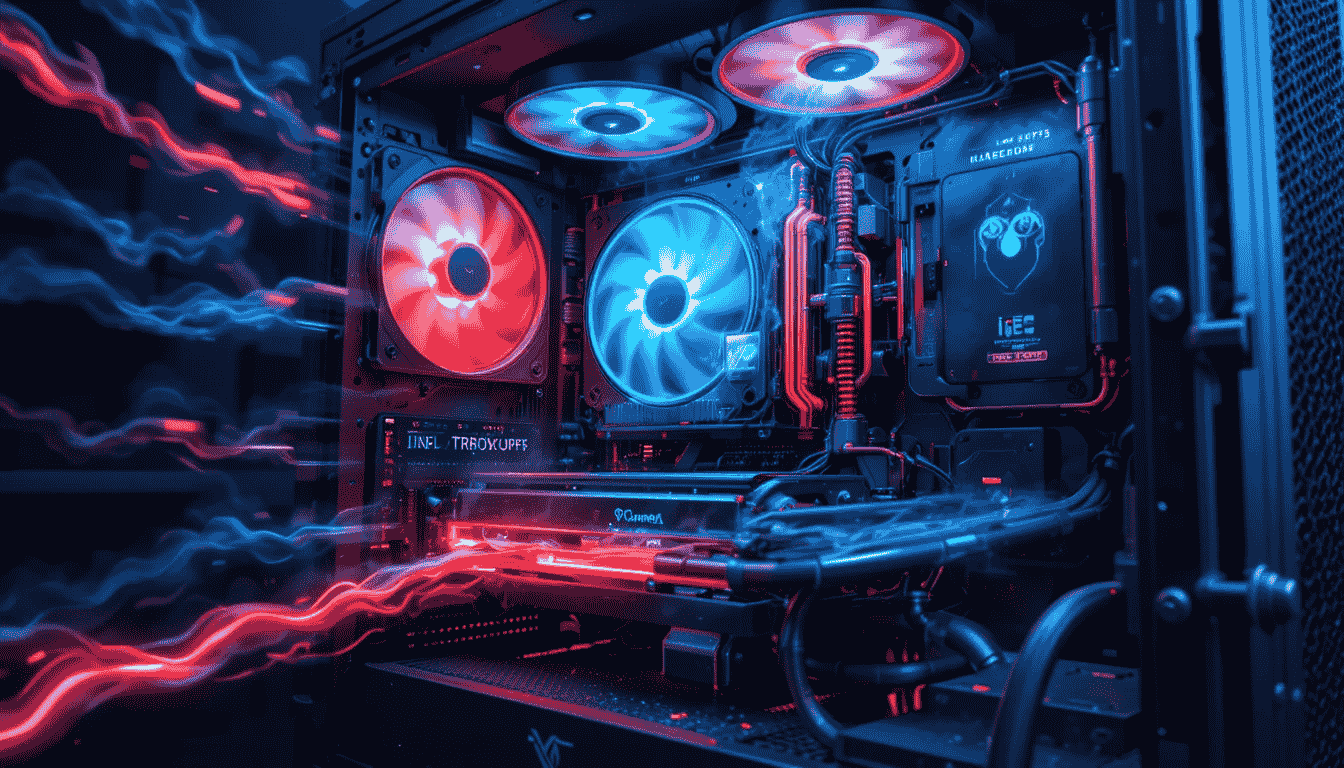
When your PC gets too hot, the system automatically slows down to protect the hardware. This is called thermal throttling. It can make even a powerful machine feel sluggish during gaming or heavy work. If your CPU or GPU temperature rises above limits, it can affect performance or even cause your PC to shut down unexpectedly.
To fix PC bottlenecks caused by heat, start with simple steps like cleaning dust from fans, improving airflow, and making sure your PC has enough open space around it. By using thermal paste, adjusting fan curves also helps to keep the temperature under control. With better cooling, your components can run at their maximum speed instead of constantly pulling back due to heat.
Keep Your PC Balanced with Regular Monitoring
Even after fixing all kinds of bottlenecks, performance can drop over time as new apps, updates, or background processes use resources. If you want to balance your system for the long term, regularly check CPU, GPU, RAM, storage usage, temperature, and disk activity using tools like Task Manager or HWMonitor. The sooner you notice these problems, the faster you can fix them, and this will be better for your system.
Conclusion
Fixing PC bottlenecks doesn’t always require buying new hardware. By identifying which components are slowing your system and applying simple fixes like closing background apps, optimizing graphics settings, updating drivers, and improving cooling, you can boost performance instantly. Regular monitoring keeps your PC balanced and responsive. These steps help your system run faster, smoother, and more efficiently without extra cost.