GPU Temperature Range | Safe, Ideal, & Tolerance Limits 2026
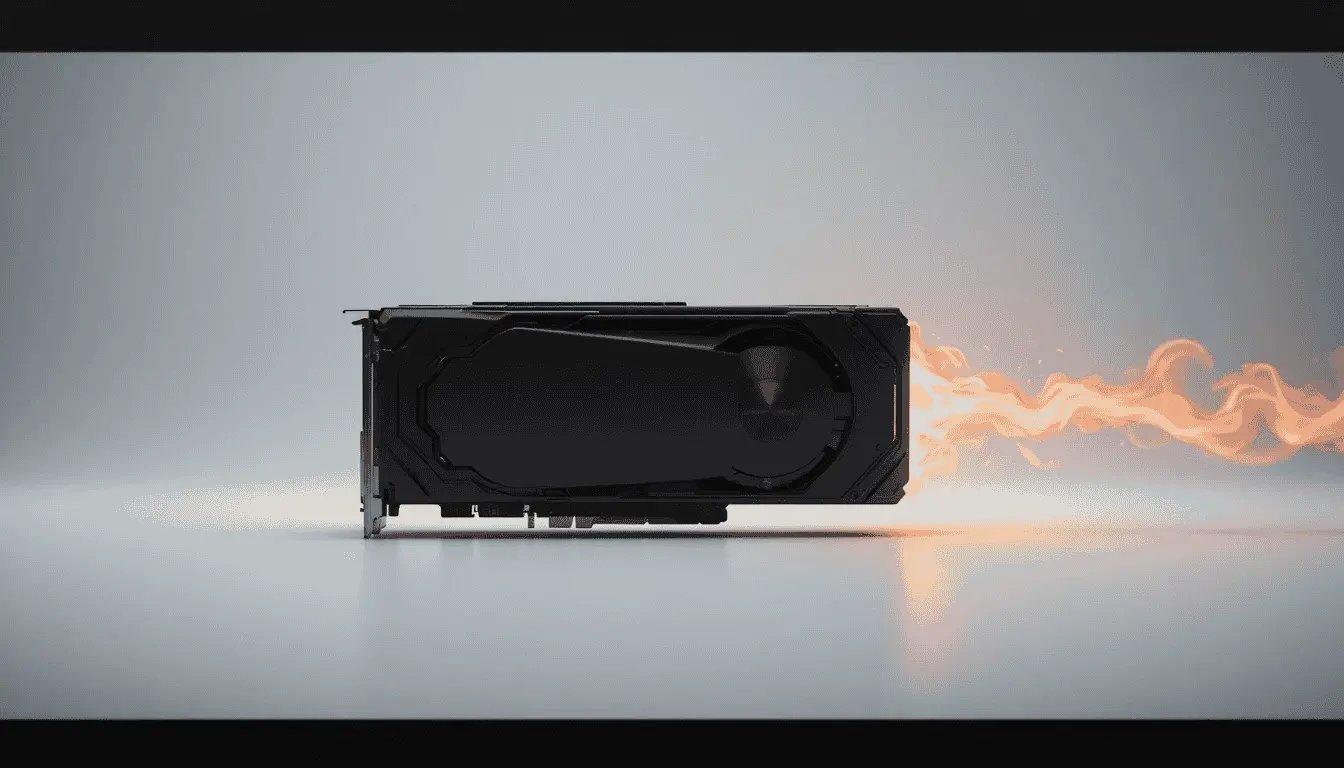
Blue Screen of Death (BSOD) errors, screen freezing, or graphics issues like dotted lines or distorted colors can occur when the GPU overheats. The GPU temperature range is 30-50°C when idle, but during gaming, it can reach 60–80°C, which is still safe for your component. If it exceeds this and you keep it unchecked, you may face many problems, including the risk of hardware damage.
| Condition | Idle | Safe | Tolerable | Throttling |
|---|---|---|---|---|
| Temperature (°C) | 30–50°C | 60–80°C | 85–90°C | 95–100°C |
How GPU Temperature increase?
GPU temperature increases primarily due to workload intensity, power draw, and cooling limitations. When the graphics cards handle gaming, rendering, or heavy tasks, they consume more power, which naturally generates more heat. This issue is more common in laptop GPUs due to their compact design, limited airflow, and shared cooling with the CPU.
In comparison, desktop GPUs have larger cooling solutions and better airflow, making heat management easier. A safe idle GPU temperature range is around 30–50°C, while under load, it usually stays 60–80°C for desktops and slightly higher for laptops, as long as it remains within the safe limit. Here are some common reasons for GPU Temperature Increase:
Safe GPU Temps Under Load
When electricity flows through a GPU, it naturally produces heat, and this heat rises as the card performs calculations, renders graphics, or handles intensive gameplay. The more complex the tasks, such as gaming at high resolutions, video rendering, or AI computations, the higher the GPU temperature.
Modern GPUs are designed to tolerate elevated temperatures without immediate damage, typically operating safely up to around 85°C under load. Understanding the safe operating temperature of your GPU helps prevent overheating and maintain long-term performance. Beyond this, GPUs may throttle performance to prevent overheating, and consistently exceeding maximum tolerances (around 90–95°C for most consumer GPUs) can reduce lifespan or damage internal components.
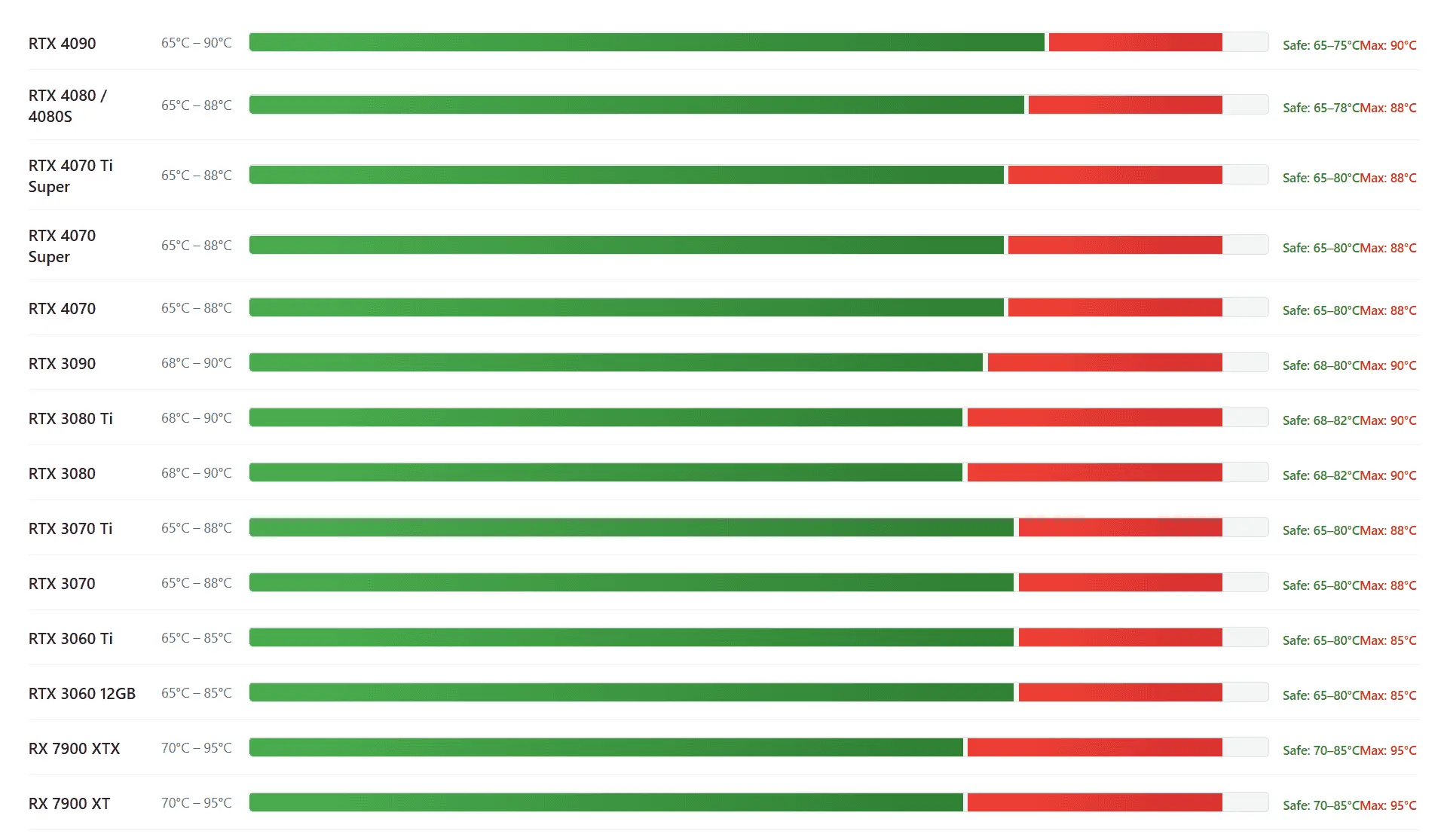
How to Check GPU Temperature?
Windows users can use the Task Manager’s “Performance” tab to see the live GPU temperature range and utilization. NVIDIA and AMD users can enable temperature overlays through GeForce Experience or Radeon Adrenalin, which display real-time readings during gaming or heavy workloads.
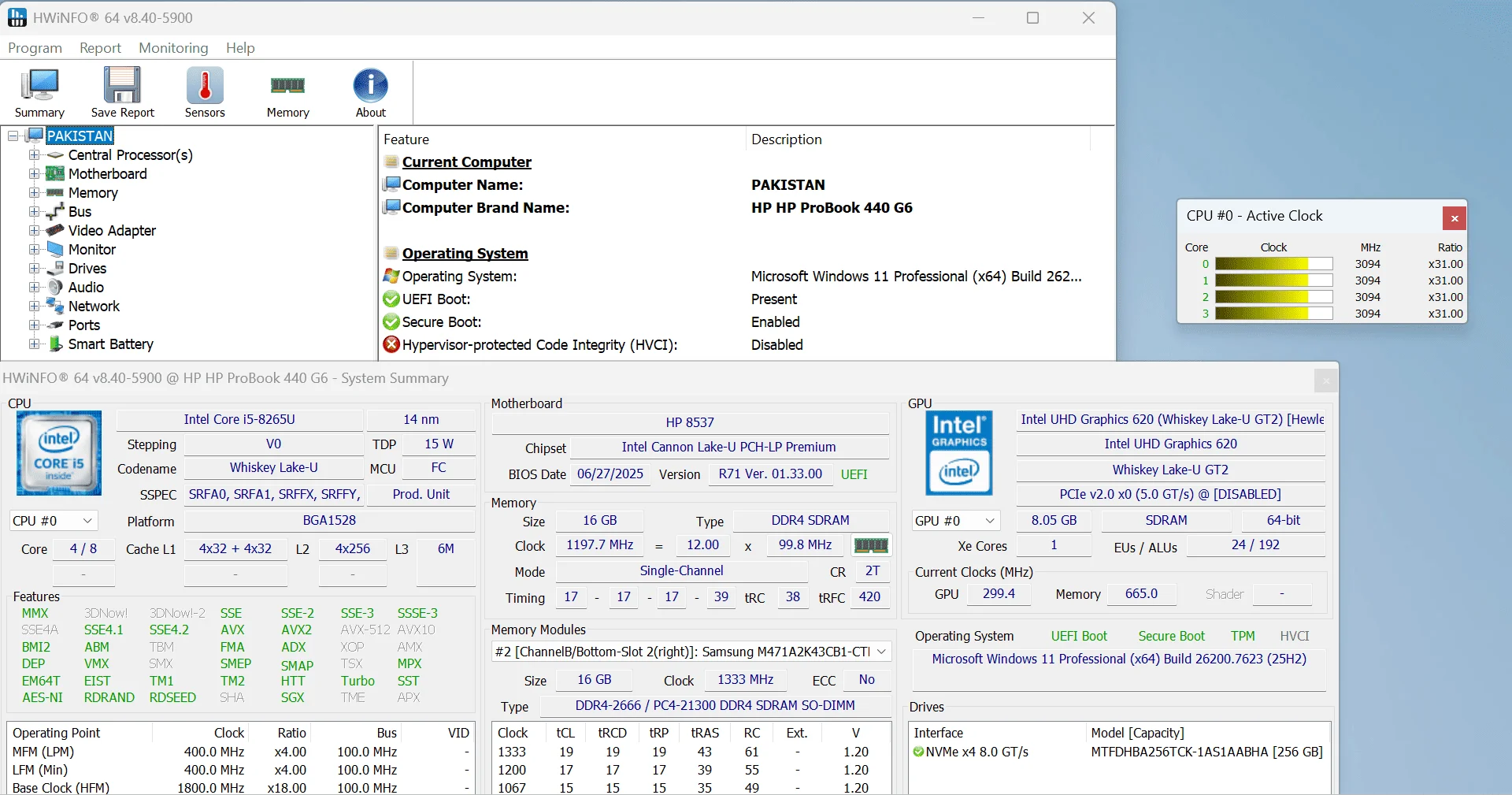
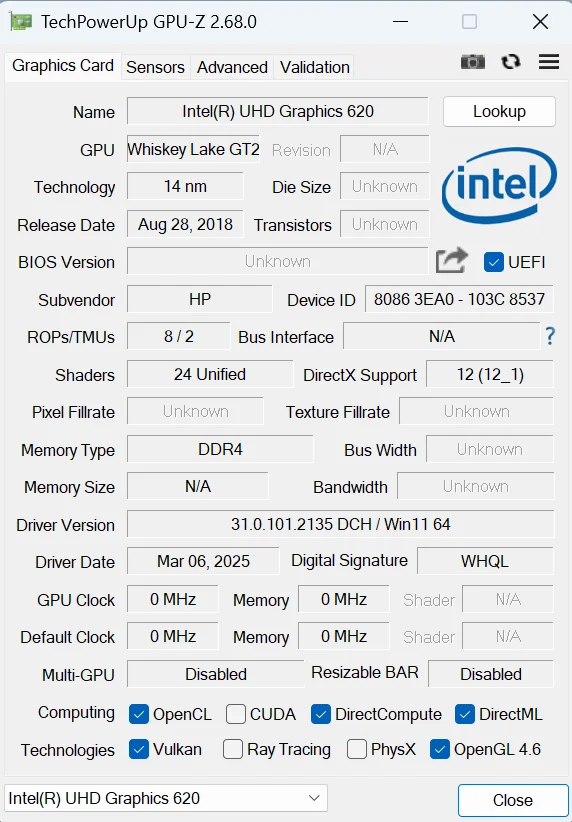
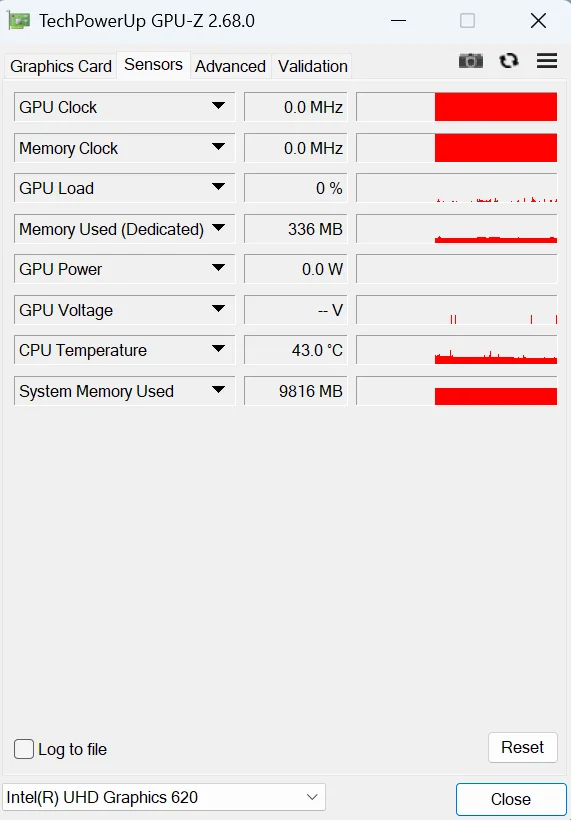
Tools like HWiNFO, GPU-Z, and MSI Afterburner provide detailed metrics including core temperature, memory junction temperature, fan RPM, clock speeds, and voltage levels. These tools also allow customizable alerts and logging, which are crucial for overclocking, rendering, or AI/ML workloads. They are also easy to install and use; it safely displays full system usage, helping users track GPU utilization, temperatures, fan speeds, and other component activity under load.
1.HWiNFO
2. GPU-Z
3.MSI Afterburner
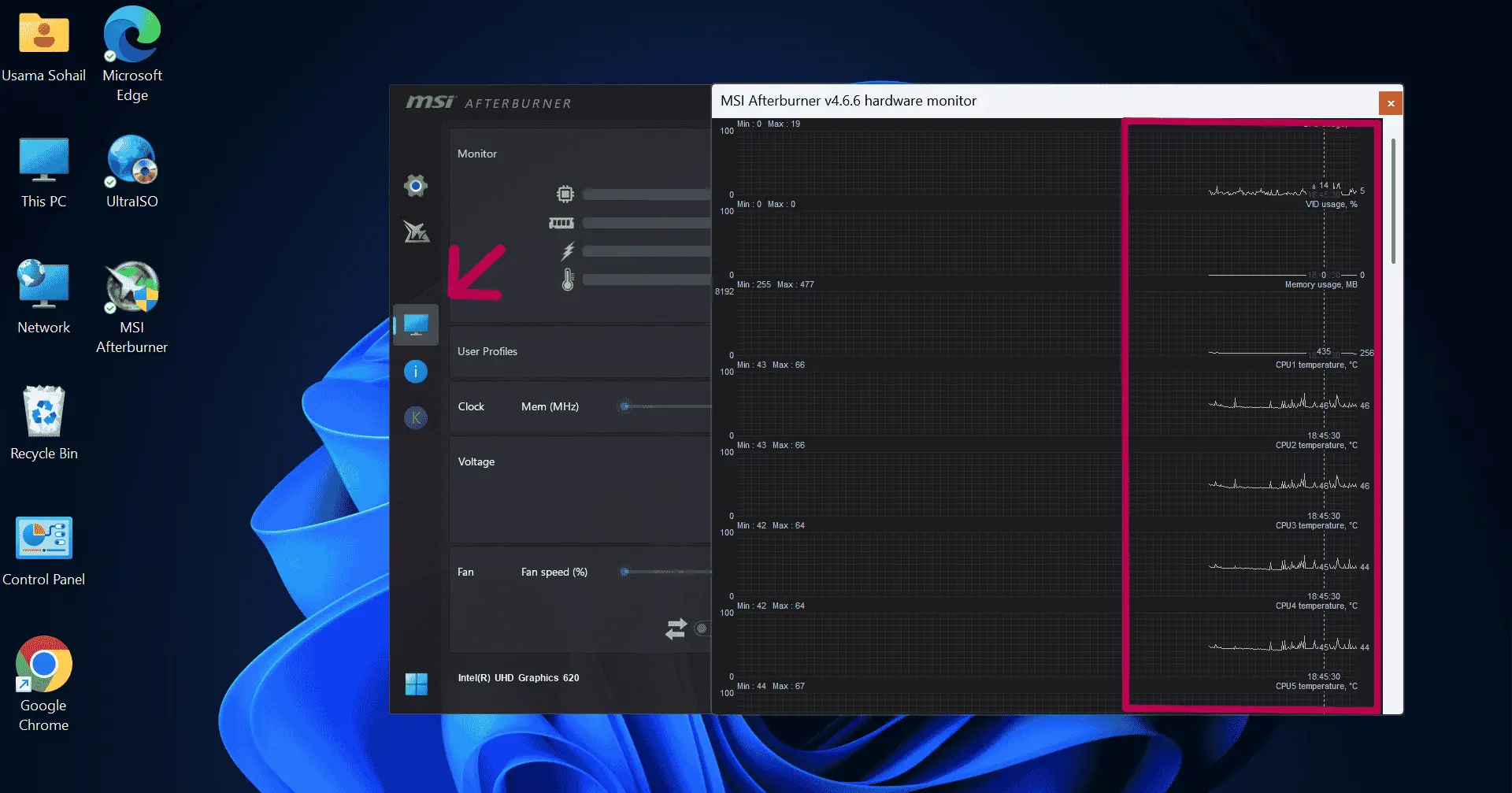
Additionally, for enterprise setups or GPU servers, monitoring dashboards track multiple GPUs simultaneously. Automated alerts and fan control triggers protect the system proactively, ensuring sustained performance without overheating.
What is Thermal Throttling?
When a GPU exceeds its safe temperature range, it may trigger thermal throttling to prevent permanent damage. This process automatically reduces clock speed and voltage, lowering performance but stabilizing temperatures. Thermal throttling protects your GPU from overheating, which can otherwise cause frame drops, stuttering, or even hardware failure during gaming, rendering, or AI/ML workloads.
Continuous operation beyond safe limits, even with throttling, can shorten GPU lifespan, degrade components, and increase fan noise as the cooling system works harder. Monitoring core, hotspot, and memory junction temperatures ensures you catch overheating early and maintain consistent performance while preserving long-term GPU health.
GPU Core Temperature vs Hotspot vs Memory Junction
GPU core temperature is the average heat reading that typically appears in Task Manager or GPU driver software and reflects the overall thermal state of the main graphics processor. Hotspot temperature shows the hottest point inside the GPU, where load and power density are highest, which is why hotspot values are always noticeably higher than the core temperature.
Memory junction temperature measures the actual heat of the GPU’s video memory (VRAM), which plays a direct role in performance and stability on modern graphics cards. In many cases, the core temperature stays within a safe range, but high hotspot or memory junction temperatures can still cause throttling, stuttering, and long-term thermal stress, making it important to evaluate all three readings together for accurate GPU temperature analysis.
GPU Undervolting and Power Management
GPU undervolting means running your GPU at slightly lower voltage than its factory settings. This reduces power consumption and lowers heat without significantly affecting real-world performance. When done correctly, the GPU maintains stable clock speeds while temperatures drop by 5–10°C during heavy tasks like gaming or rendering, which also reduces the risk of thermal throttling and protects long-term GPU health.
Modern GPUs come with advanced power management features like dynamic clock adjustments and thermal-aware performance scaling. Combining undervolting with these in-built management systems efficiently controls system temperatures and noise levels. This approach works well for both desktops and laptops, ensuring consistent performance while enhancing energy efficiency.
Best GPU Cooling Solutions
Air Cooling (Fans)
The most common solution. Modern GPUs come with strong fans and heatsinks that disperse heat efficiently. In desktop setups, high-CFM case fans and optimized intake/exhaust airflow can lower temperatures by 5–10°C. Air cooling is relatively cheap and easy to maintain, but it has limits under extreme workloads.
Liquid Cooling
Liquid cooling comes in AIO (All-In-One) or custom loop designs. It transfers heat efficiently through coolant and keeps the GPU at lower temperatures, often in the 60–70°C range, even under heavy load. It runs quietly and is ideal for overclocking, though installation and maintenance are slightly more complex.
Immersion Cooling
The most advanced and costly method. GPU components are immersed in a specially designed dielectric liquid, which absorbs heat almost instantly. This method is ideal for large-scale AI/ML servers or mining rigs, keeping temperatures consistently below 65°C. It offers unmatched energy efficiency and longevity, but requires a sophisticated and expensive setup.
Moreover:
Conclusion
Monitoring and managing the GPU temperature range is essential for maintaining performance, stability, and long-term hardware health. Understanding why temperatures rise, knowing safe idle and load ranges, and using tools like Task Manager, MSI Afterburner, or driver overlays helps users make informed decisions.
Implementing strategies such as proper airflow, cleaning dust, adjusting fan curves, or using advanced cooling solutions ensures your GPU stays within safe limits even under heavy gaming, rendering, or AI workloads. Combined with techniques like undervolting and responsible overclocking, these practices protect your GPU, reduce thermal stress, and extend its lifespan, allowing consistent performance without compromising component reliability.