
MacOS Architecture Features and Working Mechanism

macOS is an operating system by Apple for Mac computers, including MacBook, iMac, Mac mini, Mac Studio, and Mac Pro. It is designed to manage the main parts of a Mac, such as the processor, memory, storage, graphics, apps, security, and user interface. This system allows users to run software, manage files, connect devices, browse the internet, edit media, and complete daily work through a stable and controlled environment.
Apple built macOS with a strong focus on performance, security, and smooth hardware integration. Since Apple controls both the Mac hardware and the operating system, macOS can work closely with Apple silicon chips, unified memory, APFS storage, battery management, and built-in security layers. This connection helps MacBooks deliver consistent performance in tasks like office work, content creation, programming, browsing, and multitasking.
macOS Architecture
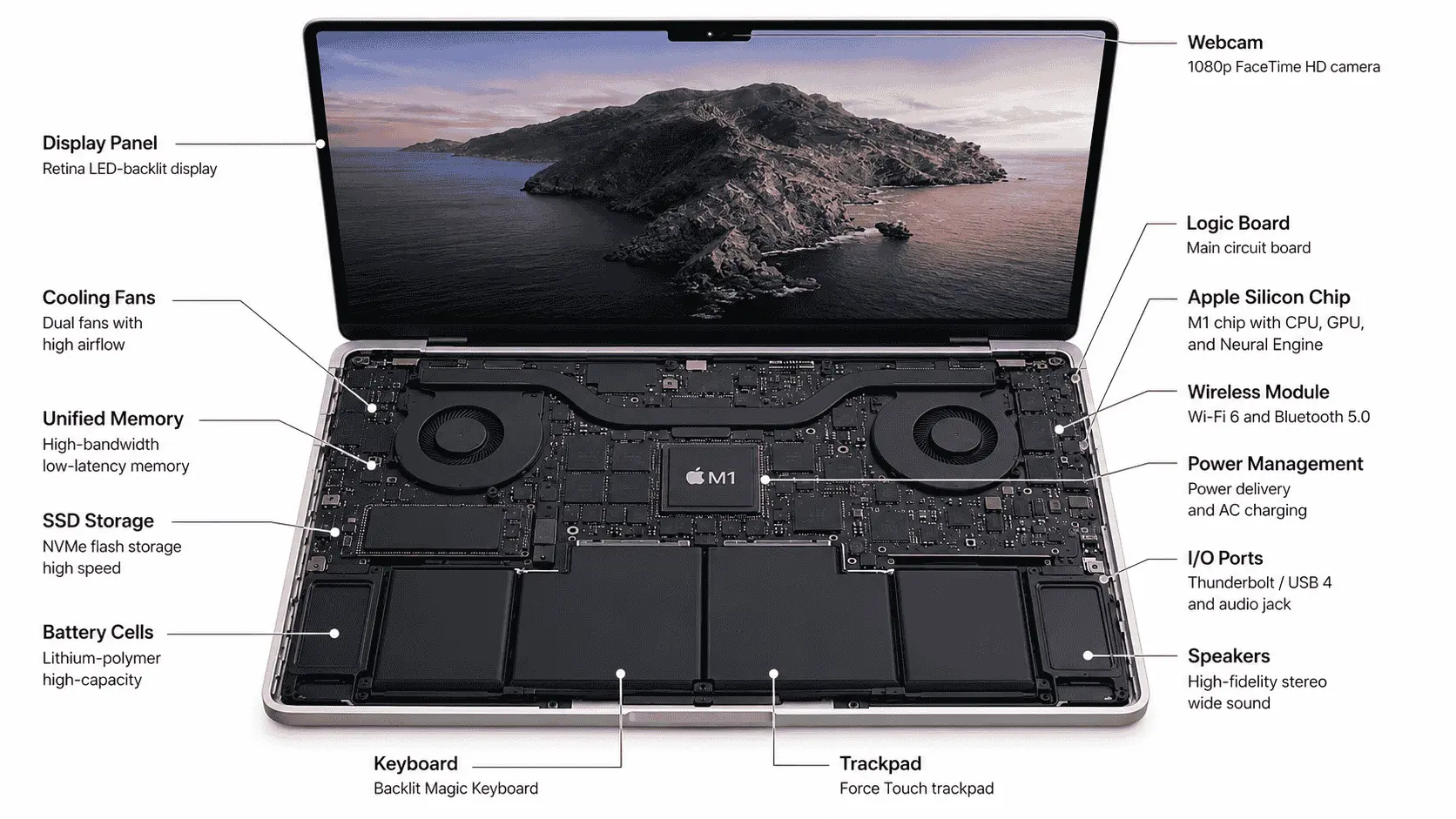
macOS architecture is built in layers. Each layer has a specific role, and these layers work together to run apps, manage hardware, protect data, handle files, and show the desktop interface to the user. When a MacBook performs any task, macOS does not depend on a single component. It uses hardware, kernel, system services, file system, app frameworks, and user interface together.
Hardware Layer
The hardware layer includes the physical parts of a Mac. This layer contains the CPU, GPU, memory, storage, display, battery, keyboard, trackpad, speakers, camera, ports, and wireless chips. These parts provide the actual power needed to run the system.
On Apple silicon Macs, many important parts are closely connected inside the same chip design. The processor, graphics, memory controller, Neural Engine, and security components work with macOS in a controlled way. This helps the system handle apps, graphics, battery usage, and background tasks more efficiently.
Kernel Layer
The kernel is the core part of macOS. It works between the hardware and the rest of the operating system. Its main job is to manage CPU usage, memory allocation, running apps, hardware drivers, and system resources.
When a user opens an app, the kernel helps decide how much processing power and memory the app can use. It also manages communication between apps and hardware. For example, when an app needs storage, internet, audio, or camera access, the request passes through system controls before the hardware is used.
File System Layer
The file system layer manages files, folders, storage space, permissions, and data organization. macOS uses APFS, which is designed for modern SSD storage. It helps the system read, write, move, copy, and protect data in an organized way.
APFS also supports encryption, snapshots, and better space management. This matters because storage is not only about saving files. It also affects app loading, system updates, backups, recovery, and overall MacBook response.
System Services Layer
The system services layer handles many background functions that users depend on every day. This includes networking, Wi-Fi, Bluetooth, printing, audio, graphics, notifications, location services, power management, and device connections.
These services allow apps to use system features without controlling the hardware directly. For example, a video-calling app does not manage the camera hardware by itself. It requests access through macOS services, and macOS checks permissions before allowing the app to use the camera or microphone.
Application Framework Layer
The application framework layer gives developers the tools needed to build Mac apps. These frameworks help apps create windows, buttons, menus, graphics, audio, animations, file access, notifications, and other features.
This layer is important because it keeps app development more organized. Instead of building every feature from scratch, developers use Apple frameworks to connect their apps with macOS features. This helps apps behave consistently across the system.
User Interface Layer
The user interface layer is the part of macOS that users see and interact with. It includes the desktop, Dock, Finder, Menu Bar, windows, icons, Settings, Control Center, notifications, and app menus.
This layer makes the system easier to control. When a user clicks an icon, opens Finder, changes a setting, or switches between apps, the user interface sends those actions to the lower layers of macOS. The lower layers process the request, and the result appears back on the screen.
Main Features of macOS
macOS includes several features that make Mac computers stable, secure, and easy to use. These features work together to manage apps, files, hardware, security, storage, and daily tasks. The main purpose of macOS is to give users a smooth system where they can work, create, browse, communicate, and manage data without dealing with too many manual settings.
Clean User Interface
macOS has a clean and organized user interface. The Dock gives quick access to frequently used apps, while Finder helps users manage files, folders, downloads, drives, and connected devices. The Menu Bar keeps important app controls and system options at the top of the screen, so users can find settings without opening multiple windows.
Mission Control helps users manage open apps and desktops when they are working on several tasks at the same time. Spotlight makes it easy to search apps, files, settings, emails, calculations, and quick information from one search box. This simple layout is one reason many users find macOS easy to learn, even when they are new to Mac.
Strong Hardware Integration
macOS is closely designed for Apple hardware. Apple controls both the operating system and the Mac hardware, which helps macOS communicate properly with the processor, memory, storage, battery, display, speakers, camera, keyboard, and trackpad. This controlled design helps MacBooks deliver stable performance in daily tasks.
Apple silicon chips also improve this integration. The CPU, GPU, Neural Engine, and unified memory work together inside the same system design, which helps macOS handle multitasking, creative apps, browsing, video calls, and media editing more efficiently. Battery management is also handled carefully, so MacBooks can balance performance and power usage according to the task.
Built-in Security
macOS includes built-in security features that protect the system from unsafe apps, unauthorized access, and unwanted changes. Gatekeeper checks downloaded apps before they run, while app permissions control access to the camera, microphone, location, files, contacts, and other sensitive areas. This gives users more control over what each app can use.
FileVault protects stored data through encryption, which is useful if a MacBook is lost or stolen. System Integrity Protection helps protect important system files from being changed by apps or malware. App sandboxing keeps apps within controlled limits, so one unsafe or faulty app has less chance of affecting the whole system.
APFS Storage System
macOS uses Apple File System, commonly called APFS. This file system is designed for modern SSD storage and helps macOS manage files, folders, app data, backups, and system volumes more efficiently. It supports features such as snapshots, encryption, fast directory sizing, and better space management.
APFS also helps with system reliability. Snapshots can preserve the state of the system at a specific point, which can be useful during updates or recovery. For MacBook users, APFS plays an important role in file speed, data protection, and storage organization.
Apple Ecosystem Support
macOS works closely with other Apple devices such as iPhone, iPad, Apple Watch, and iCloud. This connection helps users move between devices without repeating the same work manually. AirDrop allows quick file sharing between Apple devices, while Handoff lets users continue supported tasks from one device to another.
iCloud Drive keeps files available across devices when syncing is enabled. Messages and FaceTime allow users to communicate from a MacBook without switching to an iPhone. Universal Clipboard lets users copy content on one Apple device and paste it on another. These features are useful for users who already work inside the Apple ecosystem.
Built-in Productivity Tools
macOS includes built-in tools for browsing, writing, planning, file handling, automation, and document viewing. Safari is used for web browsing, Mail handles emails, Notes stores quick information, Calendar manages schedules, and Preview opens PDFs and images without installing extra software. Finder and Quick Look also help users open, check, and manage files quickly.
Shortcuts are useful for users who want to automate repeated actions. It can handle file tasks, text actions, link sharing, image actions, and simple workflows. For example, a MacBook user can create a shortcut to resize images, save copied text, organize files, or prepare quick sharing links.
QR code generation also fits into this workflow, as Mac users often need a fast way to share links, Wi-Fi details, documents, support pages, and product information. According to Scanova, QR Code creation grew by 301.51% from FY 2020-21 to FY 2023-24, with an annual growth rate of 38.11%, which shows that QR codes are now used more often in business, education, packaging, and digital sharing.
Must-read methods to create a QR code on Mac.
Memory and Storage Management in macOS
Memory and storage management directly affect how fast a Mac feels during daily use. When a user opens an app, macOS assigns memory to that app according to its requirements and the current system load. Active apps usually get more resources because they need a quick response, while background apps receive limited resources so they do not slow down the main task.
This resource control helps macOS reduce unnecessary pressure on the system. For example, if a user is editing a video, browsing with several tabs, and running messaging apps at the same time, macOS tries to keep the active work smooth by managing memory priority. If the system runs low on available memory, macOS can use storage space as temporary memory, but this is slower than using physical RAM.
This is where bottlenecks can appear. If a MacBook has limited memory and the user runs heavy apps, the system may need to move more data between RAM and SSD. This can affect app response, multitasking, browser performance, and editing workflows. A fast processor alone cannot solve this issue if memory or storage becomes the limiting factor.
Storage is managed through APFS, which helps macOS organize files, system data, app data, backups, snapshots, cache, and temporary files. Cache files help apps load data faster, while temporary files support active processes during updates, downloads, editing, and browsing. macOS handles most of this in the background, but low storage space can still reduce system performance.
SSD speed also plays an important role in MacBook performance. A faster SSD helps apps open quickly, files transfer faster, and system tasks respond better. If storage becomes slow or almost full, the Mac may feel less responsive even when the processor is powerful. For this reason, memory capacity, SSD speed, and free storage space all matter when checking performance issues or possible bottlenecks on a Mac.
macOS Security Mechanism
macOS includes several security features that protect apps, files, system settings, and user data. These features work in different areas of the system, from app installation to file encryption and system-level protection. The goal is to reduce unsafe access without making normal tasks difficult for the user.
Gatekeeper
Gatekeeper checks apps downloaded from the internet before they run on a Mac. It helps confirm whether an app comes from an identified developer and whether it meets Apple’s security checks. If an app looks unsafe or comes from an unknown source, macOS can warn the user or block the app from opening.
This feature is useful because many security problems start when users install unknown software. Gatekeeper reduces that risk by adding a check before the app gets access to the system.
FileVault
FileVault protects the data stored on a Mac by encrypting the storage drive. When FileVault is enabled, the files on the Mac are locked behind encryption and can only be accessed after proper login. This is useful if a MacBook is lost, stolen, or accessed by someone without permission.
For users who store business files, client data, personal documents, or project files, FileVault adds an important layer of protection. It does not improve performance, but it protects stored data from unauthorized access.
App Permissions
macOS asks for permission before apps can access sensitive areas such as the camera, microphone, location, contacts, photos, files, and screen recording. This gives users control over what each app can use.
For example, a video meeting app may need camera and microphone access, but a simple note-taking app should not need those permissions. This permission system helps users identify apps that ask for more access than they need.
System Integrity Protection
System Integrity Protection protects important macOS system files and folders from unwanted changes. Even if an app has strong access, it cannot freely modify protected system areas. This helps keep the operating system stable and reduces the chance of system-level damage.
This feature matters because system files control how macOS starts, runs, updates, and manages core functions. If these files are changed by unsafe software, the Mac can become unstable or insecure.
App Sandboxing
App sandboxing keeps apps inside controlled limits. A sandboxed app can only access the files, settings, and system areas that it is allowed to use. If an app has a bug or security issue, sandboxing helps stop that problem from spreading across the whole system.
This protection also supports system stability. When one app creates a problem, macOS can limit its effect so the complete system does not fail. For users, this means fewer risks from poorly designed apps and better control over app behavior.
Conclusion
macOS is built to give Mac users a stable, secure, and organized computing experience. Its architecture connects the hardware layer, kernel, file system, system services, app frameworks, and user interface so every task can move through the system in a controlled way. When a user opens an app, saves a file, connects a device, changes a setting, or runs a creative tool, macOS manages the process through these layers.
MacBook performance depends on more than the processor. Memory, SSD speed, storage space, background apps, APFS, and Apple silicon integration all affect how smooth the system feels. If one part becomes too limited, such as RAM or storage, the Mac can still face performance bottlenecks during heavy multitasking, editing, browsing, or development work.
The system also includes useful productivity tools such as Finder, Spotlight, Preview, Safari, Mail, Notes, Calendar, Shortcuts, and Quick Look. These tools help users manage files, automate tasks, share information, and complete daily work more easily. Features such as QR code generation also show how macOS can support simple sharing workflows for links, Wi-Fi details, documents, support pages, and business resources.