CPU Bottleneck vs GPU Bottleneck | Signs, Causes, Diagnosis, and Fixes
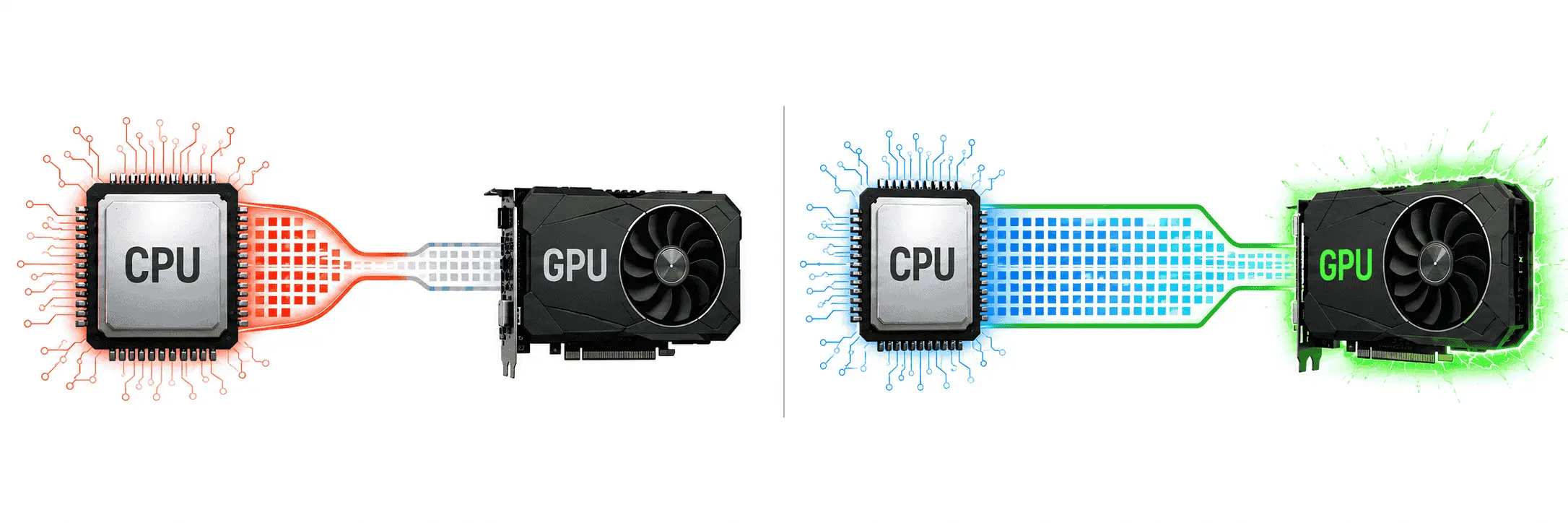
Most PC performance problems, such as FPS drops, stuttering, slow response times, unstable frame pacing, and poor gaming performance, are often linked to CPU or GPU bottlenecks. These two components handle most of the performance load in a gaming PC. The CPU prepares frames, processes game logic, handles background tasks, and sends instructions to the graphics card. The GPU renders the final image by handling resolution, textures, shadows, lighting, effects, and other graphics settings.
When one of these components cannot keep up with the other, the system starts losing performance. A powerful GPU may still deliver low FPS if the CPU cannot feed it fast enough. A strong CPU may also sit with unused capacity if the GPU is too weak for the selected resolution or graphics settings. In some cases, crashes can also happen when the CPU or GPU is under heavy stress, overheating, power-limited, or affected by unstable drivers or poor system balance.
One of the most important things is to go to BottleneckCheck before upgrading anything, because their bottleneck calculator can give you a quick estimate, but a proper diagnosis should also include CPU usage, GPU usage, temperatures, clock speeds, RAM speed, VRAM usage, and frame time during actual use.
CPU Bottleneck vs GPU Bottleneck | Quick Comparison
| Checkpoint | CPU Bottleneck | GPU Bottleneck |
| Main limit | CPU frame preparation, game logic, main thread, background tasks | GPU rendering, resolution, graphics effects, VRAM load |
| GPU usage | Often below 90% while FPS is low | Usually 95–100% |
| CPU usage | One core/thread or full CPU may be heavily loaded | Usually has spare capacity |
| FPS behavior | Stutters, uneven frame time, poor 1% lows | Lower FPS, often smoother frame pacing if clocks are stable |
| Graphics settings test | Lowering graphics gives little FPS gain | Lowering graphics gives a clear FPS gain |
| Resolution test | Increasing resolution may not reduce FPS much | Increasing resolution usually reduces FPS clearly |
| Common trigger | 1080p high-FPS gaming, simulation, open-world CPU load | 1440p, 4K, ultra settings, ray tracing, high textures |
| First things to check | CPU temp, clock speed, RAM channel, background apps | GPU temp, VRAM, power limit, drivers, graphics settings |
Use this section as a quick filter. If the GPU is not fully used while the FPS is low, the CPU side needs attention. If the GPU is fully loaded and FPS improves after lowering resolution or graphics settings, the GPU is likely the limit. If temperatures are high or clocks are dropping, the issue may be thermal throttling instead of a simple CPU or GPU mismatch.
What Is a CPU Bottleneck?
A CPU bottleneck happens when the processor cannot prepare and send work to the graphics card fast enough. In gaming, the CPU handles tasks such as game logic, physics, AI behavior, player input, draw calls, background processes, and frame preparation. If the CPU is too slow for the GPU, the graphics card waits for data instead of running at its full capacity. Intel explains this type of bottleneck as a condition where GPU performance is restrained by CPU limitations, which can result in fewer frames per second.
A CPU bottleneck does not always mean the processor is fully broken or useless. It usually means the CPU is the limiting part under a specific workload, game, resolution, refresh rate, or system condition. The same CPU may perform well at 1440p high settings with a mid-range GPU, but it may limit performance at 1080p low settings with a high-end GPU because the system is trying to produce more frames per second.
Modern CPU performance depends on more than clock speed. Core count, thread count, architecture, cache size, power limits, memory speed, and cooling all affect how fast the processor can complete work. Intel also notes that gaming CPU performance depends on factors such as cores, cache efficiency, and power consumption, along with clock speed.
Why CPU Bottleneck happen?
A CPU bottleneck starts when the processor becomes the slowest part of the performance chain. In a gaming PC, the GPU can only render frames after the CPU has prepared the instructions. If the CPU takes too long to process game logic, physics, draw calls, or background tasks, the GPU usage drops and the frame rate becomes unstable.
This is why CPU bottlenecks are common in high-FPS gaming. At lower resolutions like 1080p, the GPU has less graphical work to do, so the CPU must prepare frames quickly enough to match the GPU. If the CPU cannot keep pace, lowering graphics settings may not improve FPS much because the graphics card is already waiting for the processor.
Common Causes of CPU Bottleneck
1. Weak or Old Processor
An old or entry-level CPU can limit a powerful graphics card. This usually happens when the GPU is capable of producing more frames, but the processor cannot handle the game logic and frame preparation fast enough.
This issue is common when users pair a high-end GPU with an older 4-core or 6-core processor. The GPU may look strong on paper, but the final performance depends on how quickly the CPU can feed it.
2. Low Core and Thread Count
Modern games and applications can use multiple cores and threads for physics, AI, asset loading, background tasks, audio processing, shader compilation, and system services. A CPU with too few cores may struggle when the game, Discord, browser tabs, recording software, launchers, and Windows tasks are running together.
A 4-core CPU can still run many games, but it is more likely to show stuttering in newer open-world games, multiplayer games, simulation titles, and content creation workloads. A 6-core or 8-core CPU usually gives better breathing room for gaming and background tasks, while high-core CPUs help more in rendering, compiling, production, and multitasking workloads.
3. Weak Single-Core Performance
Some games still depend strongly on one or two main CPU threads. This is common in esports games, older game engines, simulation games, strategy games, and titles with a strong main-thread workload.
In this case, total CPU usage may not show 100%, but one core may already be fully loaded. The user may see low GPU usage, unstable FPS, and frame time spikes even though Task Manager shows the CPU at only 50–70% overall usage. This happens because the game is limited by the speed of the busiest CPU thread, not by the full processor package.
4. Low Clock Speed or Poor Boost Behavior
Clock speed affects how quickly a CPU completes instructions, but boost behavior matters more than the advertised maximum speed. A CPU may have a high boost clock on paper, but poor cooling, strict motherboard power limits, or weak VRM design can stop it from holding that speed during gameplay.
If the CPU clock keeps dropping during a game, the bottleneck may look like a weak processor problem even when the actual reason is heat, power limit, or motherboard settings.
5. Small or Inefficient Cache
CPU cache helps the processor access frequently used data quickly. Games that are sensitive to memory latency can benefit from larger and more efficient cache designs. AMD’s 3D V-Cache technology is built around stacked cache and is used in Ryzen gaming processors to improve performance in cache-sensitive workloads.
A CPU with weak cache behavior may show lower 1% lows, more frame time variation, or lower FPS in certain games, even if its clock speed looks good. This is one reason why two CPUs with similar core counts and clock speeds can perform differently in gaming.
6. Slow RAM Speed or High Memory Latency
The CPU depends on system memory to access game data, background processes, and active application files. Slow RAM, high latency, or disabled memory profiles can reduce CPU performance, especially in CPU-bound games.
On modern AMD platforms, AMD EXPO provides memory overclocking profiles for AM5 Ryzen systems, while many Intel and AMD systems also use XMP profiles depending on the motherboard and RAM kit. AMD describes EXPO as a user-friendly way to enable DDR5 memory overclocking profiles for Ryzen systems.
If RAM is running at the default speed instead of its rated profile, the CPU may lose performance. This can affect average FPS, but it often hurts 1% lows and frame pacing more clearly.
7. Single-Channel RAM
Single-channel RAM gives the CPU less memory bandwidth than dual-channel RAM. This can make a CPU bottleneck worse because the processor cannot move data as efficiently.
A common example is one 16GB stick instead of two 8GB sticks. The capacity may look fine, but the bandwidth is lower. In CPU-sensitive games, this can create stutters, lower minimum FPS, and slower asset handling.
8. Background Apps and System Load
A CPU bottleneck can become worse when too many background apps are active. Browsers, game launchers, Discord, antivirus scans, RGB software, recording tools, update services, and overlays can all use CPU time.
This is more noticeable on older processors or CPUs with fewer cores. A game may run smoothly after a fresh restart, but begin stuttering when multiple apps are open. That pattern usually points toward CPU scheduling pressure, memory pressure, or both.
9. CPU Thermal Throttling
Thermal throttling happens when the CPU gets too hot and reduces its clock speed to protect itself. Intel describes throttling as a mechanism that reduces the processor clock speed when the temperature rises above the safe thermal limit.
This is one of the most important hidden causes of CPU bottleneck. The processor may be strong enough for the game, but if it overheats, it cannot hold its boost speed. The result is sudden FPS drops, stuttering, and lower performance after a few minutes of gameplay.
10. Poor Thermal Paste, Weak Cooler, or Dust
Thermal paste does not directly create a CPU bottleneck. It affects heat transfer between the CPU and the cooler. If the paste is dry, poorly applied, or too old, the CPU temperature can rise faster.
A weak CPU cooler, dusty heatsink, blocked air intake, bad case airflow, or high room temperature can create the same issue. The CPU then reduces clock speed, and the user may think the processor is too weak when the actual problem is cooling.
11. Motherboard Power Limits and VRM Quality
The motherboard controls CPU power delivery. If the VRM is weak, overheated, or configured with strict limits, the CPU may not hold its boost clocks under load.
This can happen in budget motherboards paired with higher-power CPUs. It can also happen when BIOS settings are too restrictive or when a laptop/mini PC uses strict power limits to control heat.
12. Outdated BIOS or Chipset Drivers
BIOS and chipset drivers affect CPU boosting, memory compatibility, power management, scheduling, and platform stability. An outdated BIOS may not handle newer CPUs, DDR5 memory profiles, or stability fixes properly.
This is especially important on platforms that received multiple CPU generations. A BIOS update can improve memory support, boost performance, and stability, but it should be done carefully using the motherboard manufacturer’s instructions.
13. Game Engine and API Limitations
Some games are more CPU-bound because of how their engine uses threads. A game with strong main-thread dependence may not use all CPU cores evenly. In that case, upgrading from 6 cores to 12 cores may not help as much as upgrading to a CPU with better single-core performance, stronger cache, or better memory latency.
Older DirectX 11 games can also put more draw-call pressure on the CPU than newer low-level APIs in some titles. DirectX 12 and Vulkan can reduce CPU overhead in certain games, but the final result depends on how well the developer implemented the engine.
14. Storage and Asset Loading Pressure
Storage is not the same thing as CPU performance, but it can affect how the CPU handles game assets. When a game streams textures, shaders, map data, or level assets, the CPU may help manage decompression and data movement depending on the game engine and storage path.
Microsoft’s DirectStorage API is designed to remove much of the operating system overhead by working closely with NVMe hardware, which helps modern games reduce loading and asset-streaming limits when supported.
If a game is installed on a slow HDD or a weak SATA SSD, the user may see stutters that look like a CPU bottleneck. In that case, the CPU is not always the root problem; the storage path may be delaying asset delivery.
15. Windows Scheduling and Hybrid CPU Behavior
Modern Intel desktop CPUs use a hybrid architecture with Performance-cores and Efficient-cores. Intel Thread Director helps the operating system place tasks on suitable cores during multitasking.
If scheduling, BIOS settings, Windows version, or background tasks are not working well together, games may show inconsistent performance. This does not mean hybrid CPUs are bad; it means platform setup matters. Updated Windows builds, chipset drivers, game patches, and BIOS versions can improve behavior.
16. GPU Driver Overhead
The CPU also works with the GPU driver. Some games and graphics APIs create more CPU driver overhead than others. If a game sends many draw calls or small tasks to the GPU, the CPU has to manage more work before the GPU can render frames.
This is why a CPU bottleneck can appear even when the graphics card is powerful. The GPU may be ready, but the CPU and driver pipeline may not be sending work quickly enough.
17. Hardware-Accelerated GPU Scheduling
Windows includes Hardware-Accelerated GPU Scheduling, which changes how GPU scheduling work is handled. Microsoft describes it as a feature that enables more efficient GPU scheduling between applications.
This setting does not fix every CPU bottleneck, and its effect can vary by system, driver, game, and GPU. It is worth testing only when the user is diagnosing inconsistent frame pacing or CPU/GPU scheduling behavior.
Signs of a CPU Bottleneck
How to Diagnose a CPU Bottleneck?
Start by monitoring CPU usage, GPU usage, clock speed, temperature, RAM usage, VRAM usage, and frame time. MSI Afterburner with RivaTuner, HWInfo, Task Manager, CPU-Z, and GPU-Z can help track these values.
If GPU usage is low while FPS is also low, the CPU may be limiting the graphics card. If one CPU core is fully loaded but total CPU usage does not show 100%, the game may be limited by one main thread. If CPU temperature is high and clock speed drops, the issue is more likely thermal throttling than raw CPU weakness.
A good diagnosis should check these points:
Case Study | RTX 5070 With Ryzen 5 3600
Let me walk you through a build I helped diagnose recently, because it showed how one system can have more than one performance problem.
The setup was a Ryzen 5 3600 paired with a brand-new RTX 5070 at 1080p. The owner had upgraded from an RTX 2060 and expected a much bigger FPS jump. Instead, he saw only about 20% more frames in Warzone, along with heavy stutters in open-world games. At first, he thought the RTX 5070 was faulty.
To find the actual issue, I did not check only the average FPS. I checked the full performance behavior: GPU usage, CPU usage per core, CPU clock speed, GPU clock speed, temperatures, RAM speed, VRAM usage, frame time, power draw, drivers, and graphics settings. I also used an FPS calculator to compare the expected performance range with the actual FPS he was getting. This calculator helped confirm that the card should have been performing much better in that setup, so the problem was not just normal FPS variation.
The monitoring overlay showed the main issue within a few minutes. GPU usage was floating between 55% and 65%, while one CPU core was pinned at 100%. That pointed to a CPU bottleneck. The Ryzen 5 3600 was not able to feed the RTX 5070 fast enough at 1080p, especially in CPU-heavy games.
Then we found a second issue. XMP was disabled in the BIOS, so his DDR4-3600 memory kit was running at 2133 MHz. That slow RAM speed made the CPU bottleneck worse and hurt the 1% lows. After enabling XMP, the worst stutters were reduced, and the 1% lows improved by roughly 20% without changing any hardware.
The final fix was a drop-in upgrade to a Ryzen 7 5700X3D on the same motherboard. After the upgrade, GPU usage jumped to the mid-90% range, average FPS improved by about 60% in CPU-heavy titles, and the stutter disappeared.
What Is a GPU Bottleneck?
A GPU bottleneck happens when the graphics card becomes the slowest part of the performance chain. In gaming, the GPU handles rendering tasks such as resolution, textures, shadows, lighting, reflections, anti-aliasing, ray tracing, post-processing, and final frame output. If the GPU cannot render frames fast enough, the CPU may have work ready, but the graphics card stays fully loaded.
A GPU bottleneck is common in gaming because modern games place heavy demand on graphics hardware. When GPU usage stays near 95–100%, and the frame rate is lower than expected, the system is usually GPU-bound. This condition is not always bad. If gameplay is smooth, temperatures are safe, and frame times are stable, high GPU usage usually means the graphics card is being used properly.
A GPU bottleneck becomes a problem when the frame rate is below your target, the game feels heavy, frame time becomes uneven, VRAM fills up, or the GPU starts reducing clock speed because of heat or power limits.
Why GPU Bottleneck Happen?
A GPU bottleneck starts when the graphics workload is heavier than the graphics card can handle at the selected resolution and settings. The CPU may prepare frames quickly, but the GPU needs more time to render each frame.
This is why GPU bottlenecks are more common at 1440p, 4K, ultra graphics settings, ray tracing, high-resolution texture packs, and demanding single-player games. Higher resolution increases the number of pixels the GPU must render. Ultra settings increase shader work, texture load, memory bandwidth demand, and VRAM usage.
A strong CPU cannot remove a GPU bottleneck if the graphics card is already at its limit. In that case, lowering graphics settings, reducing resolution, using upscaling, improving cooling, or upgrading the GPU can improve performance.
Common Causes of GPU Bottleneck
1. Weak or Old Graphics Card
An older or low-end GPU can limit a modern CPU. This happens when the processor is fast enough, but the graphics card cannot render the selected settings at the target FPS.
For example, a high-end CPU paired with a GTX 1660 Super may still struggle at 1440p high settings because the GPU lacks the rendering power needed for that workload. The CPU may remain relaxed while the graphics card stays fully loaded.
2. High Resolution
Resolution has a direct effect on GPU load. A game running at 1440p requires the GPU to render more pixels than 1080p. A game running at 4K requires far more pixel work than 1440p.
This is why the same CPU and GPU pairing can behave differently at different resolutions. At 1080p, the CPU may be the limit in high-FPS games. At 1440p or 4K, the GPU usually takes more of the load.
3. Ultra Graphics Settings
Ultra settings often add a large GPU load without always giving a clearly visible improvement. Shadows, reflections, volumetric effects, ambient occlusion, hair simulation, water quality, particles, and post-processing can reduce FPS strongly.
A good diagnosis is simple: if lowering graphics settings improves FPS clearly, the system was likely GPU-bound under the previous settings.
4. Ray Tracing and Path Tracing
Ray tracing increases GPU workload because the graphics card must calculate more complex lighting, reflections, shadows, and global illumination. Path tracing is even heavier because it uses a more complete lighting model.
NVIDIA’s current DLSS stack includes Super Resolution, Ray Reconstruction, and Multi Frame Generation, while AMD’s current FSR stack includes upscaling, frame generation, ray regeneration, and radiance caching features. These technologies can help improve the visible frame rate or reduce rendering cost in supported games, but they do not change the fact that ray tracing and path tracing place heavy demand on the GPU.
5. Low VRAM Capacity
VRAM stores textures, frame buffers, geometry data, shaders, and other graphics assets. If a game needs more VRAM than the GPU has available, the system may start moving data through slower memory paths.
A VRAM limit can feel different from a normal GPU bottleneck. Instead of only lower FPS, the user may see texture pop-in, delayed texture loading, sudden stutters, unstable frame times, or sharp FPS drops when entering new areas.
High-resolution textures, 1440p, 4K, ray tracing, large open maps, and heavy mods can increase VRAM demand. Lowering texture quality is usually the first setting to test when VRAM is full.
6. Limited Memory Bandwidth
GPU memory bandwidth controls how quickly the graphics card can move data between the GPU core and VRAM. A GPU can have enough VRAM capacity but still be limited by memory bandwidth in some workloads.
This matters in high-resolution gaming, anti-aliasing, high texture quality, ray tracing, and scenes with heavy shader or pixel work. When memory bandwidth becomes a limit, the GPU may stay fully loaded while FPS remains below the target.
7. Weak GPU Core Performance
The GPU core handles shader calculations, rasterization, compute work, lighting, and other rendering tasks. If the GPU core is too weak for the selected settings, lowering texture quality alone may not fix performance.
This is common when the game is limited by shadows, lighting, reflections, ray tracing, or effects instead of VRAM. In that case, lowering shadow quality, lighting quality, reflection quality, ray tracing, and post-processing can give better results than lowering textures only.
8. GPU Thermal Throttling
A GPU reduces clock speed when the temperature gets too high. This protects the hardware, but it also lowers performance. The user may see good FPS at the start of a session, then lower FPS after the GPU heats up.
Thermal throttling can happen because of dust, weak case airflow, old thermal pads, poor fan curve, blocked intake, high room temperature, or a GPU cooler that cannot handle sustained load. In laptops and compact PCs, this issue is more common because the cooling system has less space.
9. GPU Power Limit
A GPU needs enough power to hold stable boost clocks. If the card hits its power limit, it may reduce clock speed even if the temperature looks acceptable.
This can happen with compact GPUs, low-power models, laptops, restricted power profiles, weak PSU cables, or strict manufacturer power limits. A power-limited GPU can show high usage but lower clocks than expected.
10. Weak or Poor-Quality PSU
A weak PSU does not always create a clean GPU bottleneck, but it can cause unstable GPU behavior. Symptoms may include crashes, black screens, driver resets, sudden shutdowns, coil noise under load, or clock drops.
If a system crashes only during GPU-heavy games or benchmarks, the PSU, GPU power cables, PCIe connectors, and transient power handling should be checked. Bottlenecking lowers performance; power instability can affect stability.
11. Outdated or Problematic GPU Drivers
GPU drivers affect performance, shader compilation, game profiles, frame pacing, power behavior, and feature support. A bad driver installation or an outdated driver can make a GPU perform below its normal level.
Driver issues can look like a GPU bottleneck because the graphics card may be loaded, but the game still performs poorly. Clean driver installation, game-ready drivers, or stable older drivers can help when a new driver causes problems in a specific game.
12. PCIe Bandwidth Limitation
The GPU connects to the CPU and motherboard through PCIe lanes. Most modern graphics cards work well even when PCIe bandwidth is not fully maxed, but bandwidth can matter in some cases.
This issue becomes more noticeable with lower-lane GPUs, older PCIe versions, heavy asset streaming, high VRAM pressure, external GPU setups, or systems where the GPU is installed in the wrong PCIe slot. If the card is running at x4 instead of x16, performance can drop in some games.
13. Resizable BAR or Smart Access Memory Settings
Resizable BAR allows the CPU to access more of the GPU memory address space at once. AMD calls its version Smart Access Memory on supported platforms.
This feature does not fix every GPU bottleneck, and its impact varies by game. It can help in some titles, do little in others, and occasionally reduce performance. It should be treated as a setting to test, not as a guaranteed fix.
14. Storage and Texture Streaming Pressure
Storage bottlenecks can look like GPU problems when a game streams textures, map data, or shader cache during gameplay. A slow drive can delay asset delivery, which may cause stutter even when the GPU is strong enough.
Microsoft’s DirectStorage is designed to improve modern game storage paths and supports hardware decompression features that reduce extra buffer handling in supported games. This helps explain why storage, GPU, and game engine design are now more connected in modern gaming workloads.
15. Game Engine Optimization
Some games are GPU-heavy because of their engine design, visual effects, lighting model, or poor optimization. A graphics card may perform well in one game and struggle in another at the same resolution.
This is why GPU bottleneck diagnosis should not rely on one title only. Test more than one game or benchmark before deciding that the GPU is too weak.
16. Upscaling and Frame Generation Settings
Upscaling technologies such as DLSS, FSR, and XeSS can reduce the internal render resolution and then reconstruct the image. This can improve FPS in GPU-bound scenarios because the graphics card renders fewer pixels before upscaling.
Frame generation can increase the visible frame rate in supported games, but it depends on the base frame rate, latency handling, game support, and GPU support. NVIDIA states that DLSS Multi Frame Generation is available on GeForce RTX 50 Series GPUs through fifth-generation Tensor Cores, while AMD’s FSR SDK lists newer FSR Upscaling and Frame Generation features with hardware and API requirements.
Upscaling is useful when the GPU is the limit. It will not solve a strong CPU bottleneck because the CPU still has to prepare frames.
17. Latency in GPU-Bound Games
When a game is GPU-bound, input latency can increase because frames may queue while the GPU is busy. NVIDIA Reflex is designed to reduce system latency by controlling the render queue, and NVIDIA notes that competitive shooters can shift between CPU-bound and GPU-bound behavior during gameplay.
AMD Radeon Anti-Lag 2 is also designed to reduce end-to-end latency in GPU-bound games on supported AMD Radeon GPUs.
Latency tools can improve responsiveness, but they do not create extra raw GPU power. If the GPU cannot reach the target FPS, graphics settings, or resolution still need adjustment.
Signs of a GPU Bottleneck
How to Diagnose a GPU Bottleneck?
Start by monitoring GPU usage, CPU usage, GPU temperature, GPU clock speed, VRAM usage, power draw, and frame time. MSI Afterburner with RivaTuner, HWInfo, GPU-Z, Task Manager, and the GPU driver overlay can help check these values.
If GPU usage stays near full load while CPU usage is moderate, the game is likely GPU-bound. If lowering resolution or graphics settings improves FPS, that confirms the graphics card is the main limit under those settings.
A good diagnosis should check these points:
Case Study | RTX 4060 With Ryzen 7 7800X3D
This build had a Ryzen 7 7800X3D paired with an RTX 4060 8GB at 1440p high settings. The owner had upgraded the CPU first, expecting better FPS in newer games, but performance was still below his target.
To diagnose the issue, I checked GPU usage, CPU usage per core, temperatures, clock speeds, VRAM usage, frame time, power draw, drivers, and graphics settings. I also used an FPS calculator to compare the expected FPS range with the actual result.
The overlay showed GPU usage between 96% and 99%, while the CPU had plenty of spare capacity. No CPU core was pinned at 100%. This confirmed a GPU bottleneck. The Ryzen 7 7800X3D was fast enough, but the RTX 4060 could not handle 1440p high settings at the FPS target he wanted.
A second issue was VRAM pressure. In some games, the 8GB VRAM was close to full, especially with high textures. This caused texture pop-in, frame time spikes, and stutters in new areas.
The first fix was to lower texture quality, shadows, reflections, and ray tracing. DLSS Quality also helped in supported games. FPS improved clearly after reducing resolution or graphics settings, which confirmed the GPU was the main limit.
The final fix was upgrading to a stronger GPU for 1440p gaming. The lesson is clear: a strong CPU cannot fix low FPS when the graphics card is already fully loaded. In this case, the RTX 4060 and its 8GB VRAM were the limits, not the Ryzen 7 7800X3D.
Conclusion
CPU bottlenecks and GPU bottlenecks both affect gaming performance, but their signs are different. A CPU bottleneck appears when the processor cannot prepare frames, handle game logic, or manage system tasks fast enough for the graphics card. A GPU bottleneck appears when the graphics card cannot render the selected resolution, textures, lighting, ray tracing, or graphics settings fast enough.
The easiest way to separate them is to check system behavior. If GPU usage is low while FPS is also low, the CPU side may be limiting performance. If GPU usage stays near full load and FPS improves after lowering resolution or graphics settings, the GPU is likely the main limit.
Before upgrading, check usage, temperatures, clock speeds, frame time, RAM configuration, VRAM usage, drivers, and background tasks. For a quick estimate, you can also use The PC Bottleneck Calculator by entering your CPU, GPU, RAM, and resolution to see which component may be creating the bottleneck. However, treat calculator results as guidance, not final proof, because actual performance can change by game, settings, cooling, drivers, and workload. Final diagnosis should come from monitoring your own system during use.