The Best Computer Upgrades To Improve Gaming Performance In 2026
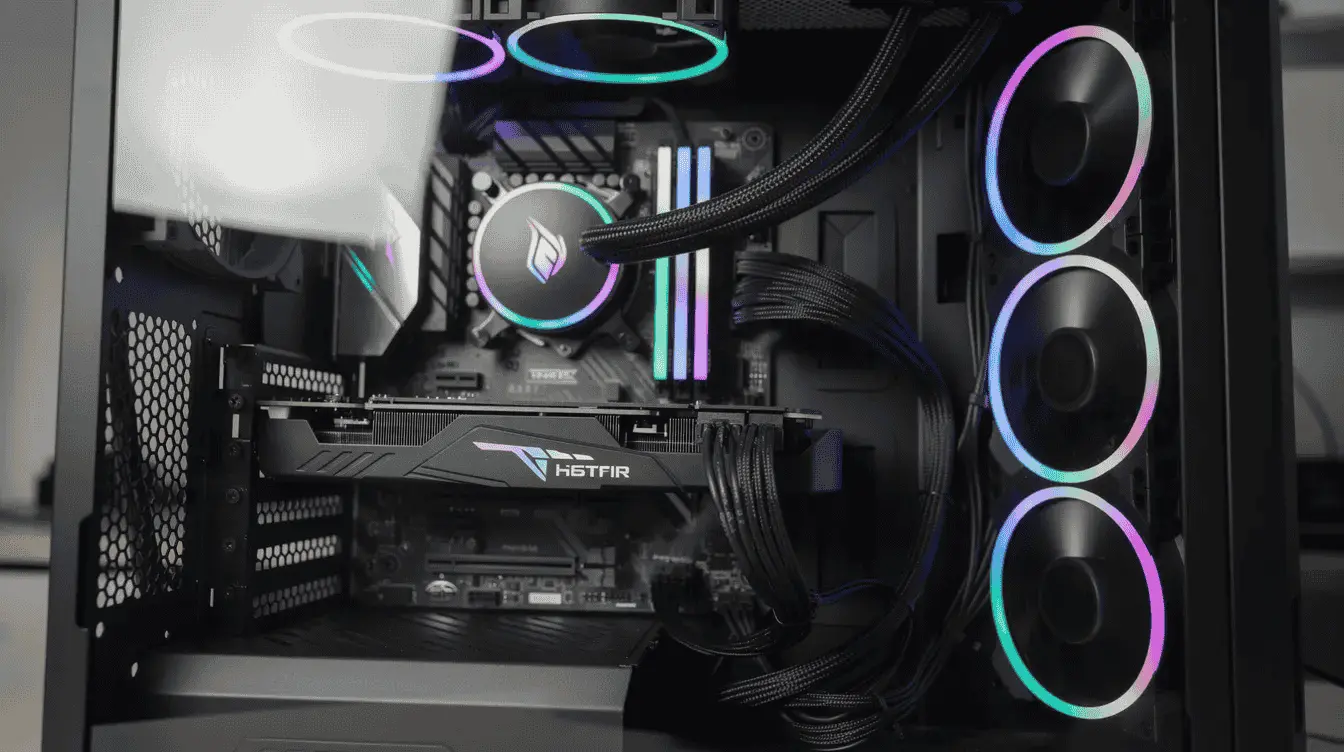
Smart gaming computer upgrades can dramatically boost your FPS, slash loading times, and deliver the visual quality you’ve been chasing, all without purchasing a whole new computer. Whether you’re seeking smoother gameplay in Cyberpunk 2077, faster load times in Baldur’s Gate 3, or a competitive edge in Valorant, the right hardware changes make a real difference.
Every meaningful performance leap starts where it matters most: the graphics card sets the pace, followed closely by the processor that keeps everything in sync. Once that foundation is solid, attention naturally shifts toward the elements that sustain and refine performance: faster memory for smoother multitasking, responsive storage that eliminates delays, and a reliable power supply and Best coolers for CPU and GPU that ensure stability under pressure.
From there, the experience extends beyond the system itself, where high-quality displays and responsive peripherals reveal the true potential of upgraded hardware. And finally, a careful look at repairs, compatibility, and long-term planning ties everything together, turning isolated upgrades into a well-balanced, future-ready setup.
1. Upgrade Your Graphics Card (GPU)
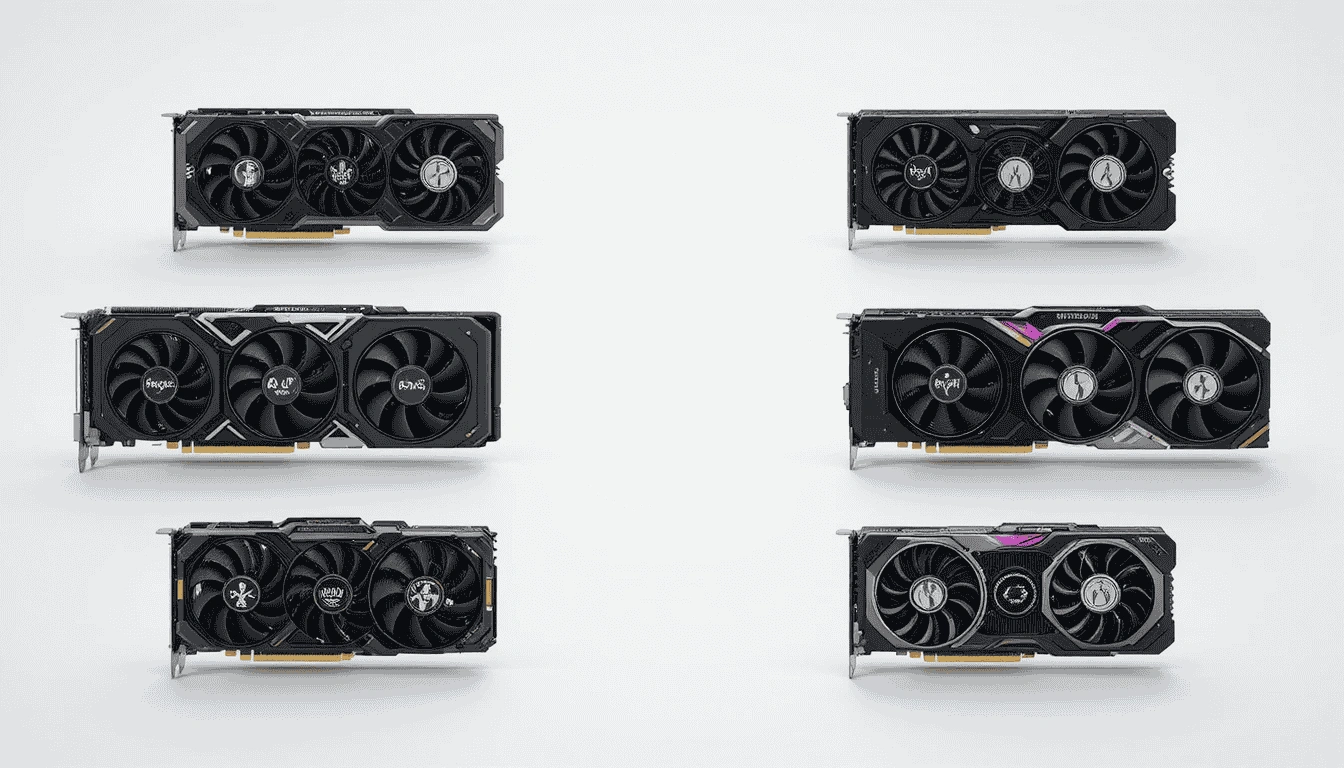
The graphics card is usually the single most transformative component for gaming performance. If you want higher FPS, better visuals, or smoother gameplay in modern titles like Elden Ring, Call of Duty: Modern Warfare III, or Cyberpunk 2077 with ray tracing enabled, this is where to start.
Your GPU handles the heavy lifting: rendering 3D graphics, processing ray tracing effects for realistic lighting, supporting higher resolutions like 1440p or 4K, and enabling high-refresh-rate gaming at 120–240Hz. An underpowered graphics card is the most common reason for poor frame rates.
Matching GPU to resolution and budget
- For 1080p gaming: Mid-range cards like the NVIDIA RTX 4060 or AMD Radeon RX 7600 offer excellent value, typically under $400. These deliver smooth performance at high settings in most titles.
- For 1440p gaming: The RTX 4070 or RTX 4070 Super and the RX 7800 XT hit the sweet spot, pushing 120–180 FPS in demanding games while staying under $600.
- For 4K or high-refresh 1440p (165–240Hz): Higher-end options like the RTX 4080 Super or RX 7900 XTX are necessary. Expect to pay more and ensure your power supply and cooling can handle them.
Real upgrade example
Upgrading from a 2018-era GTX 1060 (typically 40–60 FPS at 1080p medium settings in 2025 games) to an RTX 4060 can yield 100–140 FPS at high settings—a 2–3x improvement. That’s the difference between a stuttery experience and buttery-smooth gameplay.
Compatibility checks before purchase
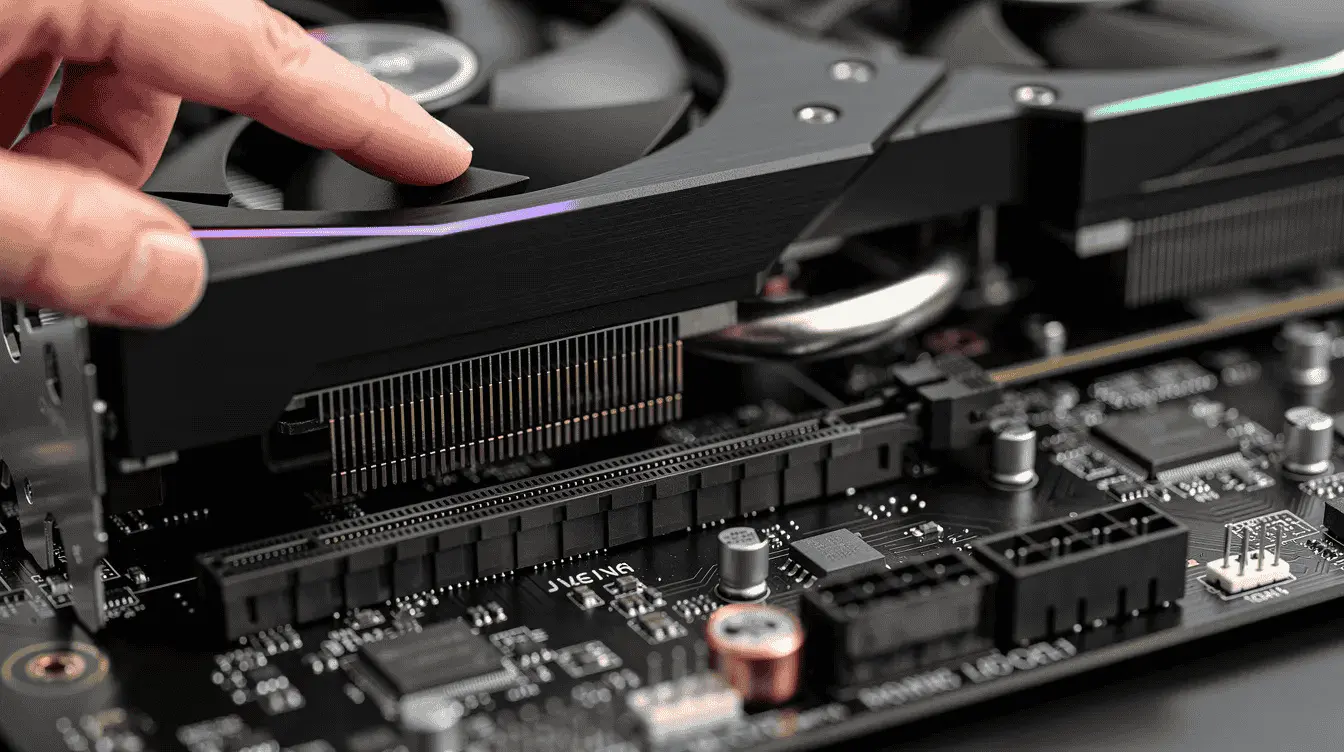
- Physical size: Modern GPUs measure 250–350mm in length. Confirm your case has at least 300mm clearance and proper PCIe slot spacing.
- Power requirements: Check the card’s recommended wattage. An RTX 4060 needs around 450W total system power, while an RTX 4080 Super requires 850W or more. Ensure you have the right connectors (8-pin or 12VHPWR for newer NVIDIA cards).
- PCIe slot: Most gamers don’t need to worry here. A PCIe 3.0 slot works fine for current GPUs with under 5% performance difference versus PCIe 5.0.
New vs used GPUs
Used GPUs from 2020–2023 (like the RTX 30-series) can offer 20–40% savings, but avoid very old architectures. Pre-2016 cards like the GTX 10-series lack DLSS, FSR 3, and ray tracing hardware, limiting their usefulness in 2024–2026 games. Driver support also drops for older hardware.
When a GPU upgrade won’t help
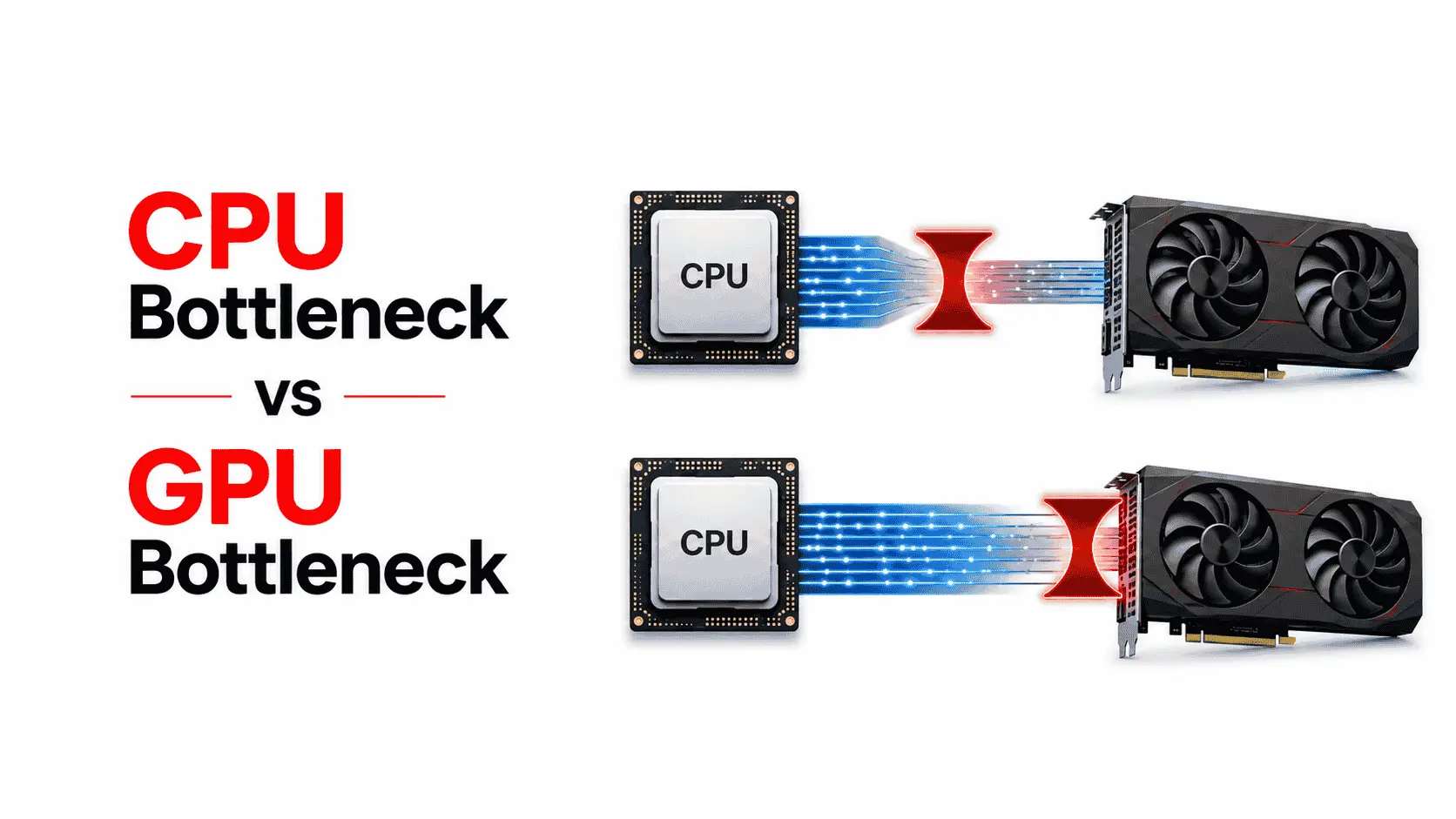
If your cpu is very old (think Intel 8th Gen or Ryzen 1st Gen), it may bottleneck your new graphics card in CPU-heavy games like F1 23 or Warzone. You’ll see GPU usage stuck at 50–70% while the CPU maxes out. In that case, the CPU needs attention first.
2. CPU And Motherboard Upgrades
Modern games, especially battle royales like Fortnite and Warzone, racing simulators, and big open-world titles, rely heavily on cpu performance for consistent frame times and minimal stutter. If your GPU usage is low while your CPU is maxed out, you’ve found your bottleneck.
How to identify a CPU bottleneck?
- GPU usage sits at 50–70% while CPU runs at 90–100% (check with MSI Afterburner or Task Manager)
- FPS drops in crowded cities, large battles, or when many players appear on screen
- High FPS in menus but noticeably worse performance during actual gameplay
Generational upgrade examples
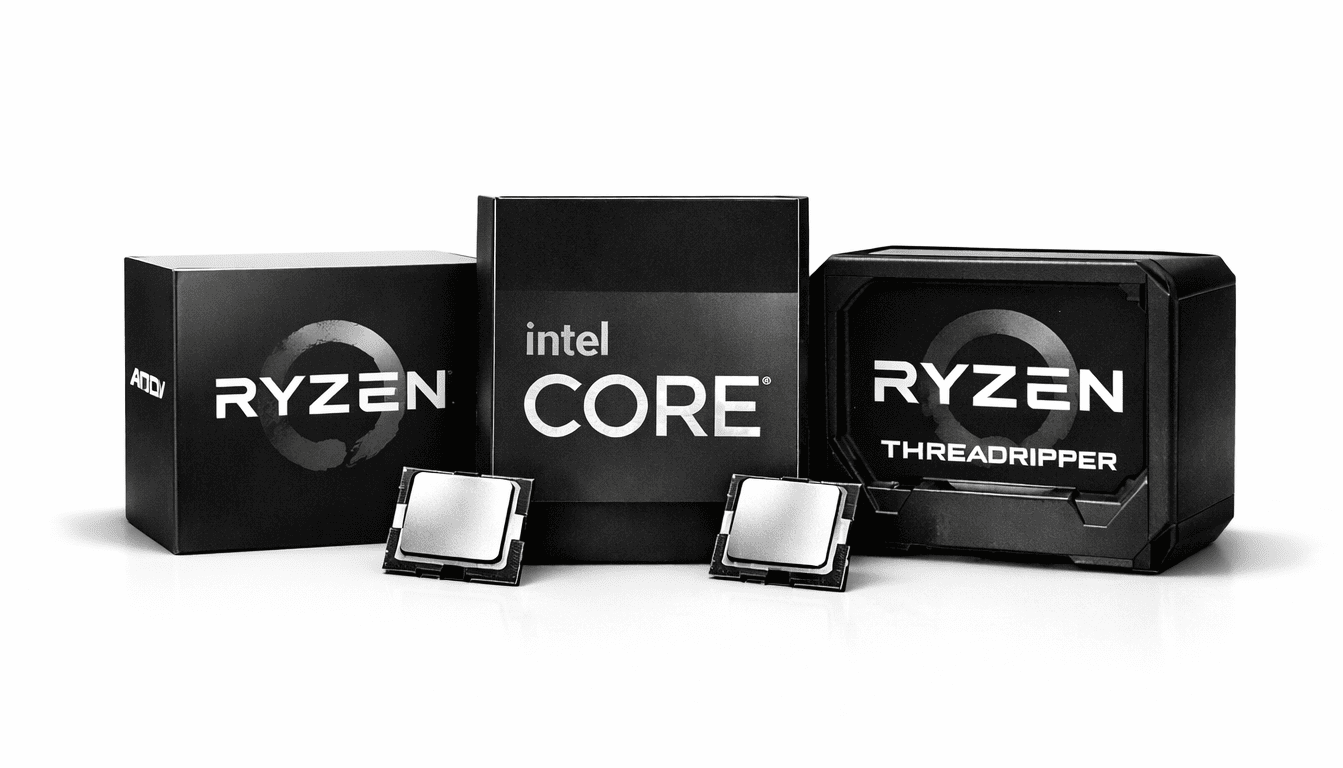
- Intel 8th/9th Gen to 14th Gen: An i5-8400 delivering 60–80 FPS in 2025 games can be replaced by an i5-13600K or i7-14700K, pushing 120–160 FPS—a 50%+ improvement.
- AMD Ryzen 1st/2nd Gen to modern chips: A Ryzen 5 1600 upgraded to a Ryzen 5 5600 or 5800X3D on AM4 delivers massive gains in 1% lows and overall smoothness. The Ryzen 7 7800X3D on AM5 is the current king for high-refresh gaming.
Platform considerations
- Socket compatibility: LGA1700 for Intel 12th–14th Gen, AM4 for older Ryzen chips, AM5 for Ryzen 7000 series
- Chipset features: PCIe 4.0/5.0 support, M.2 slots for NVMe drives, USB ports, and wifi support
- Total cost: A cpu plus motherboard plus ram upgrade can run $400–800
Value-focused recommendations
You don’t need the flagship. The Ryzen 5 5600 (around $120) or Intel i5-13400F deliver roughly 90% of top-tier gaming performance at half the power draw (65–125W TDP). For budget-conscious upgrades on a custom pc, these are hard to beat. The ryzen 5 5500 also remains a solid entry point for those on AM4.
3. RAM Upgrades
While ram won’t usually double your FPS, too little memory causes stuttering, hitching, and crashes—especially in memory-hungry titles released after 2022 like Starfield or heavily modded Minecraft.
Capacity recommendations
- 16GB (2×8GB): The minimum for modern gaming in 2024–2026. This handles most titles and light multitasking.
- 32GB (2×16GB): Recommended for heavy multitasking, streaming while gaming, large open worlds, and extensive mod use. A kit of 32gb ddr5 is increasingly common in new builds.
- 64GB: Only necessary for specialised workflows like video editing, content creation, or virtual machines—not typical gaming.
Speed matters
- DDR4 systems: Target 3200–3600MHz with low CAS latency (CL16 or better) for 5–10% FPS gains over slower kits.
- DDR5 systems: 5600–6400MHz kits at CL30–36 offer another 3–8% improvement and pair well with AMD’s infinity fabric on newer platforms.
How to check if you need more RAM?
Open Task Manager on Windows while gaming. If memory usage consistently hits 80–90%, an upgrade will help. You’ll notice smoother alt-tabbing, fewer crashes, and better 1% lows in multiplayer games.
Dual-channel vs single-channel
Always use matched pairs of sticks. Single-channel configurations halve your memory bandwidth, dropping FPS by 20–50% in CPU-bound scenarios. Two 8GB sticks outperform a single 16GB stick significantly.
4. Storage Upgrades
If you’re still running a mechanical hard drive from the 2010s, a storage upgrade delivers one of the most immediately noticeable improvements. HDDs read at 100–200MB/s and take 30–60 seconds to load games. Modern SSDs transform that experience.
Storage options for gamers
- SATA SSDs (2.5” drives): Affordable upgrade from HDDs, reading at 500–550MB/s. Windows 11 boots in 10–15 seconds instead of over a minute.
- NVMe M.2 SSDs: Even faster (5000–7000MB/s on PCIe 4.0, 10,000+ on Gen5), with cleaner cable management since they mount directly to the motherboard.
Capacity suggestions for 2024–2026
- 1TB SSD: Practical minimum for a primary gaming drive with your operating system installed
- 2TB SSD or larger: Recommended if you install many AAA titles. Games like Call of Duty, Baldur’s Gate 3, and Red Dead Redemption 2 regularly exceed 100GB each.
Real Benefits
- Faster boot times for your entire system
- Games loading new levels and fast-travel destinations in seconds rather than minutes
- Reduced in-game hitching when games stream assets from disk
- A more responsive workflow overall
Installation tips
You can clone your existing drive using tools like Macrium Reflect, or perform a fresh Windows install for a cleaner system. Check your motherboard for available M.2 slots and their PCIe generation via BIOS. Keep at least 15–20% free space on SSDs to maintain performance, and consider a secondary HDD for rarely played games.
5. Power Supply And Cooling
Powerful graphics cards and CPUs need reliable power and good cooling to maintain performance without throttling or crashing. Skimping here undermines every other upgrade you make.
Power supply guidance
- Use a modern 80+ Gold (or better) Power supply from reputable brands like Corsair or EVGA. Avoid generic units from old prebuilt systems.
- Wattage recommendations: 650W for mid-range builds, 750–850W for RTX 4070–4080 or RX 7900 setups, and 850W+ for top-tier or overclocked systems.
- PSUs older than 5–7 years can develop degraded capacitors and become unreliable, risking damage to other components. If your system randomly shuts down under load, the power supply is often the culprit.
PSU compatibility checks
- Verify the GPU manufacturer’s recommended system wattage
- Ensure you have the right connectors: 8-pin PCIe cables for most cards, or native 12VHPWR for NVIDIA RTX 40/50-series
Cooling goals
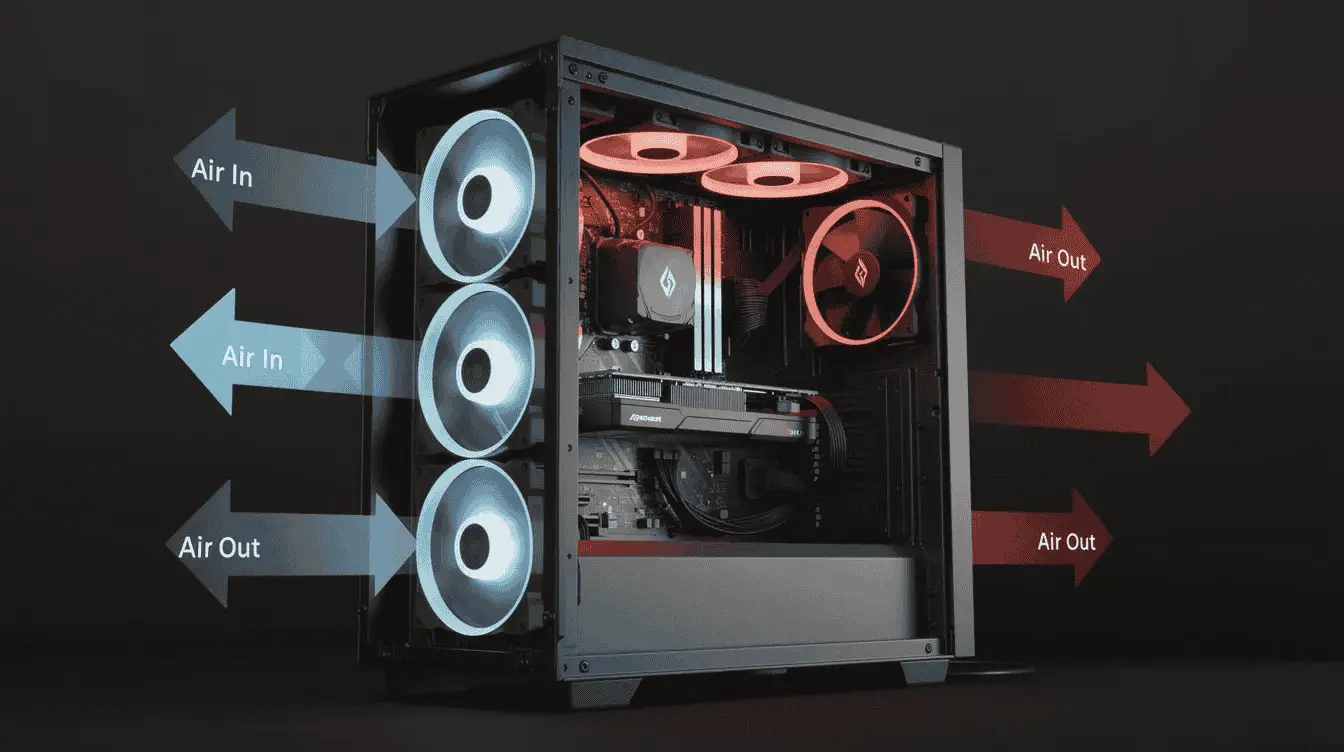
While computer upgrades, try to keep your GPU and CPU under 80–85°C under load to avoid thermal throttling, which can cost you 10–20% performance. Lower temperatures also mean quieter fans.
Common cooling upgrades
- Replace stock CPU coolers with a mid-range air cooler (like the Noctua NH-U12S) or a 240mm/280mm AIO liquid cooler—these can drop temps by 15–25°C.
- Add case fans to improve front-to-back airflow
- Use dust filters and clean heatsinks, filters, and fans every 3–6 months
Better cooling means fewer FPS drops during long gaming sessions in demanding titles like Microsoft Flight Simulator. You’ll also enjoy quieter operation, making those marathon sessions more comfortable.
6. Monitor And Peripheral Upgrades
Once your gaming pc core is upgraded, the monitor and peripherals unlock the full experience. This matters especially for competitive gaming where milliseconds count.
Monitor recommendations
- Higher refresh rates transform shooters. A 144Hz, 165Hz, or 240Hz panel makes Valorant, Apex Legends, and CS2 feel dramatically smoother and more responsive compared to 60Hz.
- 1080p 144Hz monitors: Affordable entry point ($100–150 range) for competitive players
- 1440p 144–165Hz: The sweet spot for both image quality and smoothness on mid-to-high-end GPUs
- Adaptive sync (G-SYNC or FreeSync): Eliminates screen tearing and reduces stutter significantly
Avoid mismatches
Pairing a high-refresh 1440p monitor with an underpowered GPU means your hardware can’t keep up. Match your monitor choice to your graphics card’s capabilities.
Peripherals that impact gameplay
- Mechanical keyboards with fast switches (optical switches under 1ms debounce) improve responsiveness
- A gaming mouse with a suitable DPI sensor (20k DPI options available from MSI and others) enhances FPS accuracy
- Quality headsets with spatial audio help you locate opponents in multiplayer
7. When You Need Gaming Computer Repairs Instead Of Upgrades
Sometimes poor gaming performance stems from faults or damage, not outdated hardware. In those cases, professional gaming computer repairs can be more effective than adding new parts.
Signs that repair is needed
- Random shutdowns or restarts under load, even after cleaning and temperature checks
- Games crashing to desktop or blue-screening repeatedly
- Fans suddenly becoming very loud, grinding, or stopping altogether
- Burnt smells, visible corrosion, or liquid damage on components
What a professional repair service can diagnose?
- Failing power supplies that can damage other components through voltage irregularities
- Overheating GPUs or CPUs that need new thermal paste or replacement fans
- Faulty ram modules causing errors and crashes (diagnosed via MemTest86)
- Motherboard problems like damaged PCIe slots or short circuits
When to seek help
If you’re unsure whether to repair or upgrade, a reputable repair service can:
- Run stress tests and diagnostics (FurMark for GPU, Prime95 for CPU, memory checks)
- Provide a written quote comparing repair cost versus replacement or upgrade cost
- Help migrate data safely if a drive is failing
Reassurance for beginners
Repairs don’t always mean a total rebuild. Sometimes a simple fan replacement, BIOS update, or re-paste job (which can drop temps by 5–10°C) brings a 4–6 year old gaming pc back to life for a fraction of the cost of a new computer. A friendly service team can resolve issues the same day in many cases and assist you through the whole process.
8. Optimising And Planning Your Upgrade Path
Rather than buying pc parts at random, think strategically about your upgrade order. This approach maximises value at every budget level.
Suggested upgrade order for most gamers
- Move from HDD to SSD if you’re still on a mechanical drive—this delivers immediately noticeable improvements
- Upgrade your graphics card for the biggest FPS gains
- Add more RAM if you’re below 16GB or consistently maxed out during gameplay
- Consider a CPU plus motherboard plus RAM platform upgrade if you’re CPU-limited
- Improve your power supply and cooling to stabilise and protect the system
- Upgrade your monitor and key peripherals to match your new performance capabilities
Timing your purchases
Watch for major sales like Black Friday, Boxing Day, or EOFY. Prices on components can drop 20–30%. Check real-world benchmarks for specific games from 2023–2025 releases rather than relying solely on synthetic tests—sites like TechSpot and Hardware Unboxed provide excellent game-specific data.
How to Organize and Personalize Your Built PC Setup
You might already have a responsive keyboard, a smooth and precise mouse, and a powerful overall system. Along with that, components like your CPU, GPU, and storage devices are carefully selected to ensure top performance. Everything is optimized to deliver speed, efficiency, and a clean user experience.
However, one thing that many people overlook is personal identity within the setup. By default, your system and components are labeled with generic names, which may not feel engaging or unique. If you’re someone who takes pride in your setup, giving it a distinct identity can make the entire experience more appealing.
You can assign custom names to your system or even specific components. This helps you personally connect with your setup and also makes it more interesting when you’re showcasing it to friends or using it in a multi-device environment.
To make this process easier, you can use a 5-letter word generator. It allows you to quickly come up with short, clean, and memorable names that fit perfectly with a modern tech setup. Whether you want something futuristic, minimal, or creative, generating a five-letter name keeps it simple while still being unique.
A Better PC Opens More Opportunities for Gamers
A reliable gaming PC does more than improve your personal experience. When your setup can handle demanding games, long sessions, and additional software, it gives you more ways to use your gaming skills.
Many experienced players already spend hundreds of hours learning game mechanics, mastering difficult content, and helping friends progress. With the right setup, those skills can become useful beyond casual gameplay.
Streaming and Content Creation
A powerful PC allows gamers to create content without sacrificing game performance. Recording gameplay, creating guides, streaming sessions, or sharing tutorials all require a system that can handle both the game and additional applications.
Coaching and Helping Other Players
Players who understand game mechanics, builds, strategies, and progression systems can help others improve. Coaching allows experienced gamers to share their knowledge while helping newer players overcome difficult parts of their favorite games.
Professional Gaming Services
Some players choose to use their experience by helping others complete in-game goals. This can include assisting with difficult challenges, progression, farming, or other game objectives where strong knowledge and gameplay skills are valuable.
For gamers who have strong mechanics, deep game knowledge, and a reliable setup, joining a professional boosting team can be a way to use those skills. Players interested in working with Captain-Carry can apply as a booster and join our team of experienced gamers.
Conclusion
You don’t need a brand-new prebuilt gaming pc or an expensive dream pc to enjoy modern games at high settings. Targeted gaming computer upgrades. Whether you prefer custom gaming PCs or a prebuilt, the principles remain the same: identify your bottleneck, upgrade strategically, and protect your investment with quality components and proper maintenance.
If you’re seeking advice on where to start, don’t hesitate to contact a professional team who can review your current setup and confirm the most efficient path forward. With a little hard work and smart purchasing, you can absolutely turn your current rig into the affordable, high-performance system you’ve been dreaming of.