What Is Monitor Ghosting? Causes, Types, Effects, and Fixes
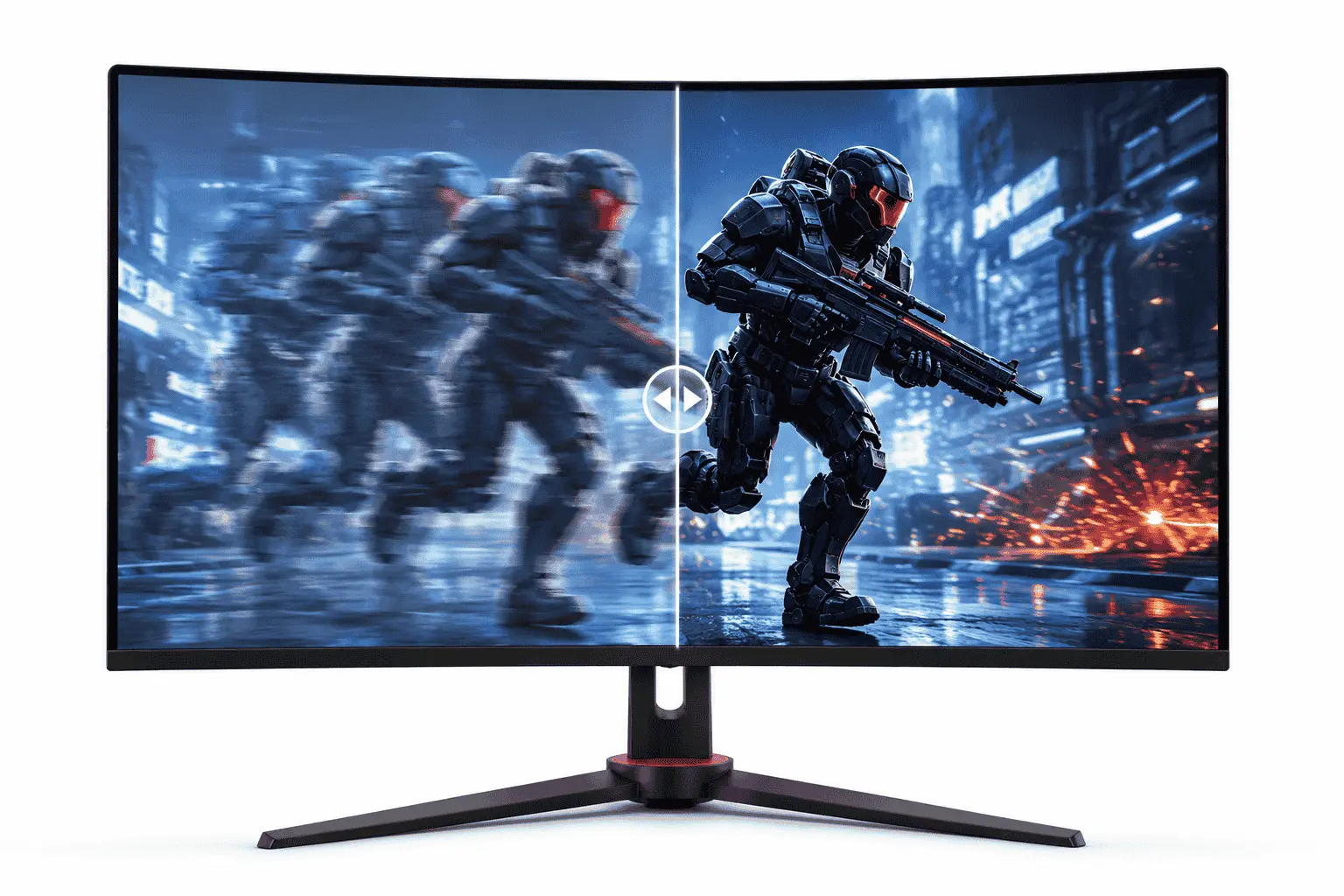
Monitor ghosting is a display issue that creates a visible trail behind moving objects on a screen. Instead of motion looking clean and sharp, objects appear to leave behind a faded shadow for a brief moment. The effect usually becomes noticeable while gaming, scrolling pages, watching fast-moving videos, or moving windows across the desktop.
This happens because monitor pixels cannot change colors fast enough between frames. When the next image appears before the previous one fully disappears, a ghost-like trail becomes visible during motion.
The issue is common on LCD monitors, but the level of ghosting varies from one display to another. Some monitors only show slight trailing that most users barely notice. Others produce heavy smearing that affects motion clarity during games and videos.
Monitor ghosting is often confused with motion blur or screen tearing. However, these are different display problems. Ghosting is mainly connected to pixel response behavior and how quickly the panel handles image transitions.
What Is Ghosting?
Ghosting is a visual artifact where moving objects leave behind a faint duplicate image or shadow. The effect appears because pixels remain partially visible while transitioning from one color to another.
A monitor constantly refreshes images by changing pixel colors. If those pixel transitions are slow, parts of the previous frame remain visible during movement. The human eye notices this overlap as a trail following the object.
Ghosting usually appears during fast motion rather than static content. For example, scrolling white text on a dark background may create blurry edges, while fast camera movement in games may produce shadow-like trails behind characters or objects.
The severity of ghosting depends on the monitor’s pixel transition speed, panel technology, refresh rate, and motion tuning.
What Is Monitor Ghosting?
Monitor ghosting refers specifically to ghosting caused by a monitor panel. It happens when the display cannot keep up with rapid image changes during motion.
The effect becomes more noticeable in situations where image transitions happen quickly. Fast-paced games, sports videos, racing scenes, and quick desktop movement expose ghosting more clearly because the screen constantly shifts between frames.
On some displays, ghosting looks like a light shadow behind moving objects. On others, especially slower VA panels, dark scenes may produce visible black smearing where objects appear stretched during movement.
People often notice monitor ghosting for the first time while gaming. During quick turns in FPS games, enemies or crosshairs may appear less sharp because faint trails remain visible for a split second. In everyday use, users may notice blurred text while scrolling web pages or documents.
What Does Monitor Ghosting Look Like?
Monitor ghosting does not always appear the same way. The effect changes depending on the monitor panel, color transitions, and motion speed.
In lighter scenes, ghosting may look like a transparent shadow following moving objects. In darker scenes, the effect often becomes heavier because dark pixels usually transition slower than brighter ones.
Many users describe ghosting as motion that looks “dirty” or “smeared” instead of clean. Once noticed, the effect becomes easier to recognize during fast movement.
The table below explains how ghosting commonly appears in different situations:
| Activity | How Ghosting Usually Appears? |
|---|---|
| FPS gaming | Trails behind enemies during quick camera movement |
| Racing games | Blurry outlines around fast-moving vehicles |
| Web browsing | Text appears smeared while scrolling |
| Sports streaming | Fast movement loses image sharpness |
| Dark scenes | Black smearing behind moving objects |
On slower displays, ghosting may even make small text harder to read during motion because the edges fail to stay sharp while scrolling.
Types of Monitor Ghosting
Different display behaviors create different forms of ghosting. Understanding these types helps users identify what they are actually seeing on the screen.
Standard Ghosting
Standard ghosting is the most common form of the issue. It happens when pixels transition too slowly between frames, causing the previous image to remain partially visible.
This usually appears as a faded trail behind moving objects. The effect becomes more noticeable in fast games or rapid desktop movement.
Budget LCD monitors commonly show this type of ghosting because slower panels struggle with motion clarity.
Inverse Ghosting
Inverse ghosting happens when overdrive settings become too aggressive. Overdrive is a monitor feature designed to accelerate pixel transitions, but excessive acceleration creates overshoot.
Instead of dark shadows, moving objects show bright outlines or strange color halos. Many users notice this after selecting the highest response-time mode in monitor settings.
In practice, the fastest overdrive setting is not always the best option. Moderate settings usually produce cleaner motion without overshoot artifacts.
Black Smearing
Black smearing mostly affects VA panels because dark pixel transitions are slower than brighter transitions. The effect becomes obvious in dark games, horror scenes, or dark mode interfaces.
Moving black objects may appear stretched or blurry for a split second during movement. This is one reason why some VA monitors look excellent for movies but feel less clean during fast gaming.
Motion Blur
Motion blur is often mistaken for ghosting, but both issues are different. Ghosting happens because of slow pixel response behavior, while motion blur is linked to frame persistence and how displays present moving images. Both effects reduce motion clarity, but ghosting specifically creates visible trails behind objects.
What Causes Monitor Ghosting?
Several hardware and display-related factors contribute to monitor ghosting.
Slow Pixel Response Time
Pixel response time is the main cause of ghosting. Response time measures how quickly a pixel changes from one color to another.
If the transition takes too long, remnants of the previous frame remain visible during movement. This creates trailing and motion artifacts.
Monitors with faster response times usually handle motion more cleanly because pixels complete transitions before the next frame appears.
Panel Technology
Different monitor panels handle motion differently because each technology processes pixel transitions in its own way.
TN panels usually provide the fastest motion performance and the lowest ghosting levels. However, they sacrifice viewing angles and color quality.
IPS panels balance color accuracy and motion handling more effectively. Modern gaming IPS monitors generally provide much cleaner motion than older IPS generations.
VA panels deliver stronger contrast ratios and deeper blacks, but many models struggle with dark-level pixel transitions. This is why black smearing becomes more noticeable on VA displays.
The table below compares common panel types:
| Panel Type | Motion Clarity | Ghosting Performance |
|---|---|---|
| TN | Very fast | Lowest ghosting |
| IPS | Balanced | Low to moderate |
| VA | Slower dark transitions | Higher ghosting |
Incorrect Overdrive Settings
Overdrive improves pixel transition speed by applying additional voltage to the pixels. When adjusted correctly, it reduces ghosting and improves motion clarity.
However, overly aggressive overdrive settings create inverse ghosting and overshoot artifacts. Bright halos behind moving objects are usually a sign that the setting is too high.
Most users get the best balance from medium overdrive modes rather than the maximum option.
Low Refresh Rate
Refresh rate affects how frequently a monitor updates the image each second. Displays with higher refresh rates produce smoother motion because new frames appear more frequently.
At 60Hz, motion remains visible longer on the screen, making ghosting easier to notice. Higher refresh rates such as 144Hz or 240Hz improve motion smoothness and reduce visible trailing.
However, refresh rate alone does not eliminate ghosting. Pixel response behavior still matters.
Weak Motion Processing
Some low-quality monitors advertise fast response times but perform differently in real-world use. Poor pixel tuning, weak overdrive calibration, and slower LCD behavior often create noticeable ghosting despite marketing claims.
Display Configuration Problems
Incorrect display settings may also affect motion quality. Many users unknowingly run gaming monitors at 60Hz because the refresh rate was never changed in Windows settings.
Damaged cables, older HDMI standards, or bandwidth limitations may also affect refresh synchronization and motion clarity.
Effects of Monitor Ghosting
Monitor ghosting mainly affects motion clarity. The stronger the ghosting, the harder it becomes to track moving objects accurately.
In competitive games, ghosting may reduce visibility during fast camera movement. Players sometimes notice that enemies appear blurry for a split second while turning quickly.
Ghosting can also affect normal desktop use. During fast scrolling, text may lose sharpness and appear smeared. Some users experience eye strain during long sessions because the eyes continuously attempt to refocus on unclear motion.
The issue becomes more distracting in darker scenes where smearing effects stand out more clearly.
How to Test Monitor Ghosting?
Ghosting becomes easier to identify during fast movement.
One simple method is scrolling text quickly on a dark webpage. If the letters leave behind blurry shadows, ghosting is likely present.
Dragging windows rapidly across the desktop can also reveal motion trails around edges and icons.
Gaming exposes ghosting even more clearly. Fast camera movement in FPS games often reveals trailing behind characters, weapons, or environmental objects.
Online ghosting tests can also help identify display artifacts more accurately because they use controlled motion patterns designed to expose pixel transition problems.
How to Fix Monitor Ghosting?
The ability to reduce ghosting depends on the monitor itself. Some displays naturally perform better than others, but several adjustments can improve motion clarity significantly.
Adjust Overdrive Settings
Overdrive settings should be tested carefully instead of selecting the highest mode immediately.
On many monitors, medium overdrive settings reduce ghosting without introducing inverse ghosting. If bright halos appear around moving objects, the setting is likely too aggressive.
Increase the Refresh Rate
Many high-refresh monitors run at 60Hz by default until manually configured. Switching the monitor to its maximum supported refresh rate improves motion smoothness and reduces visible trailing. Higher refresh rates also improve overall gaming responsiveness and motion clarity.
Enable Adaptive Sync
AMD FreeSync and NVIDIA G-SYNC help synchronize frame delivery between the graphics card and monitor.
Although these technologies do not directly remove ghosting, they improve frame consistency and reduce additional display artifacts such as screen tearing.
Use a Proper Display Cable
Older HDMI standards may limit refresh rates on some displays. DisplayPort connections usually provide better support for high-refresh gaming monitors.
Using the correct cable ensures the monitor operates at its intended performance level.
Update Graphics Drivers
Outdated GPU drivers may create refresh handling issues or display instability. Installing updated graphics drivers improves compatibility and display performance.
Disable Motion Blur in Games
Many games apply software motion blur effects that reduce image sharpness during movement.
Disabling motion blur helps users identify actual ghosting more accurately while improving overall motion clarity.
Upgrade the Monitor
Some monitors have hardware limitations that settings cannot fully correct. Older LCD panels and low-end office monitors often struggle with motion handling. Users who frequently play competitive games usually benefit from faster IPS or high-performance gaming displays with better pixel transition behavior.
Ghosting vs Screen Tearing
Ghosting and screen tearing are different display issues, although people often confuse them.
Ghosting creates motion trails because pixels transition slowly between frames. Screen tearing happens when multiple frames appear on the screen at the same time due to unsynchronized frame delivery.
The table below explains the difference:
| Display Issue | Main Cause | Appearance |
|---|---|---|
| Ghosting | Slow pixel transitions | Trails behind moving objects |
| Screen tearing | Unsynced frame updates | Horizontal split frames |
| Motion blur | Frame persistence | Soft motion clarity |
| Input lag | Processing delay | Delayed screen response |
Can OLED Monitors Have Ghosting?
OLED monitors usually show much less ghosting because OLED pixels respond significantly faster than traditional LCD pixels.
Motion often appears cleaner and sharper on OLED displays because pixel transitions happen almost instantly.
However, OLED displays may still show other motion-related behaviors such as near-black flickering or low-frame-rate stutter. These issues are different from traditional LCD ghosting.
Conclusion
Monitor ghosting is a motion clarity issue caused mainly by slow pixel response times. When pixels fail to transition quickly between frames, moving objects leave behind visible trails or smearing effects.
The severity of ghosting depends on panel technology, monitor tuning, refresh rate, and response handling. TN and modern IPS panels usually provide cleaner motion, while many VA panels struggle more with dark-level smearing.
Proper overdrive settings, higher refresh rates, adaptive sync technologies, and correct display configuration can reduce ghosting significantly. However, weak panel performance cannot always be fully corrected through software adjustments.
Understanding how ghosting works helps users choose better displays and optimize motion performance according to their needs.