NVIDIA GeForce RTX 5070 Specs and Requirements
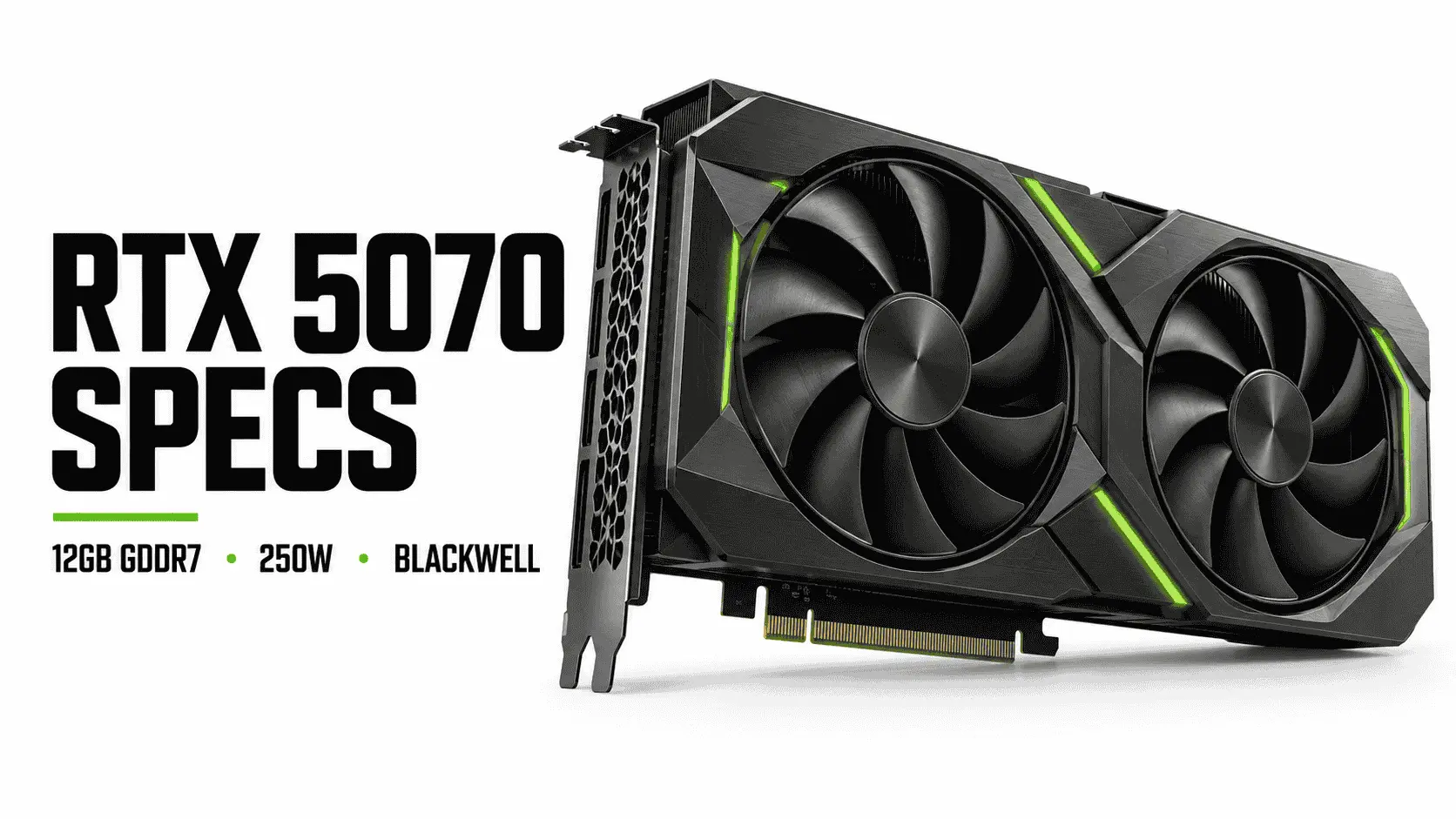
The NVIDIA GeForce RTX 5070 is a Blackwell desktop graphics card built primarily for high-refresh 1440p gaming. It has 6,144 CUDA cores, 12GB of GDDR7 memory on a 192-bit interface, a reference boost clock of 2.51GHz, and a 250W Total Graphics Power rating. NVIDIA recommends a 650W system power supply for its reference configuration.
Its specifications offer high memory bandwidth, modern ray-tracing hardware, AV1 encoding, and support for DLSS Multi Frame Generation. However, the 12GB VRAM capacity can become restrictive in demanding 4K games, large creative projects, and some local AI workloads. Buyers should also distinguish native rendering performance from DLSS-generated frame rates and check the dimensions, power limits, and connectors of the exact card model before purchasing.
NVIDIA GeForce RTX 5070 specifications at a glance
The NVIDIA GeForce RTX 5070 uses the Blackwell architecture and combines 6,144 CUDA cores with 12GB of GDDR7 memory. The following figures describe NVIDIA’s Founders Edition or reference desktop design. Factory-overclocked and custom-cooled models may differ in size, clock behavior, temperature, noise, and power requirements.
Specification Details
| Architecture | NVIDIA Blackwell |
| CUDA cores | 6,144 |
| RT Cores | Fourth generation, rated at 94 RT TFLOPS |
| Tensor Cores | Fifth generation, rated at 988 AI TOPS |
| Base clock | 2.33GHz |
| Reference boost clock | 2.51GHz |
| Video memory | 12GB GDDR7 |
| Memory data rate | 28Gbps |
| Memory interface | 192-bit |
| Memory bandwidth | 672GB/s |
| PCI Express support | PCIe Gen 5 |
| Resizable BAR | Supported |
| NVIDIA encoder | One ninth-generation NVENC |
| NVIDIA decoder | One sixth-generation NVDEC |
| AV1 support | Hardware encoding and decoding |
| Graphics APIs | DirectX 12 Ultimate, Vulkan 1.4 and OpenGL 4.6 |
| CUDA capability | 12.0 |
| Total Graphics Power | 250W |
| Recommended system power | 650W |
| Reference power connection | Two PCIe eight-pin cables through the included adapter, or a 300W-or-higher PCIe Gen 5 cable |
| Maximum GPU temperature | 85°C |
| Founders Edition dimensions | 242mm long, 112mm wide and two slots thick |
| Standard display outputs | Three DisplayPort 2.1b and one HDMI 2.1b |
| Maximum displays | Up to four |
| Maximum stated resolution | Up to 4K at 480Hz or 8K at 165Hz with Display Stream Compression |
| NVLink or SLI support | No |
| Desktop launch date | March 5, 2025 |
| Original US launch price | $549 |
The memory-bandwidth figure follows from the 28Gbps memory data rate and 192-bit interface:
This calculation describes theoretical peak bandwidth, not the amount of memory available. The card can transfer data quickly, but it can still encounter a capacity limit when a game or application needs more than its 12GB of VRAM.
NVIDIA’s maximum display figures also require compatible monitors, cables, ports, and Display Stream Compression, commonly shortened to DSC. The card can drive four independent displays at up to 4K 165Hz, while configurations such as 4K 480Hz or 8K 165Hz depend on the selected output and DSC. Full technical conditions are listed in the official NVIDIA GeForce RTX 5070 specifications.
Which specifications are fixed and which vary by graphics-card model?
Every standard desktop RTX 5070 has the same basic GPU class: 6,144 CUDA cores, 12GB of GDDR7 memory, and a 192-bit memory interface. Support for technologies such as hardware ray tracing, AV1 encoding, Resizable BAR, and DLSS also comes from the GPU platform rather than the cooler attached to it.
Board partners can change several details around that hardware. An ASUS, Gigabyte, MSI, PNY, or Zotac model may use a factory overclock, a higher power limit, a larger heatsink, or a different connector position. Some cards occupy two slots, while others require three or more. Temperatures and noise also depend on the cooler, fan profile, case airflow, and room temperature.
The 242 × 112mm dimensions in the table apply to the Founders Edition, not every RTX 5070. Buyers should check the exact model’s length, height, thickness, and cable-clearance requirements before assuming it will fit. The manufacturer’s recommended PSU should also take priority when it exceeds NVIDIA’s 650W reference recommendation.
Desktop RTX 5070 versus RTX 5070 Laptop GPU
The desktop and laptop versions share the RTX 5070 name but are not equivalent GPUs. The desktop card has more processing hardware, a wider memory interface, and a much higher power allowance.
| Specification | Desktop RTX 5070 | RTX 5070 Laptop GPU |
|---|---|---|
| CUDA cores | 6,144 | 4,608 |
| AI performance rating | 988 AI TOPS | 798 AI TOPS |
| Boost clock | 2.51GHz reference | 1.425–2.347GHz |
| Memory | 12GB GDDR7 | 8GB or 12GB GDDR7 |
| Memory interface | 192-bit | 128-bit |
| Memory bandwidth | 672GB/s | 384GB/s |
| Rated power | 250W Total Graphics Power | 50–100W GPU subsystem power |
Laptop performance can also vary between machines carrying the same GPU name. The configured power limit, cooling system, processor, memory, chassis design, and performance mode all affect sustained clock speeds. A laptop specification should therefore be judged by its exact power configuration and independent tests, rather than desktop RTX 5070 benchmarks. NVIDIA lists the current mobile configurations on its GeForce RTX 50 Series laptop specifications page.
What do the RTX 5070 specifications mean?
A graphics card’s specifications describe its available hardware, but no single figure predicts performance in every game or application. Architecture, clock behavior, memory capacity, bandwidth, software support, and workload design all influence the result. The RTX 5070’s specifications point to a GPU designed mainly for 1440p gaming, with additional hardware for ray tracing, AI-assisted graphics, and media processing.
Blackwell architecture, CUDA cores, and clock speed
The RTX 5070 is based on NVIDIA’s Blackwell architecture. An architecture defines how the GPU’s processing units, memory system, and dedicated accelerators are designed. Architectural improvements can let a newer GPU do more work per clock or support features unavailable on an older card.
Its 6,144 CUDA cores perform the parallel calculations used for rasterized graphics, lighting, physics, and supported computing workloads. A higher CUDA core count can indicate more processing capacity within the same architecture, but it is not a reliable comparison across different GPU generations. Changes in core design, clock speed, memory bandwidth, and software optimization can produce different results even when two cards have similar core counts.
NVIDIA specifies a 2.33GHz base clock and a 2.51GHz reference boost clock. The boost clock is the expected operating target under suitable power and temperature conditions, not a guaranteed fixed speed. Actual frequency changes continuously according to workload, GPU temperature, voltage, power limits, and cooler performance. Factory-overclocked RTX 5070 models may advertise higher boost clocks, although a small clock increase does not always produce an equally large performance gain.
Fourth-generation RT Cores and fifth-generation Tensor Cores
The RTX 5070 includes fourth-generation RT Cores for ray-tracing calculations. Ray tracing models the paths taken by light to produce more accurate reflections, shadows and illumination. These effects require additional processing, so enabling them can reduce frame rates compared with conventional rasterized rendering.
NVIDIA rates the card’s ray-tracing hardware at 94 RT TFLOPS. This is a theoretical throughput rating rather than a prediction of gaming performance. The effect of RT Core improvements depends on the game engine, the number and type of ray-traced effects, resolution, graphics settings, and whether technologies such as DLSS Ray Reconstruction are enabled.
Fifth-generation Tensor Cores handle the matrix calculations used by NVIDIA’s AI-assisted features. They support technologies such as DLSS Super Resolution, Ray Reconstruction, and Multi Frame Generation, as well as compatible creator and local AI applications. NVIDIA rates the RTX 5070 at 988 AI TOPS, but this figure should not be compared directly with ordinary CUDA performance or interpreted as a frame-rate measurement.
Tensor Core performance also does not determine whether a local AI model will run successfully. Model size, data format, software compatibility, and VRAM consumption remain important. A workload that requires more than 12GB of graphics memory may need quantization, partial CPU offloading, or a graphics card with a larger memory capacity, regardless of its AI TOPS rating.
12GB GDDR7, a 192-bit interface and 672GB/s bandwidth
The RTX 5070 has 12GB of GDDR7 video memory, commonly called VRAM. This memory stores textures, geometry, frame buffers, rendering data, and other assets the GPU needs without repeatedly retrieving them from slower system memory.
Memory capacity and memory bandwidth describe different limits. The 12GB capacity determines how much working data can remain in VRAM, while the 672GB/s theoretical bandwidth indicates how quickly that data can move through the memory subsystem. GDDR7 allows the RTX 5070 to provide higher bandwidth than an equally wide interface using slower memory, but it does not increase the card’s storage capacity.
Twelve gigabytes is generally workable for 1440p gaming, although memory use depends on the game, texture quality, ray tracing, modifications, and background applications. At 4K, high-resolution texture packs and demanding ray-tracing modes can push usage closer to the limit. If a workload exceeds available VRAM, the system may move data between graphics memory and system memory, resulting in stuttering, delayed texture loading, or reduced performance.
The same limitation applies outside gaming. High-resolution video timelines, complex 3D scenes, and local AI models can consume more than 12GB. The RTX 5070 may process workloads quickly when they fit within memory, but its 672GB/s bandwidth cannot compensate when the complete working set is too large for the 12GB frame buffer.
Is the RTX 5070 a 1440p or 4K graphics card?
The RTX 5070 is best suited to 1440p gaming. It can also deliver high frame rates at 1080p and run many games at 4K, but resolution alone does not determine performance. The game engine, graphics preset, ray tracing, VRAM use, CPU, upscaling mode, and target frame rate can all change the outcome.
Independent launch reviews generally found that the RTX 5070 performs close to the RTX 4070 Super in native rasterized gaming, with the newer card holding a modest overall lead in many test suites. Results vary by title, and some games show little improvement or allow the older card to finish ahead. This makes the RTX 5070 a more meaningful upgrade from an RTX 3070 or older card than from an RTX 4070 Super.
1080p and high-refresh competitive gaming
The RTX 5070 has more than enough GPU capacity for high frame rates at 1080p in many games. However, lower resolutions place less work on the graphics card, which can make CPU performance the limiting factor. This is common in competitive games where players use reduced settings to target 144Hz, 240Hz, or higher refresh rates.
A faster CPU can prepare frames more quickly, but the result also depends on the game engine, memory latency, and background activity. If GPU utilization remains below its expected level while one or more CPU threads are heavily loaded, the system may be CPU-limited. Installing a faster graphics card in that situation may produce only a small frame-rate increase.
The RTX 5070 is therefore sensible for 1080p when the goal is a high refresh rate, demanding ray tracing or enough GPU headroom for future games. It may provide poor value if the monitor is limited to 60Hz or the processor cannot supply frames quickly enough.
1440p gaming
A resolution of 2560 × 1440 is the RTX 5070’s strongest general use case. It places enough load on the GPU to make use of its processing hardware while remaining less demanding than 4K. In many games, this allows high or ultra settings with strong average frame rates, although ray tracing can still require upscaling or adjusted settings.
The card’s 12GB of VRAM is usually adequate at 1440p, but it is not an unlimited reserve. Ultra-resolution texture packs, extensive modifications and heavy ray-tracing data can increase memory use. Lowering texture quality by one step often reduces VRAM demand with a smaller visual cost than reducing resolution or several other settings.
Independent reviews support the card’s 1440p positioning but also show that its native generational improvement over the RTX 4070 Super is limited. The TechSpot RTX 5070 review and Club386 Founders Edition review use different test systems and game selections, yet both describe 1440p as the card’s most convincing gaming target.
4K gaming and the 12GB VRAM constraint
The RTX 5070 can run games at 3840 × 2160, but it should not be treated as an uncompromised maximum-settings 4K card. A 4K image contains more than twice as many pixels as 1440p, substantially increasing the rendering workload. Newer games with path tracing, high-resolution textures, or complex effects may require upscaling, reduced ray tracing, or lower graphics settings.
The 12GB frame buffer presents an additional constraint. A game that approaches or exceeds this capacity may show uneven frame times, texture-loading delays, or sudden performance drops even when the average frame rate initially appears acceptable. VRAM use also varies between games, so one successful 4K test does not prove that every title will behave the same way.
DLSS Super Resolution can reduce the internal rendering workload and make 4K output more practical. Frame Generation can raise the displayed frame rate in supported games, but neither feature increases physical VRAM capacity. Image reconstruction quality, interface responsiveness, and the underlying frame rate must still be considered.
For occasional 4K gaming, the RTX 5070 is workable when the user is prepared to tune settings. Buyers who want consistently high 4K settings, extensive ray tracing, or more memory headroom should compare cards with 16GB or more VRAM.
How to interpret RTX 5070 benchmarks
A benchmark result is meaningful only when its testing conditions are clear. Before applying a published result to another PC, check:
- The exact RTX 5070 model and its power limit
- Processor and system-memory configuration
- Operating system and graphics-driver version
- Game version and benchmark scene
- Resolution and graphics preset
- Ray tracing or path tracing settings
- DLSS quality mode
- Frame Generation settings
- Average frame rate and low-percentile results
Average FPS measures overall throughput but can conceal brief slowdowns. One-percent-low figures and frame-time graphs provide more information about consistency. Comparisons should also use matching settings: a result produced with Multi Frame Generation cannot be treated as equivalent to native rendering simply because both are reported in frames per second.
DLSS, Frame Generation, and native performance are not the same
The RTX 5070 supports NVIDIA’s DLSS suite, but each DLSS component performs a different task. Super Resolution reconstructs a higher-resolution image from a lower internal resolution, Ray Reconstruction replaces selected denoising stages, and Frame Generation inserts AI-generated frames between conventionally rendered frames. These features can work together, but their results should not be described as native rendering performance.
Feature availability also depends on the game, driver, and DLSS implementation. Owning an RTX 5070 does not make every DLSS function available in every title.
DLSS Super Resolution
DLSS Super Resolution reduces the GPU workload by rendering a game below the selected output resolution and reconstructing the image at a higher resolution. For example, a game displayed at 4K may be rendered internally at a lower resolution when DLSS Quality mode is enabled.
This approach can improve performance because the GPU processes fewer pixels during the initial rendering stage. The final image is reconstructed using game data such as motion vectors, depth information, and previous frames. Image quality depends on the selected DLSS mode, output resolution, game integration, and current DLSS model.
Quality mode uses a higher internal resolution than Performance or Ultra Performance mode. It generally preserves more detail but provides a smaller performance increase. More aggressive modes can improve frame rates further at the cost of greater reconstruction challenges, including reduced fine detail, instability around moving objects or visible artifacts.
DLSS Super Resolution still produces a newly reconstructed image for each rendered frame. This separates it from Frame Generation, which creates additional frames between rendered ones.
Frame Generation and Multi Frame Generation
Frame Generation analyzes consecutive rendered frames and creates an intermediate frame. Multi Frame Generation can insert several generated frames for each conventionally rendered frame, increasing the number of frames sent to the display.
A higher displayed frame rate can make motion look smoother, but generated frames do not replace the need for a suitable underlying frame rate. Player input is processed through conventionally rendered frames, so a game showing a high frame rate through Multi Frame Generation may not respond like a game rendering the same number of frames natively.
NVIDIA Reflex can help reduce latency elsewhere in the rendering pipeline, but it cannot make generated frames identical to native frames. Frame-generation quality also depends on motion, interface elements, camera movement and the game’s implementation. Fast movement can expose errors such as duplicated details, distorted particles or unstable interface elements.
For these reasons, Frame Generation works best when the game already has a stable base frame rate. It is less useful as a remedy for severe CPU limitations, inconsistent frame times or very low native performance.
How to interpret NVIDIA’s performance claims
NVIDIA introduced the RTX 5070 with comparisons showing performance up to twice that of the RTX 4070 in selected games. Those comparisons used 1440p, demanding ray-tracing settings and DLSS Multi Frame Generation on the RTX 5070. They demonstrate the potential output of NVIDIA’s complete rendering stack, but they do not establish that the RTX 5070 is twice as fast in native rendering.
A fair GPU comparison must use equivalent conditions. Native rendering should be compared with native rendering, while DLSS tests should use matching quality modes and Frame Generation settings where the compared cards support them. Latency, image quality, frame pacing and VRAM consumption should be considered alongside the displayed frame rate.
Independent testing found that the RTX 5070 remains far below the RTX 4090 in conventional rendering, despite launch messaging that associated the two cards under different frame-generation conditions. The GamersNexus RTX 5070 analysis documents why that comparison does not represent equal rendering workloads.
Current DLSS support
DLSS is a software ecosystem rather than a fixed part of the specification sheet. NVIDIA has continued updating the suite since the RTX 5070 launched with DLSS 4 support. As of September 2026, NVIDIA identifies RTX 50-series GPUs as supporting newer DLSS 5 features, including 3D-Guided Neural Rendering and Dynamic Multi Frame Generation. Actual access still requires a compatible game or application, a supported driver and the necessary in-game options.
This distinction matters when evaluating the card over time. Its 6,144 CUDA cores and 12GB memory configuration remain fixed, while DLSS models, overrides and supported games can change through software updates. Buyers should check the current requirements for the specific game they intend to play rather than assuming every title supports the latest feature set.
Power supply, connector, case and motherboard compatibility
The RTX 5070 works in a wide range of modern desktop PCs, but compatibility involves more than checking whether the motherboard has a full-length PCIe slot. The power supply must provide suitable capacity and cabling, the case must accommodate the exact card, and surrounding components must leave enough room for airflow and the power cable.
Power-supply requirements
NVIDIA recommends a 650W system power supply for the reference RTX 5070, which has a 250W Total Graphics Power rating. This recommendation is based on a complete reference system rather than the graphics card alone.
A good-quality 650W PSU may be sufficient for a stock RTX 5070 paired with a moderately powered processor. More capacity may be appropriate when the system includes a high-consumption CPU, extensive storage, liquid cooling, power-limit increases or a factory-overclocked graphics card. Some board partners may also specify a higher PSU rating for their models.
Wattage is not the only consideration. The power supply should provide the correct connector, sufficient output on its 12V rail and the protection features expected from a current unit. An old or low-quality PSU should not be treated as suitable merely because its label shows 650W.
Users can estimate required capacity by checking the maximum power demand of the CPU and GPU, adding the rest of the system load, and retaining reasonable headroom. The final choice should follow the requirements of the exact graphics card and power-supply manufacturers.
Power connectors and cable handling
The reference RTX 5070 can receive power through a 300W-or-higher PCIe Gen 5 cable. NVIDIA also lists support for two separate PCIe eight-pin cables connected to the adapter included with the reference card.
The connector should be inserted fully and evenly before the computer is switched on. A partially seated plug can create poor electrical contact and excessive heat. The cable should not be pulled sideways or bent sharply next to the connector, and the case panel should not press against it.
When using the adapter, each eight-pin input should receive its own cable from the PSU when the manufacturer requires separate runs. Users should not substitute CPU power cables for PCIe cables. Modular PSU cables are also not universally interchangeable: a cable that fits the socket of another power supply may use a different pin arrangement and damage components.
Custom board models may use a different connector arrangement or place the socket in another position. The exact product manual should therefore take priority over the reference specification.
Card dimensions and case clearance
The RTX 5070 Founders Edition measures 242mm long and 112mm wide and occupies two expansion slots. These dimensions make the reference card relatively compact, but they do not apply to every RTX 5070.
Partner cards may use longer circuit boards, larger heatsinks and three-fan coolers. Some models extend beyond three slots or rise above the standard card height. Before buying, compare the exact model’s dimensions with the case manufacturer’s stated GPU clearance.
The check should account for:
- Front-mounted radiators and case fans
- Storage cages or internal brackets
- Other PCIe expansion cards
- The thickness of the GPU cooler
- Space for the power connector and cable
- Unobstructed airflow around the fans
A card may fit by length while leaving too little room for its power cable. Measuring from the PCIe bracket to the nearest obstruction provides a more reliable answer than relying only on the case’s advertised graphics-card limit.
PCIe and motherboard compatibility
The RTX 5070 supports PCI Express Gen 5 and installs in a full-length PCIe x16 slot. It can also operate in older PCIe generations because the interface is backward compatible. When installed in a PCIe 4.0 motherboard, the connection negotiates at the older supported generation.
PCIe compatibility does not guarantee that every motherboard layout is practical. A thick graphics card can cover adjacent slots, interfere with connectors or sit close to another expansion card. Small motherboards and compact cases require closer inspection of slot placement.
Resizable BAR should be enabled when supported by the motherboard, processor and firmware. This feature allows the CPU to access a larger portion of graphics memory in one operation, which can improve performance in supported workloads. It may require a motherboard BIOS update and settings such as Above 4G Decoding.
The processor does not need to match the GPU’s PCIe generation for the system to work. A performance bottleneck is a separate issue: it depends on the CPU, game, resolution, settings and target frame rate rather than PCIe compatibility alone. NVIDIA’s official RTX 5070 specifications provide the reference power, connector and physical requirements, while partner-card documentation should be checked for the exact model being installed.
How to check whether your CPU will limit the RTX 5070
A CPU bottleneck occurs when the processor cannot prepare frames as quickly as the graphics card can render them. It is not a permanent percentage attached to a CPU and GPU combination. The result changes with the game, resolution, graphics settings, scene complexity and target frame rate.
The RTX 5070 is more likely to become CPU-limited at 1080p and high refresh rates. At 1440p or 4K, the additional graphics workload usually shifts more demand to the GPU. Simulation-heavy games, strategy titles, competitive shooters and crowded open-world scenes can remain CPU-dependent at any resolution.
1. Define the intended workload
Begin with the games or applications you plan to use. Record the target resolution, graphics preset and desired frame rate. A system intended for 1440p at 60 FPS has different CPU requirements from one targeting 1080p at 240 FPS.
Use the actual games that matter to you instead of relying on a generic performance score. Two titles can respond differently to the same processor because their engines distribute physics, simulation, artificial intelligence and draw-call work differently.
2. Check CPU and GPU utilization during gameplay
Use a monitoring tool that can display GPU utilization, individual CPU-thread activity, frame rate and frame time. Test a repeatable section that represents demanding gameplay rather than a menu, loading screen or empty area.
Consistently high GPU utilization usually indicates that the graphics card is receiving enough work. Low GPU utilization can suggest a CPU limitation, but it is not proof on its own. Frame-rate limits, V-Sync, thermal throttling, insufficient memory, background processes and game-engine restrictions can produce similar behavior.
Total CPU utilization can also be misleading. A game may depend heavily on one or two threads while the remaining cores are lightly used, causing the overall CPU percentage to appear low. Individual thread activity and frame-time behavior provide a clearer picture.
3. Change the resolution or GPU settings
Run the same test again after lowering the resolution or graphics settings. If the frame rate increases substantially, the original workload was probably limited mainly by the GPU. If performance changes very little while GPU utilization falls, the processor or game engine may be setting the limit.
Not every graphics setting affects the same component. Resolution, anti-aliasing, texture filtering and many visual effects primarily increase GPU work. Crowd density, simulation detail, view distance and physics can place more demand on the CPU. Change one setting at a time so the result remains interpretable.
4. Examine frame times, not only average FPS
Average frame rate does not show how evenly frames are delivered. A system averaging 100 FPS can still feel inconsistent if individual frames take much longer to complete.
Frame-time graphs and one-percent-low results help reveal brief slowdowns. Uneven frame delivery may come from a CPU bottleneck, shader compilation, asset streaming, insufficient memory, thermal limits or storage activity. A low average frame rate and intermittent stutter should therefore not be assumed to have the same cause.
5. Rule out configuration problems
Before deciding that the CPU needs replacement, confirm that:
- The graphics driver is current and installed correctly.
- The CPU and GPU are not thermal throttling.
- System memory is operating in the intended dual-channel configuration.
- The correct memory profile is enabled where supported.
- Resizable BAR is active.
- The GPU is installed in the appropriate PCIe slot.
- No frame-rate cap or power-saving mode is active.
- Background applications are not consuming substantial processor time.
Correcting one of these issues may improve performance without replacing any hardware.
6. Compare workload-specific benchmarks
Look for tests using the same CPU, RTX 5070, resolution and game settings where possible. CPU reviews conducted with a much faster graphics card can show a processor’s upper limit, but they may not represent the performance difference produced with an RTX 5070.
Benchmark comparisons should also use similar memory configurations and game versions. Driver updates, patches and different benchmark scenes can change the result enough to make unrelated figures unsuitable for direct comparison.
7. Use a bottleneck calculator as a planning estimate
The PC Bottleneck Calculator can provide an initial estimate for a proposed CPU and RTX 5070 combination. Its result is most useful for identifying pairings that deserve further investigation before purchasing.
A calculator cannot account for every game engine, graphics preset, modification, background task or frame-rate target. Treat its percentage as a planning indicator rather than a fixed measurement. Confirm the decision with benchmarks that match the intended workload and, when the PC is available, with utilization and frame-time monitoring.
A processor upgrade is worth considering when repeated tests show that the CPU consistently prevents the RTX 5070 from reaching the desired frame rate. If the GPU remains fully utilized at the chosen settings, replacing the CPU is unlikely to deliver a large gaming improvement.
RTX 5070 for streaming, content creation and local AI
The RTX 5070 supports gaming and professional workloads through its CUDA cores, Tensor Cores, dedicated video hardware and 12GB of GDDR7 memory. Its performance outside gaming depends heavily on application support. A program must be able to use NVIDIA’s hardware effectively, and the workload must fit within the available VRAM.
Streaming and video encoding
The RTX 5070 includes one ninth-generation NVIDIA Encoder, known as NVENC, and one sixth-generation NVIDIA Decoder. These dedicated hardware blocks process supported video formats without placing the full encoding or decoding workload on the CUDA cores.
Hardware AV1 encoding is useful for recording, livestreaming and video export when the chosen application and delivery platform support it. AV1 can provide better image quality at a given bitrate than older codecs in suitable conditions, although the result also depends on encoder settings, source quality and platform processing.
The RTX 5070 can be a capable single-PC streaming card because NVENC reduces the need to encode entirely on the CPU. However, recording resolution, frame rate, codec, bitrate and concurrent streams affect resource use. Applications such as OBS Studio and supported video editors should be kept current to access available encoder features and compatibility fixes.
The card has one NVENC engine, while the RTX 5070 Ti has two. This difference matters more in workflows involving several simultaneous encoding jobs than in ordinary single-stream recording.
Video editing and 3D work
Video-editing applications can use the RTX 5070 for effects, color processing, timeline playback, decoding and export. The benefit varies by codec and application. Some tasks depend mainly on the GPU, while others remain limited by the processor, system memory or storage.
The 12GB frame buffer is suitable for many 1080p and 4K editing projects, but memory use increases with higher-resolution footage, complex effects, noise reduction and large timelines. Demanding 6K or 8K projects may require lower-resolution proxies, optimized media or a card with more VRAM.
In 3D applications, the RTX 5070 can accelerate supported rendering engines and viewport effects. Scene complexity, geometry, texture resolution and renderer settings determine memory use. A project that exceeds 12GB may fail to render entirely on the GPU or may rely on slower out-of-core processing where the application supports it.
Puget Systems found the RTX 5070 competitive for several mid-level creative workloads but identified its 12GB capacity as a limitation in heavier GPU-focused tasks. Its RTX 5070 content-creation review also shows why results should be evaluated by application rather than reduced to one general creator-performance score.
Local AI workloads
The RTX 5070’s fifth-generation Tensor Cores can accelerate compatible machine-learning operations, but its 12GB of VRAM determines which models and configurations can remain fully loaded on the GPU. AI TOPS measures theoretical processing throughput under defined conditions; it does not indicate how large a model the card can run.
Local AI memory demand depends on:
- Model size and architecture
- Numerical precision or quantization format
- Context length
- Batch size
- Image or video resolution
- Framework and CUDA support
- Additional memory required by the application
Quantized models use fewer bits to store weights and can reduce VRAM requirements, sometimes allowing a model to run within 12GB. This may involve a quality, compatibility or performance trade-off. CPU offloading can also move part of a workload into system memory, but it is usually slower than keeping the complete workload on the GPU.
Software support must be checked separately from hardware capability. A framework may require a particular CUDA toolkit, driver, library build or compute-capability target before it can use a Blackwell GPU correctly. Users should verify the requirements of the exact application and model rather than assuming that CUDA support guarantees immediate compatibility.
The RTX 5070 is a reasonable entry point for smaller local language models, image-generation workflows and AI-assisted creative tools. Users working with larger models, long contexts, high-resolution generation or training workloads should consider whether 16GB or more VRAM would provide a more practical margin.
RTX 5070 versus nearby alternatives
The RTX 5070 sits between older 12GB cards such as the RTX 4070 Super and higher-memory options such as the RTX 5070 Ti and Radeon RX 9070. The right choice depends on current regional prices, native gaming performance, ray tracing, software support, power consumption, and the amount of VRAM the workload requires.
| Decision factor | RTX 4070 Super | RTX 5070 | RTX 5070 Ti | Radeon RX 9070 |
|---|---|---|---|---|
| Architecture | NVIDIA Ada Lovelace | NVIDIA Blackwell | NVIDIA Blackwell | AMD RDNA 4 |
| Video memory | 12GB GDDR6X | 12GB GDDR7 | 16GB GDDR7 | 16GB GDDR6 |
| Memory interface | 192-bit | 192-bit | 256-bit | 256-bit |
| Memory bandwidth | 504GB/s | 672GB/s | 896GB/s | Up to 640GB/s |
| Reference or typical board power | 220W | 250W | 300W | 220W |
| Recommended system power | 650W | 650W | 750W | 650W |
| Hardware AV1 encoding | Yes | Yes | Yes | Yes |
| NVIDIA Multi Frame Generation | No | Yes | Yes | No |
| Main advantage | Similar native performance with lower power use | Blackwell features and strong 1440p performance | Faster GPU with 16GB VRAM | 16GB VRAM and lower typical board power |
| Main limitation | No Multi Frame Generation; older architecture | 12GB capacity and modest native uplift | Higher power demand and purchase cost | No CUDA or NVIDIA-specific application features |
The power values are manufacturer reference figures. Custom cards can use different limits, and actual gaming consumption may remain below the maximum rating. Performance cannot be inferred from memory bandwidth or core counts alone.
RTX 5070 versus RTX 4070 Super
The RTX 5070 provides faster GDDR7 memory, greater memory bandwidth, newer RT and Tensor Core generations, and support for NVIDIA Multi Frame Generation. Both cards have 12GB of VRAM on a 192-bit interface, so the newer model does not increase memory capacity.
Independent gaming reviews generally place their native rendering performance close together. The RTX 5070 often leads, but the size of that lead changes by game, resolution and ray-tracing workload. It can also consume more power: NVIDIA rates the RTX 5070 at 250W, compared with 220W for the RTX 4070 Super.
For someone building a new PC, the RTX 5070 is usually the more current option when the two cards cost roughly the same. Its newer feature support and higher memory bandwidth make it easier to justify at equal pricing. A heavily discounted RTX 4070 Super may still offer sound 1440p value if Multi Frame Generation is not important.
An RTX 4070 Super owner has a weaker reason to upgrade. The two cards share the same VRAM capacity, and the native performance improvement is generally too small to transform the gaming experience. A higher-tier GPU with more memory would provide a clearer upgrade.
RTX 5070 versus RTX 5070 Ti
The RTX 5070 Ti is a substantially larger step in hardware capability. It has 8,960 CUDA cores, 16GB of GDDR7 memory, a 256-bit interface and 896GB/s of bandwidth. The standard RTX 5070 has 6,144 CUDA cores, 12GB of GDDR7, a 192-bit interface and 672GB/s of bandwidth.
The extra 4GB of VRAM gives the RTX 5070 Ti more room for demanding 4K textures, ray tracing, complex creator projects and larger local AI workloads. Its wider memory system and additional processing hardware also make it better suited to sustained 4K gaming.
Those benefits come with higher requirements. NVIDIA rates the RTX 5070 Ti at 300W and recommends a 750W system power supply. NVIDIA does not offer a Founders Edition of the 5070 Ti, so dimensions, cooling and factory clocks depend entirely on the board partner.
The RTX 5070 remains the more appropriate choice for a cost-controlled 1440p system. The RTX 5070 Ti becomes more convincing when the buyer wants stronger 4K performance, 16GB of memory or a longer margin before VRAM limitations become restrictive. The decision should be based on the actual price difference rather than model names alone.
When a 16GB alternative may make more sense
A 16GB card can be a better choice when the intended workload regularly approaches the RTX 5070’s 12GB limit. Relevant uses include high-resolution texture packs, heavily modified games, demanding 4K settings, complex 3D scenes, high-resolution video effects and larger local AI models.
The Radeon RX 9070 is one such alternative. AMD specifies 16GB of GDDR6 memory on a 256-bit interface, up to 640GB/s of bandwidth and 220W Typical Board Power. The extra capacity provides more memory headroom than the RTX 5070, although memory type and bandwidth should not be used alone to predict gaming performance. AMD’s Radeon RX 9070 specifications
The RTX 5070 may still be preferable when a workload depends on CUDA, NVENC behavior, NVIDIA Studio support, DLSS Multi Frame Generation or stronger performance in a particular ray-traced game. The Radeon alternative may make more sense when 16GB capacity, conventional gaming value or lower typical board power matters more.
Neither card is the automatic winner at every price. Buyers should compare current local prices and independent tests using the games or applications they plan to run. A small price difference can favor the faster or higher-memory option, while a substantial discount can change the recommendation.
Conclusion
The NVIDIA GeForce RTX 5070 is a capable 1440p graphics card with 6,144 CUDA cores, 12GB of GDDR7 memory, 672GB/s of bandwidth and modern hardware for ray tracing, AI-assisted graphics, and AV1 encoding. It can handle 4K gaming with suitable settings, but its 12GB frame buffer limits its margin in memory-heavy games and professional workloads.
It makes the most sense for buyers upgrading from an RTX 30-series or older card who want NVIDIA’s DLSS, CUDA, NVENC and ray-tracing ecosystem. RTX 4070 Super owners receive only a modest native gaming improvement, while buyers focused on high-setting 4K gaming, large creative projects, or local AI should compare 16GB alternatives. Before purchasing, check the exact card’s price, dimensions, power connection, and manufacturer PSU recommendation against your complete system.