Mini PC Bottlenecks | Causes, Limits, and Fixes
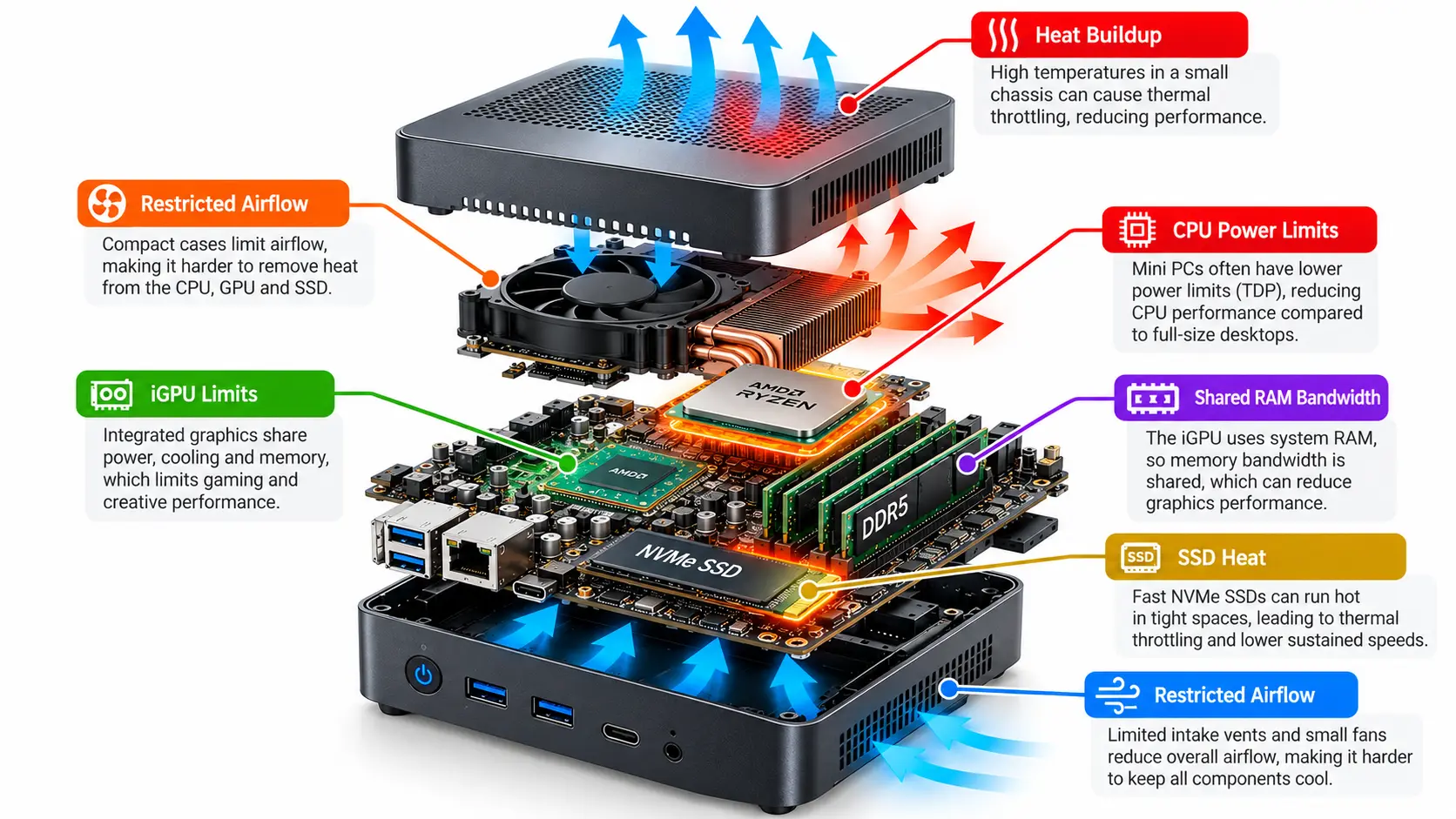
Mini PCs have become a popular alternative to traditional desktop computers because they take up less space, consume less power, and can handle many of the same tasks. However, I’ve noticed that mini PCs’ compact design can also be their biggest weakness. Unlike tower PCs, where components have more space for cooling and airflow, mini PCs pack the processor, graphics, RAM, and other hardware into a very small space.
When these components work together under heavy loads, heat can build up quickly, and restricted airflow can make it harder to remove. This is why I believe mini PCs have a greater chance of facing thermal and power-related bottlenecks than well-cooled tower desktops. But that doesn’t mean every mini PC has performance problems. The actual limitations depend on the hardware, cooling design, and what you’re using the computer for.
Mini PCs Face More Bottlenecks, Why?
The biggest difference between a mini PC and a traditional desktop is the amount of space available inside the case. A tower PC generally has room for larger cooling fans, bigger heatsinks, and separate components. Air can move through the system more freely, helping carry heat away from the processor and graphics card.
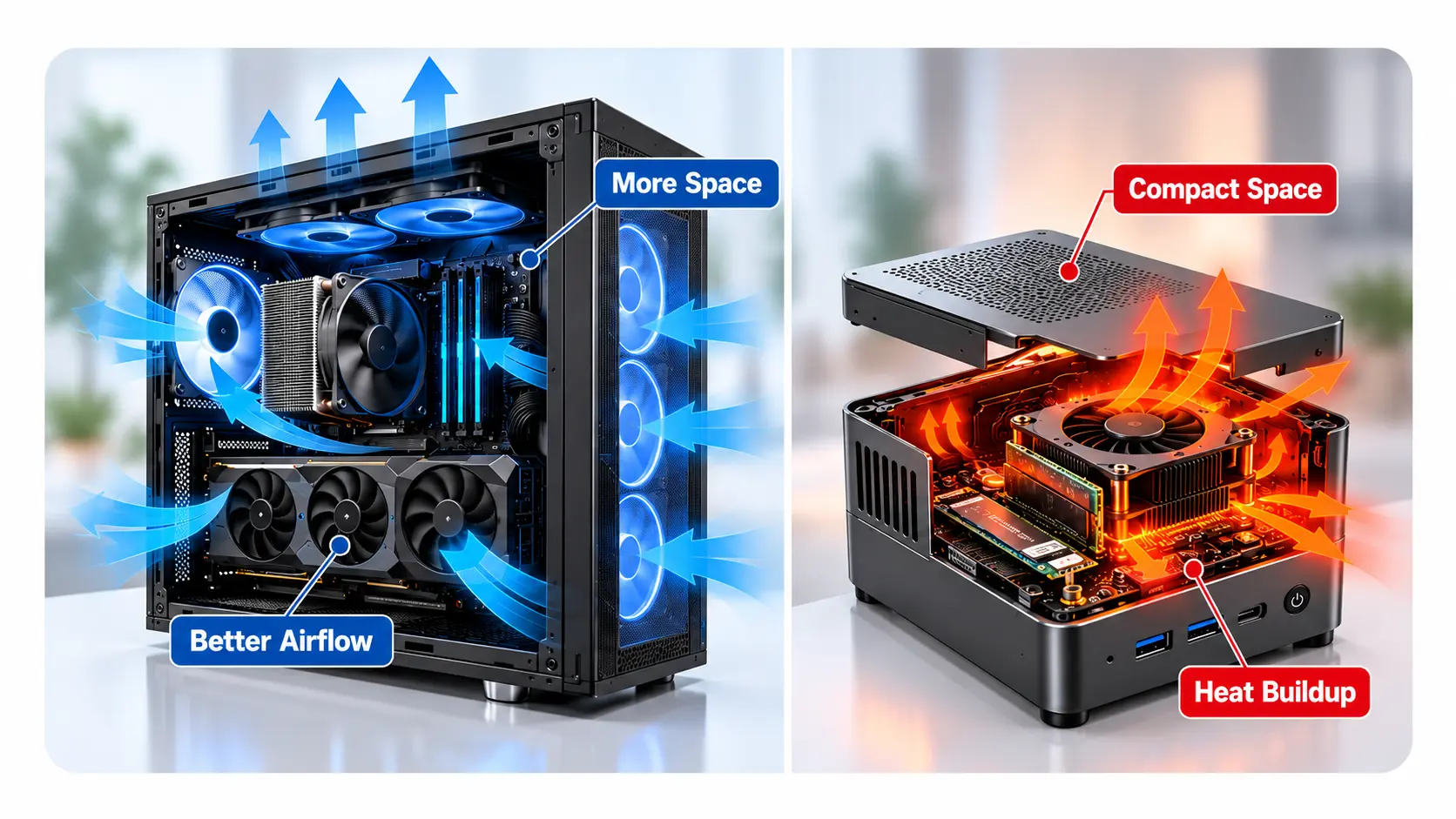
Mini PCs don’t have that luxury. Most of their components sit close together, and the entire cooling system has to fit inside a small chassis. When the processor starts producing more heat, nearby components can also be affected. If the cooling system cannot remove that heat quickly enough, the processor may have to reduce its speed.
I consider this one of the main reasons why mini PCs can face performance limitations sooner than desktop systems during demanding workloads. Even if two computers use processors with similar specifications, their performance can differ because one has better cooling and more room for airflow.
However, a well-designed Mini PC with proper ventilation can still perform very well. The small size itself isn’t the problem. What matters is whether the cooling system can handle the heat produced by the installed hardware.
Heat and Restricted Airflow
Whenever a processor or graphics chip is working, it produces heat. This is normal for every computer. The difference is how effectively that heat leaves the system.
In a desktop tower, larger fans can bring cool air into the case while other fans push warm air out. Mini PCs normally depend on smaller fans and compact heatsinks. If warm air cannot escape efficiently, temperatures rise, and the cooling system has to work harder.
For example, imagine using a mini PC for video editing. When you start exporting a video, the processor may run at a high clock speed and complete the first part of the job quickly. But as the export continues, the temperature inside the case can increase. If the cooling system reaches its limit, the processor may lower its clock speed, and the remaining export can take longer than expected.
This behavior is called thermal throttling. According to Intel’s explanation of processor throttling, processors can reduce their operating frequency when temperature limits are reached to protect the hardware.
Something else worth understanding is that high temperatures don’t always mean a mini PC is defective. Some processors are designed to operate safely at relatively high temperatures. The concern begins when cooling or power restrictions noticeably reduce performance during the tasks you need to complete.
CPU Bottlenecks in Mini PCs
Most modern mini PCs use mobile processors from Intel or AMD. These processors can deliver impressive performance considering their size and power consumption. For browsing, programming, office work, and other everyday tasks, many of them feel just as responsive as larger computers.
The difference becomes more noticeable when the processor has to work continuously. A CPU can temporarily increase its clock speed through boost technology, but that speed isn’t necessarily sustainable for an extended period. Its long-term performance depends on the power limits and cooling capacity set by the manufacturer.
Suppose you’re compiling a large programming project or rendering a long video. The first few minutes might run smoothly, but performance could decrease as the processor settles into its sustained power limit. That slowdown may happen even when the CPU itself is capable of reaching much higher speeds.
This is why I wouldn’t judge a mini PC only by its processor name or advertised boost frequency. I would also check sustained-performance reviews and compare the processor with results from our CPU benchmarks. A powerful CPU is useful, but it needs sufficient cooling to maintain its performance.
Integrated Graphics Can Limit Gaming Performance
Another important limitation comes from the graphics hardware. Most mini PCs use integrated graphics rather than a dedicated graphics card, mainly because there isn’t enough room or cooling capacity for a standard desktop GPU.
Modern integrated graphics have improved considerably. AMD Radeon and Intel Arc integrated solutions can run many lighter games and competitive titles at reasonable settings. However, their performance still depends on the processor’s power budget and the available memory bandwidth.
Let’s say you’re playing a game at 1080p with medium graphics settings. Everything might run smoothly until you enter an area with detailed environments, complex lighting, or more demanding visual effects. At that point, the integrated GPU may reach its processing limit, causing frame rates to fall.
This doesn’t automatically mean the processor is weak. The CPU may have plenty of unused capacity while the graphics hardware is working as hard as it can. Lowering the graphics settings, render resolution, shadows, or other demanding effects can improve performance when the GPU is the limiting factor.
You can also compare graphics capabilities through our GPU benchmarks before choosing a mini PC for gaming.
How RAM Affects Mini PC Performance
RAM is another component I would pay attention to when choosing a mini PC. In a traditional gaming desktop, a dedicated graphics card normally has its own video memory. Most integrated GPUs don’t have dedicated VRAM and instead use a portion of the system’s RAM.
This means the processor and integrated graphics are sharing memory resources. If memory bandwidth is limited, the integrated GPU might not receive data quickly enough to perform at its full potential.
Why Dual-Channel RAM Matters
Consider a mini PC with 16GB of RAM installed as a single module. Another mini PC has the same 16GB capacity, but its memory is configured across two channels. Depending on the processor and memory architecture, the dual-channel configuration can provide considerably more memory bandwidth.
That difference can be noticeable in gaming because integrated graphics depend heavily on memory access. Intel has also explained the impact of single-channel and dual-channel memory on Integrated Graphics, including how additional memory bandwidth can improve GPU performance.
For basic browsing and office tasks, the difference might not be obvious. But for gaming, graphics work, and certain memory-intensive applications, it can matter. I would also check whether a mini PC has upgradeable RAM slots or soldered memory before buying it.
Memory speed and capacity are worth considering too. A mini PC with 16GB can handle many everyday tasks, while 32GB offers more room for demanding applications and multitasking. If you’re comparing memory generations, our DDR4 vs DDR5 guide explains the differences in bandwidth, latency, and gaming performance.
Does SSD Storage Cause Bottlenecks in Mini PCs?
Storage is usually less of a concern in modern mini PCs because many models already include NVMe SSDs. These drives provide fast application loading, file access, and operating-system responsiveness.
However, storage can still become a limiting factor during lengthy file transfers or demanding tasks that continuously read and write large amounts of data. An SSD also produces heat, and in a compact system, it may sit close to other warm components.
For example, copying a large video project might begin at a high transfer speed, then slow down later. One possible reason is that the SSD has reached its thermal limit. Another is that its fast write cache has filled, so you shouldn’t assume every reduction in transfer speed is caused by heat.
For normal office work, browsing, and casual gaming, a healthy SSD is unlikely to be the main performance restriction. I would pay more attention to storage temperatures, available capacity, and sustained write performance if the mini PC is intended for frequent large file transfers.
Can an External GPU Solve Mini PC Gaming Bottlenecks?
Some mini PCs support external graphics cards through connections such as USB4, Thunderbolt, or OCuLink. This can be useful if the integrated graphics aren’t powerful enough for your gaming or creative applications.
An external GPU provides much more graphics processing power than most integrated solutions, but it doesn’t completely remove performance limitations. The connection between the mini PC and external graphics card has less bandwidth than a typical desktop PCIe x16 slot, and that can reduce the card’s performance.
For example, attaching a powerful desktop GPU to a mini PC through USB4 doesn’t guarantee the same gaming results you would get by installing that card directly in a tower PC. The amount of performance lost depends on the connection, game, resolution, and graphics card.
There’s also the CPU to consider. Once the graphics limitation is reduced, the mini PC’s processor or power configuration may become the next restricting factor. That’s why I would check the whole system before investing in an expensive external GPU setup.
Where Mini PCs Don’t Face Serious Performance Limitations
After discussing all these limitations, it’s important to understand that mini PCs aren’t necessarily slower or less reliable than desktop computers. For many people, their hardware is already more than sufficient.
Consider someone who uses a computer for writing documents, managing spreadsheets, browsing websites, watching videos, and attending online meetings. These activities normally don’t push a modern processor and integrated GPU to their limits. A reasonably configured mini PC can handle them comfortably without constantly producing excessive heat.
The same applies to many programming tasks. If you’re writing code, developing websites, managing databases, or working with a lightweight development environment, a mini PC with a capable processor and sufficient RAM can be a practical choice. Large builds, multiple virtual machines, and heavy local workloads are where its limits may become more noticeable.
Mini PCs can also work well as media systems, home servers, and small office computers. Their compact design and generally modest power consumption can actually be advantages in these situations.
My point is that a computer shouldn’t be judged only by how much performance its hardware can theoretically produce. What matters is whether it has enough performance for the applications you’re running. If your workload doesn’t require continuous heavy processing, the compact cooling design may never become a noticeable problem.
How to Check Mini PC Bottlenecks Before Buying or Upgrading
When evaluating a mini PC, I would start by looking at its processor, integrated graphics, RAM capacity, and memory configuration. These specifications provide an initial understanding of what the system can handle.
You can enter the supported hardware details into our PC Bottleneck Calculator to estimate the performance balance between the processor and graphics hardware. However, keep in mind that a calculator cannot fully account for the cooling system, manufacturer power settings, or airflow restrictions inside a particular mini PC.
If you already own the computer, the better approach is to test it while running your usual applications. On Windows, Task Manager can show processor activity, memory usage, and other resource information. Microsoft’s guide to Windows system configuration tools explains how to access Task Manager and monitor system resources.
For temperatures, power consumption, and clock speeds, you may need a compatible hardware monitoring utility. Run a demanding application, observe its performance, and repeat the same workload after the system has been operating for around 10 to 15 minutes.
If the CPU or GPU performance drops alongside rising temperatures, investigate cooling and thermal limits. If performance drops while temperatures remain stable, power restrictions, memory limitations, or application behavior may be responsible. The aim is to identify the actual cause rather than assuming every slowdown is a CPU or GPU mismatch.
How to Reduce Bottlenecks in a Mini PC
The first thing I would recommend is improving airflow around the computer. Because mini PCs have limited internal space, the placement of the device can affect how efficiently its cooling system operates.
For example, if a mini PC is placed inside a closed cabinet, surrounded by other electronic devices, or mounted behind a monitor with restricted ventilation, warm exhaust air may circulate back toward the intake. Moving it to a more open location can improve cooling conditions without changing any hardware.
Keeping the air vents clean is another simple precaution. Dust buildup can restrict airflow and make the cooling fan less effective over time. If the manufacturer provides a performance or fan-control mode, you can also check whether another supported setting is more suitable for demanding tasks, while accepting that it may increase noise and power consumption.
Beyond cooling, I would review RAM configuration, close unnecessary background applications, and adjust graphics settings to match the integrated GPU. These changes won’t turn a mini PC into a high-end desktop, but they can help you get more consistent performance from the hardware you already own.
Conclusion
Mini PCs offer an excellent balance of size, efficiency, and performance, but their compact construction introduces limitations that are less common in spacious desktop towers. From my perspective, restricted airflow and heat buildup are two of the most important factors to consider, because they can affect how long the processor and graphics hardware maintain their performance under load.
That doesn’t mean mini PCs are a poor choice. For office work, development, media consumption, and many everyday applications, they can perform comfortably without noticeable slowdowns. The important thing is to understand your workload, choose a system with suitable cooling and memory, and avoid expecting desktop-class sustained performance from every compact design.