Can Your PC Handle AI Video?
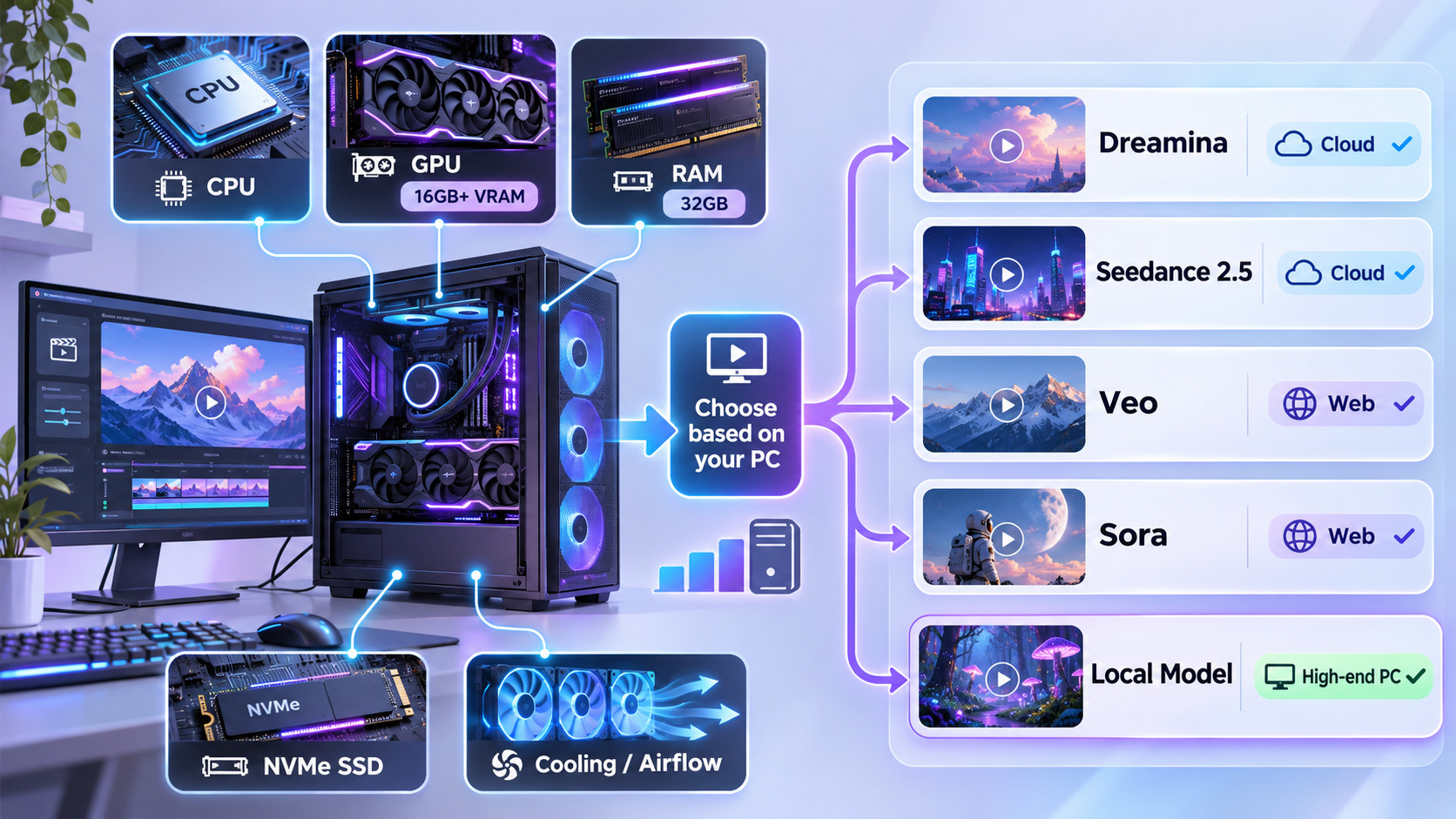
Whether your PC can handle AI video depends on which AI video generator you use, your hardware specifications, and the number of videos you want to create. If you use an online generator, a Core i5 or Ryzen 5 processor with 8–16 GB of RAM and an SSD is generally sufficient for basic video creation.
However, if you generate videos locally, create content in bulk, or edit high-resolution videos, I recommend a modern Core i7 or Ryzen 7 processor, 32 GB of RAM, a dedicated graphics card with at least 12–16 GB of VRAM, and a 1 TB NVMe SSD. More demanding local AI models may require 24 GB or more of GPU memory.
The Growing Trend of AI Video Generation in 2026
AI video generation has become increasingly popular among social media influencers, digital marketers, YouTubers, and freelancers in 2026. Many content creators are using artificial intelligence to produce promotional videos, Instagram Reels, YouTube Shorts, animated stories, and product advertisements to generate income without investing heavily in traditional video production equipment.
However, I have noticed that many beginners enter this field without understanding the technical requirements. They purchase subscriptions to different AI tools, install automation software, and start generating videos without checking whether their computers can handle the entire production process.
Some creators have powerful computers but use unsuitable AI models, while others purchase expensive subscriptions and work on computers with insufficient RAM, outdated processors, or poor cooling systems. Both situations can affect productivity and increase the overall cost of video production.
The quality of your AI video depends largely on the generation model and your instructions, but the efficiency of your production workflow also depends on your computer.
How Does AI Video Generation Use Your PC Resources?
Before upgrading your computer, you need to understand where the AI model performs its calculations. There are two main approaches to video generation, and each places different demands on your hardware.
Online AI Video Generation
When you use a browser-based AI video generator, the complex calculations required to create the video generally take place on the company’s remote servers. Your PC is primarily responsible for running the browser, uploading reference files, downloading generated videos, and playing the results.
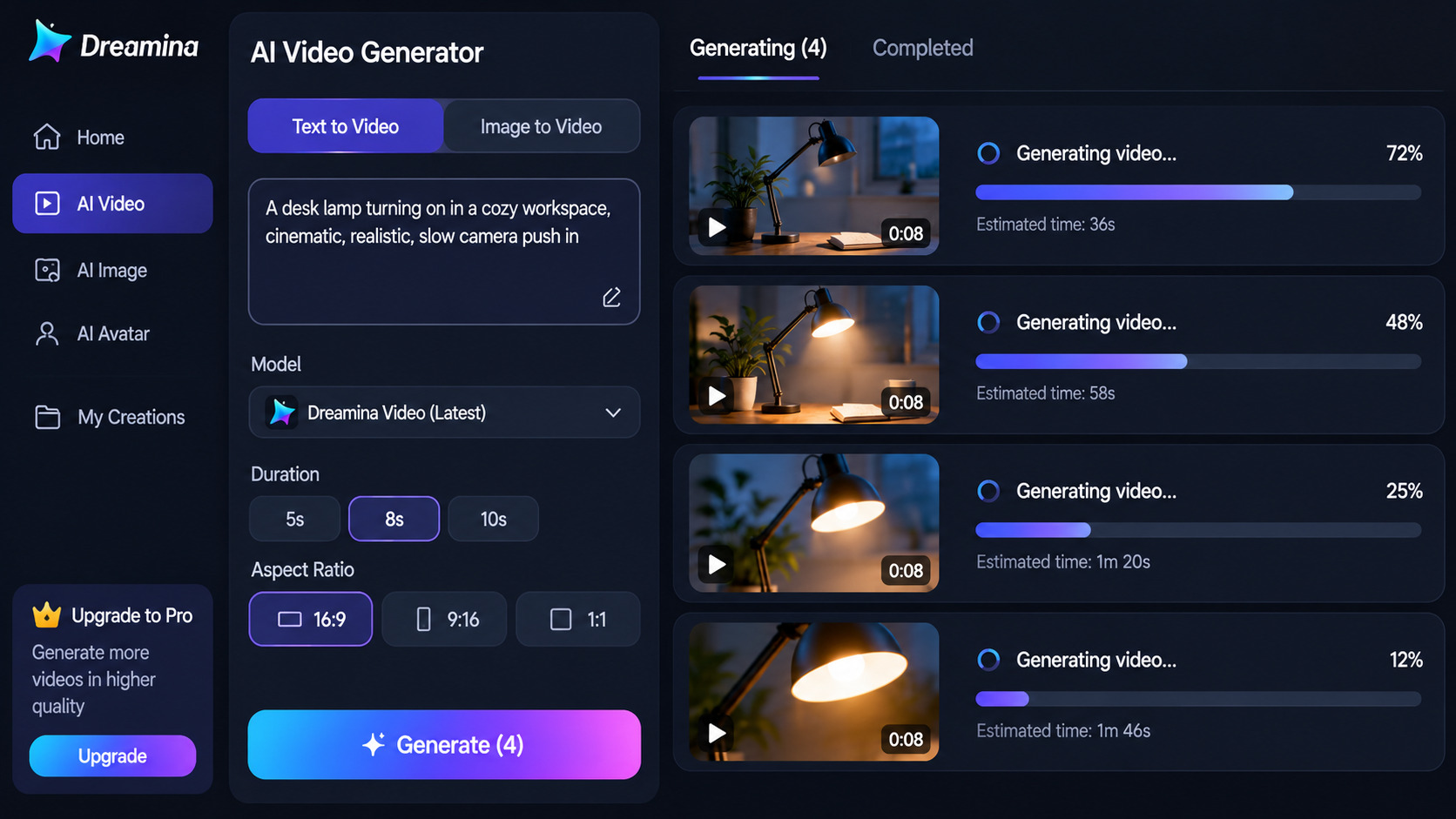
For example, if you have an older Core i5 laptop with 8 GB of RAM and integrated graphics, you can still generate short AI videos through a cloud-based platform. You may encounter performance issues when opening multiple browser tabs or editing several videos simultaneously, but you do not necessarily need an expensive graphics card for generation itself.
Upgrading from an RTX 3060 to an RTX 5090 will not directly accelerate video generation if the entire AI model is running on a remote server.
Local AI Video Generation
Local AI video generation is different because you install the AI model and its supporting software directly on your computer. Your hardware performs the calculations required to generate video frames, process movement, and produce the final output.
Here, the graphics card becomes one of the most important components. Your GPU’s processing power, VRAM capacity, system RAM, and storage speed can influence how efficiently the model operates.
For example, the developers of Wan2.1 state in their official documentation that its smaller 1.3B text-to-video model requires approximately 8.19 GB of VRAM under its specified configuration. Larger video models can require considerably more memory, depending on their settings and optimization methods.
This is why buying a graphics card without checking the requirements of your preferred AI model is not a good approach.
PC Requirements for AI Video Generation in 2026
The following specifications are my suggested starting points for different types of AI video production. You do not need to purchase a high-end computer if your work is limited to generating and downloading a few videos every day.
| PC Component | Basic Online Generation | Regular Content Creation | Advanced Local Generation |
|---|---|---|---|
| Processor | Core i5 / Ryzen 5 | Core i5 / Ryzen 5 or better | Core i7 / Ryzen 7 or better |
| CPU cores | 4–6 cores | 6–8 cores | 8–16 cores |
| Graphics card | Integrated graphics | RTX 3060 12GB / RTX 4060 Ti 16GB | RTX 4090 / RTX 5090 |
| GPU memory | Dedicated VRAM not required | 8–16 GB | 24–32 GB or more |
| System RAM | 8–16 GB | 32 GB | 64 GB or more |
| Storage | 256–512 GB SSD | 1 TB NVMe SSD | 2 TB NVMe SSD or more |
| Cooling | Standard cooling | Quality tower cooler | High-performance air or liquid cooling |
| Primary use | Short cloud-generated videos | Automation and video editing | Local AI models and complex projects |
These are recommended hardware configurations rather than universal system requirements. Your actual requirements depend on the model, video duration, resolution, editing software, and number of tasks you perform simultaneously.
Which PC Components Matter Most for AI Video?
Graphics Card (GPU)
If you plan to generate videos locally, prioritize the graphics card. Video generation involves processing numerous frames while maintaining visual consistency between them. Depending on the model, this can place considerable pressure on both the GPU’s processing units and its available memory.
I recommend looking beyond the graphics card’s generation and model number. For instance, an RTX 3060 with 12 GB of VRAM may accommodate certain AI models that cannot fit into the 8 GB of VRAM available on a standard RTX 4060, even though the RTX 4060 uses a newer architecture.
You can compare different graphics cards using our GPU benchmarks, but remember that gaming performance alone does not determine AI generation performance. Model compatibility, memory capacity, computing architecture, and software support also matter.
Processor (CPU)
Many beginners concentrate entirely on graphics cards and underestimate the importance of the processor. Although the GPU performs most of the calculations in many local AI models, the CPU handles supporting tasks, background applications, file processing, automation software, and parts of the video editing workflow.
Imagine you are generating AI videos through an automation program while simultaneously editing previous videos, extracting audio, running a browser, and uploading completed content. All these activities compete for available system resources.
A modern six-core processor is a reasonable starting point for moderate workloads. However, I prefer an eight-core or more powerful processor for a dedicated AI video production workstation.
GPU Memory (VRAM)
VRAM is the memory available to your graphics processor. During local AI video generation, it can hold model data, intermediate calculations, and other information required to produce the output.
When your graphics card does not have enough VRAM, the software may fail to generate the video, display an out-of-memory error, or transfer some data to system RAM if the workflow supports memory offloading.
Although offloading can make certain models usable on lower-memory graphics cards, transferring information between GPU memory and system memory can increase processing time. I would prioritize sufficient VRAM over purchasing a slightly faster graphics card with insufficient memory for my intended model.
System Memory (RAM)
If you only generate occasional videos through a website, 8 GB of RAM may be sufficient. However, for regular content production, I consider 16 GB a practical starting point and 32 GB a more comfortable configuration.
When you open several browser windows, run automation tools, download large files, and keep video editing software active, memory consumption increases. Insufficient RAM can force Windows to rely more heavily on storage, making applications less responsive.
For creators working with larger local AI models, high-resolution editing, or memory offloading, 64 GB of RAM may be a worthwhile investment.
Storage Capacity and Speed
AI video creators often underestimate how quickly their storage fills up. Generated videos, rejected versions, reference images, audio files, editing projects, AI models, and temporary cache files all consume storage space.
Consider a creator producing 50 videos every day, with each video occupying approximately 30 MB. The downloaded videos alone would consume around 45 GB over 30 days, excluding project files, alternative versions, and exported copies.
I recommend using an NVMe SSD for active video projects and maintaining a separate storage drive for completed projects and backups. Faster storage will not automatically accelerate every stage of AI generation, but it can improve file transfers, project loading, caching, and general system responsiveness.
Can Your PC Handle Bulk AI Video Generation?
One development I have noticed in AI content creation is the increasing use of automation software. Instead of manually entering prompts and generating videos individually, creators can connect supported AI services to automation workflows and submit multiple video requests through a single command.
For example, a content creator might prepare a spreadsheet containing 50 prompts, connect a supported video generation API to an automation tool, and configure the workflow to submit requests, download completed videos, and organize them into separate folders.
These workflows may require paid subscriptions, API access, or sufficient generation credits. They must also operate within the provider’s permitted usage limits. Google’s video generation API, for instance, supports asynchronous generation workflows that allow applications to retrieve results after submitting requests.
However, submitting 50 requests does not necessarily mean all 50 videos will be generated simultaneously.
What Happens When You Generate 50 AI Videos at Once?
The hardware load depends on how your automation software operates. If the software submits requests to a cloud-based service, the service handles the AI calculations. Your PC manages the automation process, downloads, browser sessions, and any local processing.
If your workflow also performs video compression, upscaling, subtitle generation, audio processing, or local AI generation, the workload on your computer increases considerably.
This is where I recommend paying attention to your system configuration. A computer that comfortably handles a single video may struggle when several supporting applications are active throughout the day.
Why You Should Control the Number of Simultaneous Tasks
Generating more videos simultaneously does not always increase productivity. Starting too many local tasks can exhaust available VRAM, fill system RAM, increase temperatures, and cause applications to become unresponsive.
I would begin by processing a few videos and observing hardware utilization. If the system remains responsive and the temperatures are stable, gradually increase the number of concurrent tasks within the software’s supported limits.
A properly managed generation queue is often more productive than placing unnecessary pressure on your computer by starting every task together.
Is a Laptop Good for AI Video Generation?
A laptop is sufficient for basic online AI video generation, short video editing sessions, and occasional content creation. However, if your primary business involves producing videos in bulk, running local AI models, and editing content for several hours every day, I would generally recommend a desktop computer.
The main reason is sustained performance. Desktop computers usually have more space for cooling systems, larger graphics cards, additional storage drives, and future hardware upgrades.
Desktop PC vs. Laptop for AI Video
| Feature | Desktop PC | Laptop |
|---|---|---|
| Cooling performance | Generally better | Limited by chassis design |
| Sustained workloads | Better suited to prolonged workloads | Depends on power and cooling limits |
| GPU upgrade | Usually possible | Generally unavailable |
| RAM upgrades | More flexibility | Model-dependent |
| Storage expansion | Multiple drive options | Usually limited |
| Portability | Low | High |
| Bulk local generation | Recommended | Depends on configuration |
| Basic cloud generation | Suitable | Suitable |
Another important factor is that desktop and laptop graphics cards with similar names do not necessarily deliver the same performance. They may have different power limits, memory configurations, and cooling capabilities.
If you are planning a dedicated workstation, spend time organizing your PC build around the workload rather than choosing components solely according to their popularity.
Why Cooling Matters During AI Video Generation
One mistake I have observed among PC users is spending most of their budget on the processor and graphics card while choosing inexpensive cooling components and poorly ventilated computer cases.
During extended local AI video generation and editing sessions, your CPU and GPU can operate under high workloads for prolonged periods. If your PC cannot remove the generated heat efficiently, its internal temperatures rise and may cause performance reductions.
According to Intel’s explanation of thermal throttling, processors can reduce their operating speed when they reach their thermal limits to protect themselves from overheating.
Maintain Proper Airflow Inside Your PC
For a dedicated AI workstation, I prefer a computer case with a ventilated front panel, sufficient intake fans, rear or top exhaust fans, and enough clearance around the graphics card.
The intake fans bring cooler air inside the case, while the exhaust fans remove heated air. A poorly designed airflow configuration can allow warm air to accumulate around the components, reducing cooling efficiency.
You should also monitor your GPU temperature during extended workloads. Instead of relying on a universal safe temperature, compare your readings with the thermal specifications of your particular graphics card.
Do You Need Liquid Cooling for AI Video?
Liquid cooling is not compulsory for AI video production. A quality tower air cooler can handle many modern processors when the case has adequate airflow.
However, if you use a high-power processor and perform demanding workloads throughout the day, a suitable liquid cooling system may help manage sustained CPU temperatures.
Remember that installing a liquid CPU cooler will not directly solve GPU overheating. Your graphics card still requires sufficient airflow and appropriate cooling.
How to Check If Your PC Can Handle AI Video
Before purchasing new hardware or subscribing to an expensive AI platform, I recommend checking your existing system. Many performance issues can be identified without installing complicated benchmarking software.
Check Your PC Specifications
On a Windows computer, press Ctrl + Shift + Esc to open Task Manager and select the Performance tab. Here, you can view your processor model, installed RAM, storage devices, graphics card, and available dedicated GPU memory.
You can also refer to Microsoft’s explanation of GPU utilization to understand dedicated memory, shared memory, and the different graphics processing engines displayed in Task Manager.
Once you have identified your hardware, compare it with the documented requirements of your AI generation model and editing software.
Perform a Small Video Generation Test
Rather than immediately generating dozens of videos, start with a single short clip. Use the resolution and settings you intend to work with regularly, and monitor your computer while the video is generated, downloaded, and edited.
If you are using a local model, check how much VRAM and RAM it consumes, how long the generation takes, and whether your system remains stable. If you are using an online service, pay more attention to browser responsiveness, internet performance, and the supporting applications.
After completing the first test, increase the workload gradually until you identify the practical limits of your system.
Identify CPU, GPU, RAM, and Storage Bottlenecks
High hardware utilization is not always a problem. A GPU operating near 100% utilization during local AI generation may simply indicate that the software is using the available computing resources efficiently.
The problem becomes more apparent when a component reaches its limit and prevents the workflow from progressing efficiently.
| Performance Issue | Possible Cause |
|---|---|
| Local generation fails with a memory error | Insufficient VRAM |
| Browser and editing applications freeze | Insufficient RAM |
| Slow video exports | CPU, GPU, or encoding limitations |
| Gradual performance reduction | Thermal throttling |
| Slow project loading | Storage limitations |
| Online generation takes too long | Server demand, model settings, or service limits |
| Downloads frequently interrupt | Network instability |
| Unexpected graphical errors | Driver, model, or GPU stability issues |
You can use our bottleneck calculator to get an initial assessment of your hardware configuration and identify components that may limit performance.
However, the calculator provides an estimate of your system’s balance rather than an exact measurement of AI model performance. Confirm its results by monitoring your intended workflow.
How to Choose the Right AI Video Generator for Your PC
An expensive subscription does not automatically guarantee better video quality or higher productivity. Before choosing an AI generator, consider whether it supports the type of content you intend to produce, the available models, output resolution, video duration, generation limits, and commercial usage terms.
If your computer has integrated graphics and limited RAM, an online generator is generally a practical option. If you have a powerful desktop with sufficient VRAM and understand how to install AI models, local generation may offer greater control over selected workflows.
I would also calculate the cost of producing a usable video rather than simply comparing subscription prices. If a cheaper platform requires several attempts to produce an acceptable clip, it may ultimately cost more than a platform that produces suitable results with fewer attempts.
Does Video Editing Require More Powerful Hardware?
Generating an AI video is only one part of content creation. Once the video is ready, you may need to combine it with other clips, add voiceovers, generate subtitles, apply effects, adjust colors, and export the completed project.
Even if your computer handles online video generation without difficulty, it may struggle during high-resolution video editing. Adobe’s published editing requirements recommend 32 GB or more of RAM for 4K and higher-resolution editing, along with 8 GB of GPU memory for supported conventional Windows configurations.
Dedicated graphics cards can also provide hardware-assisted video encoding and decoding. NVIDIA’s encoding compatibility documentation helps explain which graphics cards support different video formats and encoding capabilities.
If your timeline becomes slow, reducing the preview resolution, using proxy files, and temporarily disabling demanding effects may improve responsiveness without requiring an immediate hardware upgrade.
How to Optimize Your PC for AI Video Generation
Close Unnecessary Background Applications
Running games, multiple browser windows, communication applications, and video generation software simultaneously can reduce the resources available to your primary workload.
Before starting a demanding generation session, close applications you do not need. This is particularly useful on computers with 8 GB or 16 GB of RAM.
Keep Your Graphics Drivers Updated
Your graphics drivers affect compatibility between your GPU, operating system, AI models, and editing software. Outdated or incompatible drivers can cause generation failures, rendering errors, and unexpected application crashes.
If you consistently encounter graphical problems, check your GPU health and verify that your installed drivers are compatible with the software you use.
Generate at Lower Resolutions Initially
If you are testing a new prompt, generating the first clip at 4K may waste processing time, storage space, and generation credits.
I recommend creating a short, lower-resolution version first. Once you are satisfied with the subject, movement, and composition, you can generate a higher-resolution version or use video upscaling where appropriate.
Avoid Unnecessary Hardware Upgrades
Before replacing your processor or graphics card, determine which component is actually limiting your production workflow. Sometimes, adding more RAM, improving cooling, clearing storage space, or adjusting software settings can resolve the problem.
You can address several common PC bottlenecks without replacing expensive components.
Conclusion
AI video generation has created new opportunities for content creators, freelancers, marketers, and social media influencers in 2026. However, selecting the right generator is only one part of building an efficient video production workflow.
In my experience, understanding your computer’s capabilities before investing in expensive software or hardware is a better approach. If you create occasional videos through an online platform, your existing laptop may already be sufficient. But if you are building a business around bulk video generation, automation, local AI models, and professional editing, I recommend investing in a balanced desktop PC with sufficient GPU memory, system RAM, fast storage, and reliable cooling.
The objective is not to purchase the most expensive computer available. It is to build a system that can handle your daily workload consistently without unnecessary delays, overheating, or hardware bottlenecks.