
How to Stay Secure When Using Airport and Hotel Wi-Fi
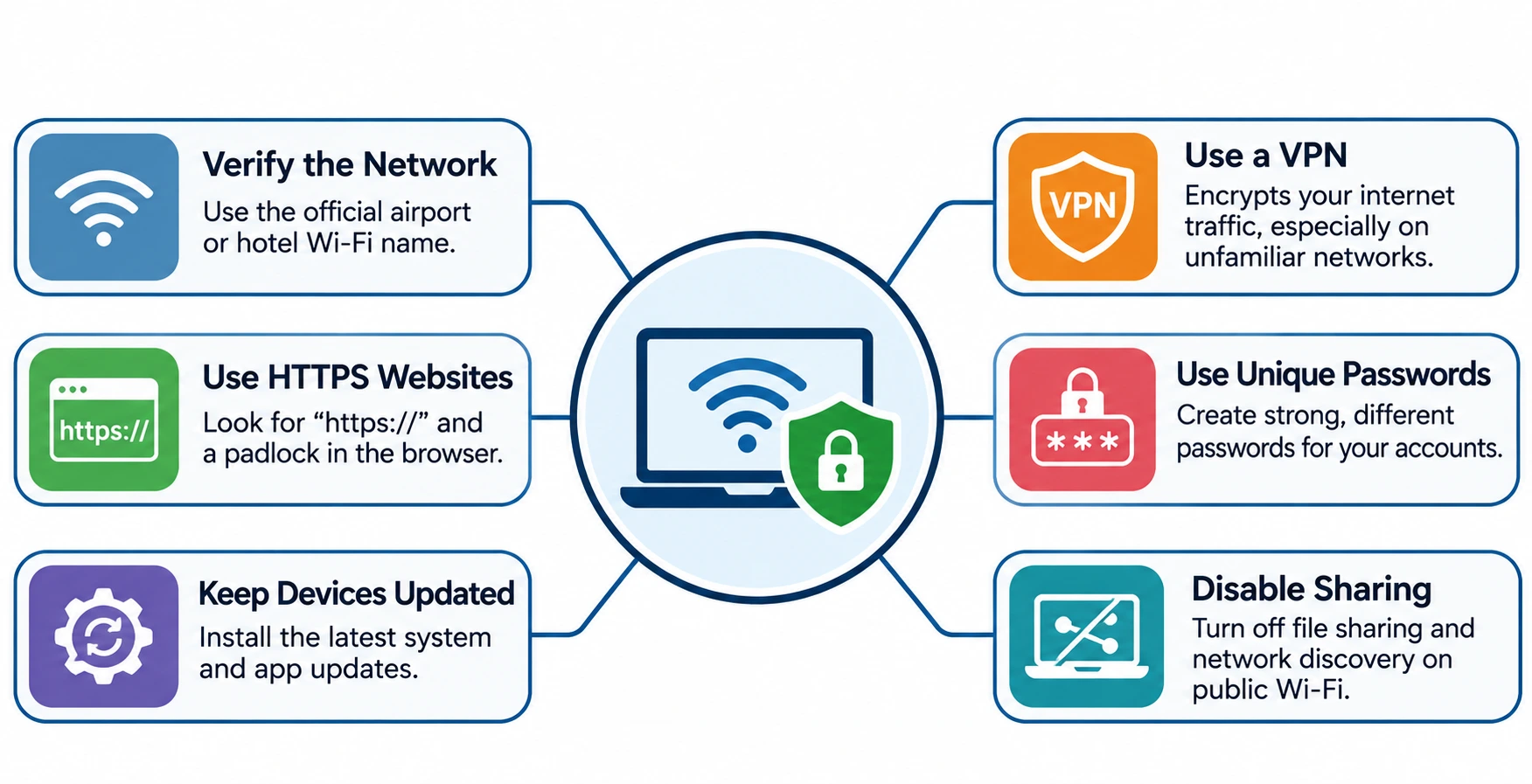
To stay secure when using airport or hotel Wi-Fi, always verify the network name, use websites with HTTPS encryption, keep your devices updated, and avoid accessing sensitive accounts through suspicious connections. For banking or confidential work, using mobile data or a trusted VPN can provide additional protection. These precautions help reduce the risk of someone intercepting your information or tricking you into connecting to an unsafe network.
Public Wi-Fi is convenient when you’re waiting for a flight or working from a hotel room, but not every available connection is trustworthy. Understanding a few basic security settings can make a noticeable difference without changing how you normally use the internet.
Verify the Wi-Fi Network to Stay Secure Before Connecting
One of the most common concerns with public Wi-Fi is a fake hotspot, sometimes called an evil twin network. Someone can create a wireless network with a name almost identical to the official airport or hotel connection. For example, you might see both “Hotel_Guest” and “Hotel_Free_WiFi” on your phone, making it difficult to know which one belongs to the property.
Before connecting, ask hotel reception or airport staff for the exact network name. The Australian Cyber Security Centre also recommends confirming public Wi-Fi details and disabling file sharing when using unfamiliar networks. Remember that a network requiring a password isn’t necessarily legitimate, since anyone setting up a fake hotspot can also protect it with a password.
Some hotels use a captive portal, which is a sign-in page that appears after connecting to Wi-Fi. It may ask you to accept usage terms or enter your room details. However, a request to install an unknown application, browser extension, or security certificate simply to browse the internet should raise concerns.
Understand How HTTPS Protects Your Information
When you visit a website, information travels between your device and the website’s server. On an unsecured HTTP connection, someone positioned along that connection may be able to read or modify the transmitted information. HTTPS uses Transport Layer Security (TLS) to encrypt that communication, helping protect passwords, payment details, and other information from interception.
According to Let’s Encrypt, HTTPS protects both the confidentiality and integrity of information transmitted between browsers and websites. This protection works even when the Wi-Fi network itself isn’t encrypted, although network operators may still be able to see some connection details.
There is one important limitation. HTTPS doesn’t prove that a website is genuine. A fraudulent banking page can have a valid HTTPS certificate, so you should always check the domain name before entering any login details. If your browser displays a certificate warning or says the connection isn’t private, don’t bypass the warning to continue.
Secure Your Devices Before Traveling
Keeping your phone and laptop updated is one of the simplest ways to reduce security risks. Operating system updates often fix vulnerabilities that attackers could otherwise exploit. Install important updates before leaving home, including updates for your browser and any applications you expect to use during the trip.
It’s also worth reviewing your Wi-Fi settings. Most smartphones and laptops can automatically reconnect to previously saved networks, which is convenient at home but less desirable when traveling. Disable automatic joining for unfamiliar networks so your device doesn’t connect without your knowledge.
On laptops, turn off network file sharing when using public Wi-Fi and keep your firewall enabled. Windows users can select the Public network profile to restrict network discovery and sharing. Many modern phones also offer a Private Wi-Fi Address or Randomized MAC setting, which helps limit tracking of the device across different wireless networks.
Protect Your Accounts With Strong Authentication
Even when a network connection is encrypted, your accounts can still be compromised through phishing websites, stolen credentials, or reused passwords. Using unique passwords for your email, banking, and work accounts helps prevent a password exposed in one breach from being used to access your other accounts.
A password manager can make this easier by generating and storing complex passwords, so you don’t have to memorize each one. You should also enable multifactor authentication wherever possible. The Federal Trade Commission recommends using an authenticator app or security key when available, since these methods offer advantages over SMS verification.
For example, if someone manages to obtain your email password through a fraudulent hotel login page, an additional authentication requirement can make unauthorized access harder. However, never approve an unexpected login request or share a verification code with someone who contacts you.
Use a VPN When Handling Sensitive Information
A VPN creates an encrypted connection between your device and a VPN server. This makes it harder for people operating or monitoring the local Wi-Fi network to inspect your traffic and certain connection details. It can be useful when accessing company resources, working with private documents, or connecting through networks you don’t fully trust.
However, a VPN isn’t a complete security solution. The VPN provider becomes another party you need to trust, and the service cannot prevent you from entering information on a phishing website. It also doesn’t replace HTTPS, software updates, or secure account authentication.
If your employer provides a corporate VPN, follow the company’s connection requirements. Some hotel networks require you to complete their captive portal sign-in before the VPN can establish a connection. The UK National Cyber Security Centre discusses this issue in its guidance on configuring secure VPN connections.
For particularly sensitive activities, your phone’s mobile hotspot is another practical option. It allows your laptop to access the internet through your cellular connection rather than joining a shared hotel or airport network. Just make sure the hotspot uses WPA2 or WPA3 encryption and has a strong password.
Disconnect From Public Wi-Fi When You’re Finished
Leaving a hotel or airport doesn’t always mean your device has forgotten its wireless network. If the connection remains saved, your phone or laptop may attempt to reconnect when it encounters another network with the same name.
After using a public hotspot, open your device’s Wi-Fi settings and select the option to forget the network. This removes the saved connection and helps prevent unwanted reconnections. You can also switch off Wi-Fi when you no longer need it.
If you suspect that you’ve connected to a fraudulent hotspot and entered your account credentials, disconnect immediately. Change the affected password through the official website or application using a trusted connection, and review your account for unfamiliar login activity.
Stay Connected Without Compromising Your Security
Airport and hotel Wi-Fi can be useful without becoming an unnecessary security risk. The important thing is knowing which network you’re connecting to, how your information is protected, and when a different connection makes more sense.
Before your next trip, update your devices, check your account security settings, and disable automatic connections to unfamiliar networks. These small preparations can help you browse, communicate, and work more safely throughout your journey.
Conclusion
Airport and hotel Wi-Fi can be safe for everyday browsing when you take the right precautions. Checking the network name, using encrypted websites, keeping your devices updated, and protecting your accounts with strong authentication can help prevent common security problems. For confidential work or financial transactions, a trusted mobile connection may be the better choice.
Before connecting to any unfamiliar network, take a moment to check its authenticity and review your device’s security settings. A few simple habits can protect your personal information while allowing you to use public Wi-Fi with greater confidence.