How to Fix CS2 Crashes and Stuttering on PC?
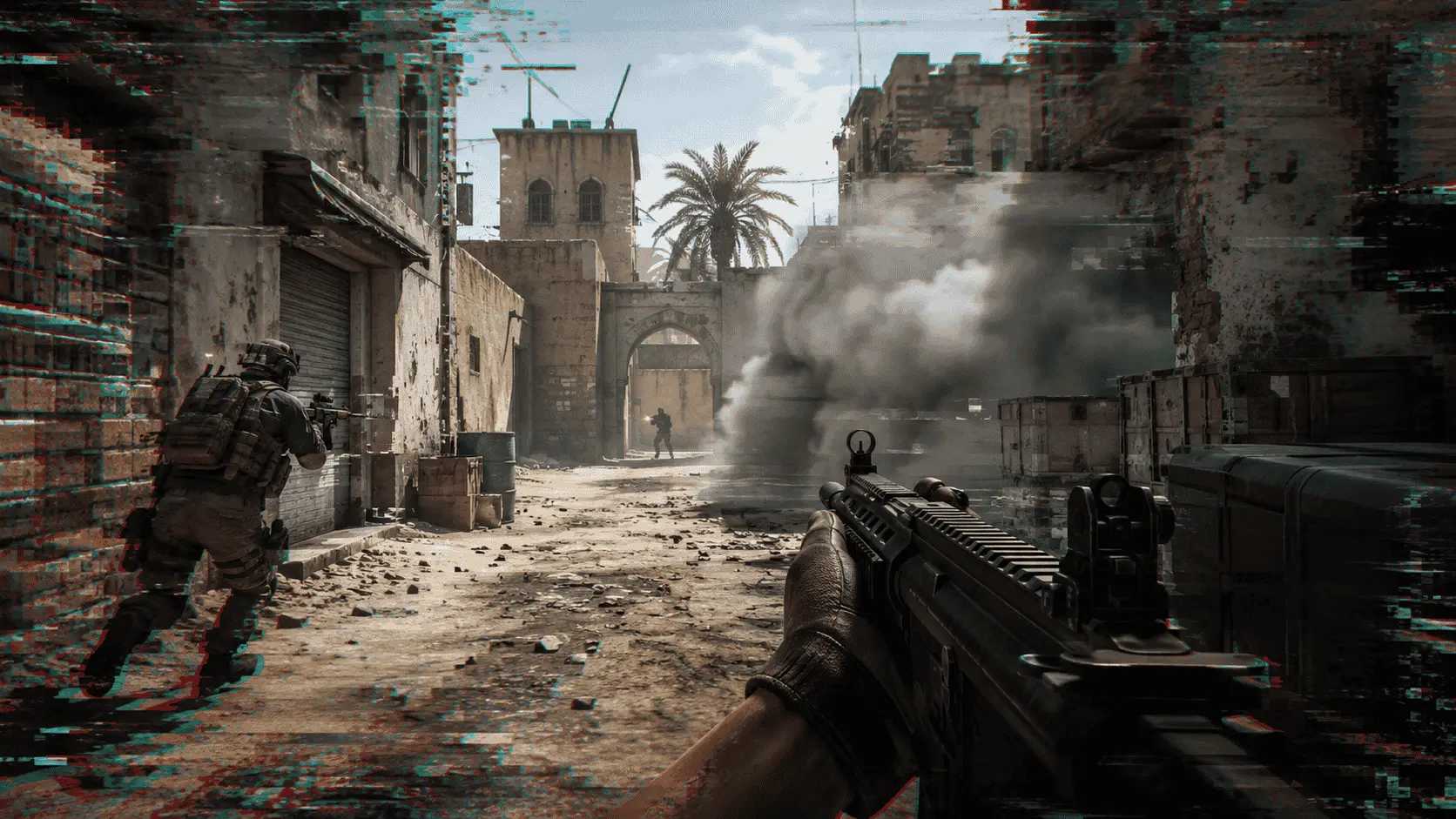
If you want to experience the full joy of Counter-Strike 2, your PC must be running smoothly, responsively, and steadily. As a matter of fact, the success of a peek, spray, smoke lineup, and clutch depends on how fast your game can react to what you do. However, when crashes or stutters happen, you might feel that the match is beyond your control, even if your aim and game sense are still good.
The thing is, a lot of CS2 performance issues can be solved through a few clever tunings. You do not have to overhaul your entire setup. It is enough to figure out what usually makes errors, frame drops, and input delay in your game, and then fix the areas that have the greatest impact on your game.
Start With the Most Common CS2 Performance Problems
An unexpected CS2 crash may occur at launch, during map loading, during warmup, or even in the middle of a close round. For many players, the reason is not one single thing, but a combination of outdated drivers, heavy background apps, unstable settings, and files that require repair. The same can be said for stuttering. It can be a result of the game attempting to load assets, process effects, or handle too many tasks at once.
Before changing everything, look for patterns. Does the game crash only after an update? Does stutter happen when enemies appear? Does it get worse on certain maps?
Common signs include:
Once you know what you are dealing with, you can fix the problem in a more focused way.
Update Your Graphics Drivers and Windows
CS2 relies significantly on the graphics card and system updates. Should your drivers be outdated, the game might not be able to handle the new patches properly. This may cause the game to crash, experience visual glitches, or have poorly timed frames.
Visit the manufacturer’s website of your graphics card and download the latest driver software. Next, run a Windows Update and reboot the computer. A simple reboot is very important as it removes temporary processes and allows the new updates to be implemented correctly.
If you do a lot of gaming, it’s a good idea to keep your system running smoothly and up to date. Having a reliable computer will boost your confidence when it comes to aiming, moving, and reacting.
Verify CS2 Game Files
At times, the issues with the PC may arise because some files are missing or corrupted. Steam includes a feature that checks your game files and replaces any that are broken.
Here’s what you should do to verify the files:
Among many other fixes, this one doesn’t require much effort, so it is a good habit to perform it after the major updates and/or when you start experiencing unexplained crashes.
Lower Settings That Hurt Smooth Gameplay
CS2 is visually appealing, but most competitive players prioritize clear visuals and steady frame rates over pretty graphics. If your computer can’t keep up, turn down settings that significantly increase the workload.
The first things to adjust are:
Only change one setting at a time. This is a way to find out what really helps performance instead of making wild guesses.
Close Background Apps Before Playing
To provide a smooth gaming experience, CS2 requires steady performance from your PC. Many apps, such as browsers, video players, launchers, recording tools, and update services, could cause stuttering. Background apps might cause your PC to freeze momentarily, especially while gaming, even when your PC is powerful.
It’s always better to close all non-essential programs before starting a game. Only keep essentials like voice chat and mouse software running. This setup will not only give you more space for CS2 but will also improve the accuracy of your inputs.
Check Temperatures and Power Settings
Your PC is designed to protect itself by throttling down if the CPU or graphics card overheats. This can lead to stuttering, low frame rates, and even crashes during continuous gameplay.
Keep your system fan functional, make sure your laptop is connected to a power source, and set your power plan to performance. Desktop users should also clean out dust and ensure proper ventilation. A cool PC will serve you longer and be worth the effort.
Use Launch Options Carefully
Some players think that launch options are an easy way to improve a game, but adding random commands one after another without understanding what they actually do can even make the game perform worse. So, you should definitely avoid unthinkingly copying huge command lists from various forums and websites without knowing what they really aim at.
You don’t really need any complicated approach to this. Instead of adding commands on top of each other like crazy, simply remove some old ones and see what happens. If the game runs better after this, then one or more launch options were likely the problem. Having a clean, simple setup is a lot easier to control and manage.
Build a Stable Match Routine
Part of getting ready for a performance is warming up the body; similarly, you can warm up your PC. For example, restarting your system before a long session, first checking that your settings are optimal, closing all unnecessary applications, and then playing for a few minutes in a casual match or on a practice map before going into the competitive game.
When you have a routine that is working for you, it becomes easy to focus on what unfolds, your decision making, crosshair placement, utility timing, communication, etc. Moreover, when the game is running smoothly and as expected, it gives you room to put more effort into improving your skills rather than spending time and frustration on dealing with your hardware or software/setup issues.
Conclusion
CS2 crashes and stuttering can ruin the whole match experience, but most of these problems can be fixed with simple steps. You do not always need a new PC or expensive hardware upgrade. In many cases, updating your drivers, verifying game files, lowering heavy settings, closing background apps, and keeping your system cool can make a big difference.
The best approach is to fix one thing at a time and check how the game responds. This helps you understand what is actually causing the problem instead of changing everything without a clear reason. A clean setup, stable settings, and a smooth PC routine can help CS2 run better during serious matches.