LCD Backlight Failure — Causes, Symptoms, Diagnosis
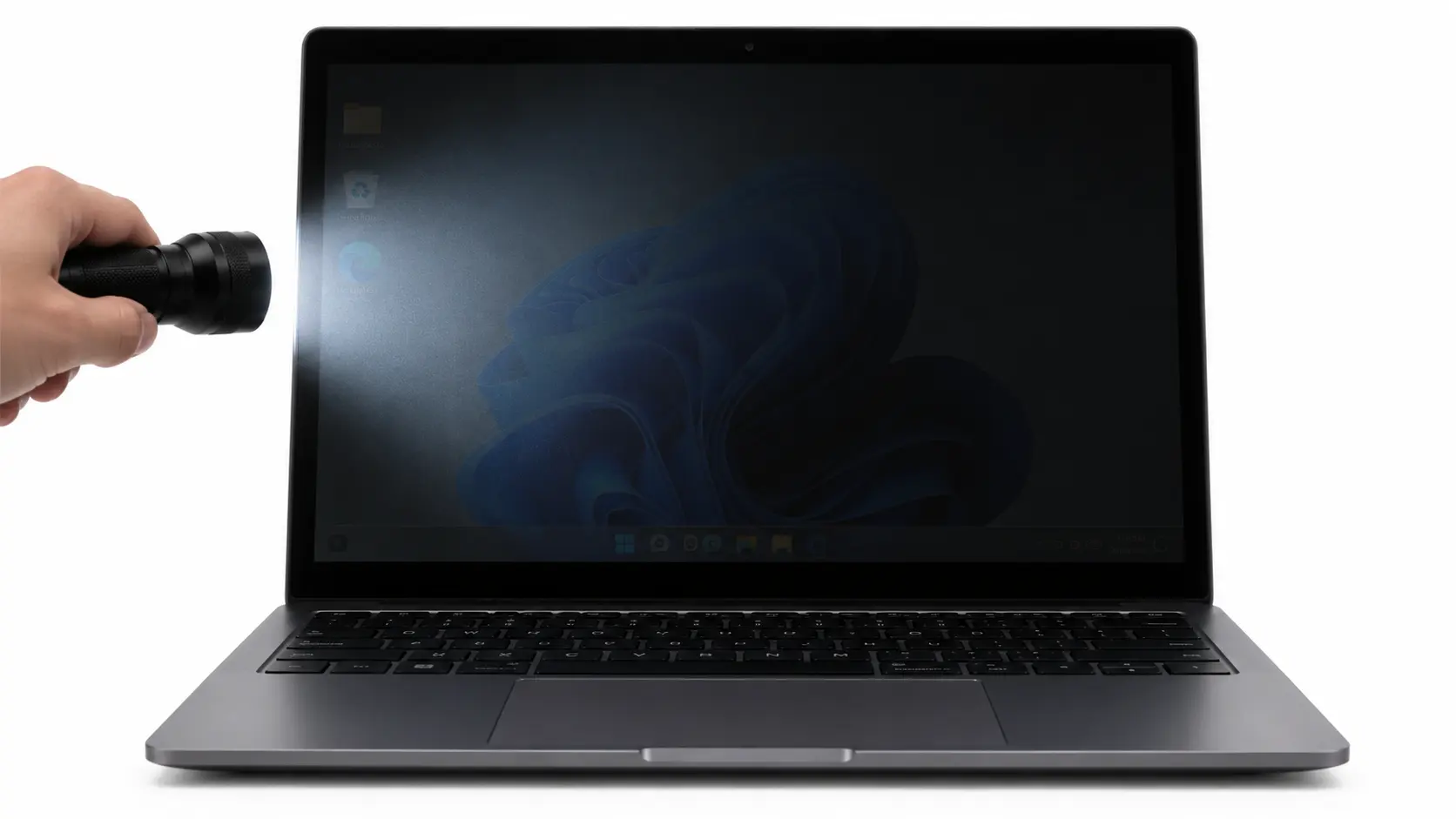
LCD backlight failure can make your laptop, monitor, or TV screen appear completely black, unusually dim, or flicker even when the device is running. One common symptom is a faint image that becomes visible when you shine a flashlight at the screen. To fix it, first check the brightness settings, restart the device, and inspect its power connections.
If these steps do not work, the problem may involve damaged backlight LEDs, a faulty power supply, or a defective backlight driver circuit. Identifying the cause can help you decide whether the screen needs repair or replacement.
What Is LCD Backlight Failure?
LCD backlight failure occurs when the lighting system behind an LCD panel stops working or becomes too weak to illuminate the display. Unlike OLED screens, LCD pixels cannot produce their own light. They depend on a separate lighting system to make images, text, and videos visible.
The LCD backlight typically uses light-emitting diodes (LEDs), while older displays may use cold cathode fluorescent lamps (CCFLs). These components produce light that passes through the LCD layers to make the image visible.
When the backlight fails, the LCD panel may continue producing an image, but the screen appears dark because there is not enough light behind it. This is why a black screen does not always mean the entire display is damaged.
Common Signs of LCD Backlight Failure
The most noticeable symptom is a screen that becomes dark while the computer continues running. However, backlight problems do not always appear suddenly. You may notice changes in brightness or other display behavior before the lighting system stops working completely.
A failing backlight can cause the screen to appear unusually dim even when brightness is set to maximum. Some displays develop dark patches or uneven illumination because individual LEDs have weakened or stopped working. Others flicker or turn black shortly after startup when the backlight driver detects an electrical fault.
However, these symptoms can also occur with other LCD Display Issues, including damaged display cables, unstable power delivery, and faulty panel electronics. A screen that remains bright but leaves faint trails behind moving objects may instead be experiencing Monitor ghosting, which involves pixel response behavior rather than a failed backlight.
Because several display problems share similar symptoms, you need to check whether the LCD is still producing an image before assuming its backlight has failed.
What Causes LCD Backlight Failure?
Damaged LED Strips or CCFL Lamps
Backlight components gradually deteriorate as a display ages. LEDs can lose brightness after prolonged use, while older CCFL lamps may become dim or stop producing light altogether. Continuous operation, high temperatures, and electrical stress can contribute to this deterioration.
When individual LEDs fail, you might notice darker areas or uneven brightness across the screen. In some backlight designs, a failed LED can interrupt the lighting circuit, leaving the entire display dark even though the LCD panel is still functioning.
Faulty Power Supply or Backlight Driver
An LCD backlight requires stable electrical power to work properly. If the power supply or backlight driver circuit fails, the lighting components may not receive the voltage or current they need.
For example, a monitor may turn on and receive a video signal, but a defective internal power supply can prevent the backlight from illuminating the screen. In laptops, a damaged backlight fuse, display connector, or motherboard power circuit can cause similar problems.
Voltage fluctuations and electrical surges can also damage these components. However, a faulty charger or external power adapter should only be considered the cause when testing confirms a power delivery problem.
Loose Display Cables or Damaged Connectors
A loose or damaged display cable can interrupt the electrical connections required for the backlight to operate. This is more likely to happen in laptops because the display cable passes through the hinge area and moves whenever the lid is opened or closed.
You may notice that the screen flickers, becomes dim, or turns black when you adjust its angle. These symptoms can indicate a damaged cable, although similar behavior may also result from a loose connector or faulty display circuitry.
Checking the cable and its connections before replacing the LCD panel may help avoid unnecessary repair costs.
Overheating, Thermal Throttling, and Restricted Airflow
Excessive heat can affect electronic components, including the circuits responsible for powering an LCD backlight. Dust buildup, blocked ventilation openings, and prolonged operation in hot environments can increase thermal stress and contribute to component wear.
For example, placing a laptop on a blanket or soft surface can create an air trap around its ventilation openings. Warm air cannot escape properly, and the cooling system becomes less effective. Keeping ventilation openings unobstructed is one of the precautions covered in Lenovo’s ventilation guidance.
High internal temperatures can also cause thermal throttling, where the processor reduces its operating speed to control heat. Intel explains in its thermal throttling documentation that this behavior helps protect processors from excessive temperatures.
However, thermal throttling is not the same as LCD backlight failure and does not directly indicate a damaged screen. It is a separate symptom of overheating, while backlight failure requires checking the display’s lighting and power circuits.
How to Confirm LCD Backlight Failure
Perform the Flashlight Test
The flashlight test is one of the easiest ways to determine whether an LCD backlight has stopped working. Turn on the device and shine a flashlight at an angle close to the display while a screen containing text or icons is visible.
Look carefully for faint images, text, or desktop icons. If you can see them, the LCD may still be generating an image, but its backlight is not providing enough illumination. This flashlight test demonstrates how an image can remain visible when the screen’s lighting is turned off.
A visible image strongly suggests a backlight-related fault, although additional testing is needed to identify whether the problem is in the LEDs, driver circuit, or electrical connections.
Check Screen Brightness and Power Connections
Before assuming the backlight is damaged, increase the brightness using the keyboard shortcuts or display settings. Sometimes, a screen appears almost black simply because its brightness has been reduced to a very low level.
If you are using an external monitor, check that its power cable and adapter are connected properly. You can also disconnect the monitor from power briefly and reconnect it to see whether the display returns to normal.
For a laptop, connect a compatible power adapter and restart the device. These basic checks can help rule out power and settings problems before you consider hardware repairs.
Connect an External Monitor
If your laptop’s built-in screen remains dark, connect it to another monitor or television using HDMI, DisplayPort, or another compatible video connection. Make sure the laptop is configured to send video to the external display.
If the external monitor works normally, the laptop’s graphics system is probably producing a video signal. The problem may be related to the built-in LCD panel, backlight, display cable, or its supporting circuitry.
However, a working external monitor does not confirm backlight failure by itself. You still need to determine whether the laptop screen is producing an image without adequate illumination.
Rule Out Graphics Driver and Panel Problems
Not every black screen indicates damaged hardware. A graphics driver problem, operating system error, or incorrect display setting can also prevent the screen from showing an image.
On Windows, pressing Windows + Ctrl + Shift + B can attempt to reset the graphics driver. Microsoft includes this and other troubleshooting steps in its guidance for blank screens.
Some laptops also include built-in display diagnostics that work independently of Windows. Supported Dell laptops, for example, can display test colors through their LCD self-test. These screen diagnostics can help identify certain hardware problems and separate them from software-related issues.
If the flashlight test does not reveal a faint image, the problem could involve the LCD panel, graphics hardware, display cable, or startup process rather than the backlight alone.
How to Fix LCD Backlight Failure
The correct repair depends on which component has failed. If the screen is dark because of incorrect brightness settings, a temporary software issue, or an unstable external power connection, correcting those problems may restore the display without replacing any hardware.
When the backlight itself is damaged, repair becomes more complicated. Faulty LED strips or CCFL lamps may need replacement, while a damaged display cable can sometimes be repaired or replaced separately. A defective backlight driver circuit or power supply may require component-level repair.
In some modern LCD assemblies, the lighting system is difficult to access without damaging the panel. Replacing the entire screen may be more practical when the backlight components are not individually serviceable, or the repair cost approaches the price of a replacement display.
Power supply and driver circuit repairs require appropriate testing equipment and technical knowledge. Monitors and televisions can retain dangerous electrical charges even after being unplugged, so internal electrical repairs should be handled by a qualified technician.
Before approving a complete screen replacement, ask the technician to check whether the backlight is receiving power and whether the display cable and associated circuits are functioning. This can help determine whether a smaller repair is possible.
How to Prevent LCD Backlight Problems
You cannot prevent every electronic component from failing, but proper operating conditions may help extend the life of your display. Keep ventilation openings clear, avoid prolonged exposure to excessive heat, and operate your laptop or monitor within its recommended temperature range.
It also helps to use a compatible power adapter and avoid unreliable electrical connections. Suitable surge protection may reduce the risk of damage from electrical disturbances, although it cannot prevent every power-related failure.
If your screen begins flickering, developing dark patches, or losing brightness unexpectedly, investigate the symptoms instead of assuming the LCD panel needs replacement. Early diagnosis may reveal a cable, power supply, or driver circuit problem that can be repaired separately.
Conclusion
LCD backlight failure can make a working screen appear completely black or unusually dim, but it does not always mean the entire LCD panel is damaged. Worn LED strips, faulty power circuits, damaged cables, and excessive heat can contribute to backlight problems.
Start by checking brightness settings, power connections, and whether a faint image appears during the flashlight test. If the problem continues, a technician can inspect the backlight components and electrical circuits to identify the fault. Diagnosing the problem before replacing the screen can help you avoid unnecessary repair costs.