Can Motherboard PCB Quality Affect PC Stability?
Yes. Motherboard PCB quality can affect PC stability because the board carries electrical power and data signals between the CPU, GPU, RAM, and storage devices. Poorly manufactured copper traces, weak solder connections, damaged circuits, or inadequate power delivery can cause random shutdowns, system crashes, and inconsistent performance.
While working with motherboards, I’ve encountered boards that cracked when pressure was applied with a tool, cables that wouldn’t align properly, and components that failed to fit securely. These problems have taught me to check the board’s physical condition and electrical connections before assuming the CPU or GPU is responsible for an unstable PC.
How Does Motherboard PCB Quality Affect PC Stability?
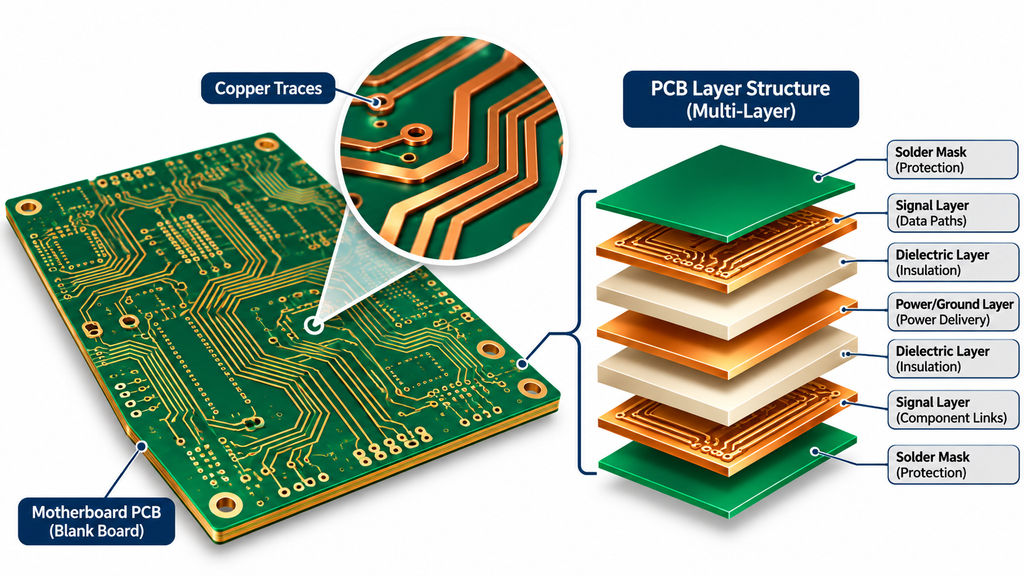
A motherboard is built from multiple layers of insulating material and copper pathways that connect its electronic components. These pathways, called traces, transmit power and high-speed data signals across the PCB. Their layout, thickness, spacing, and electrical connections help determine how reliably the motherboard operates.
A well-designed PCB maintains stable electrical connections, controls interference, and supports the components installed on it. Poor construction or manufacturing defects can introduce electrical resistance, signal errors, or intermittent connections. The following areas have the greatest effect on stability.
1. PCB Layers and Signal Integrity
Modern motherboards use multilayer PCBs containing dedicated signal, power, and ground layers. The placement of these layers helps control interference and maintain reliable communication between the processor, memory, and other hardware.
For example, DDR5 memory and PCIe devices transfer data at high speeds, making trace routing and electrical impedance important. Poor routing or defects in the signal pathways can reduce reliability, particularly at higher operating speeds. Analog Devices explains the importance of grounding and controlled signal paths in its PCB layout recommendations.
However, a motherboard with more PCB layers is not automatically better. A properly engineered six-layer board can operate reliably, while an eight-layer board with poor manufacturing or electrical design can still experience problems.
2. Voltage Regulation and Power Delivery
The voltage regulator module (VRM) converts power from the PSU into the lower voltages required by the CPU. Its power stages, cooling, and electrical connections determine whether the processor receives sufficient power under sustained load.
If the motherboard’s VRM cannot supply the required current, the CPU may reduce its clock speed to remain within its operating limits. Intel confirms in its throttling documentation that insufficient motherboard current delivery can cause processor throttling.
For this reason, I consider VRM capability and cooling more important than decorative features when choosing a motherboard for a high-power processor. A board that handles a mid-range CPU comfortably may struggle with a more demanding processor during rendering, gaming, or other sustained workloads.
3. Manufacturing and Component Assembly
Even a properly designed circuit can fail if its physical construction is defective. Copper plating defects, poorly formed vias, internal layer misalignment, and damaged traces can compromise electrical connections.
Quality control in PCB Manufacturing helps identify these defects through controlled fabrication, electrical testing, and inspection. The objective is to produce a board whose physical structure matches its electrical design.
Component installation matters just as much. Poor solder joints around memory slots, power connectors, and other components may create intermittent faults. Reliable PCB Assembly therefore depends on accurate component placement, controlled soldering, and inspection before the finished board is used.
Can Poor Motherboard PCB Quality Cause CPU or GPU Bottlenecks?
Yes, motherboard-related limitations can reduce CPU or GPU performance, but PCB instability and performance bottlenecks are not the same problem. A bottleneck occurs when one component or connection limits the performance of another. Instability refers to errors such as crashes, freezes, and failed boots.
CPU Bottlenecks
A motherboard can limit CPU performance when its VRM overheats, its current delivery is insufficient, or its firmware applies restrictive power limits. The processor may then operate below its expected sustained clock speed, making demanding applications slower.
Before replacing a processor, I recommend checking its clock speeds, power limits, and temperatures under load. Our CPU monitoring article explains how to examine processor temperatures and identify performance problems related to heat.
GPU and PCIe Bottlenecks
Graphics cards communicate with the CPU through PCIe lanes. A damaged PCIe slot or unreliable electrical connection can cause device detection problems, link errors, or failures under load.
A separate bandwidth limitation can occur when a graphics card operates with fewer PCIe lanes than expected because of motherboard slot wiring or lane-sharing configurations. This may restrict performance in bandwidth-sensitive workloads, although the effect depends on the graphics card and application.
Neither problem automatically means the GPU itself is defective. Check the motherboard manual, use the recommended primary PCIe slot, and verify the negotiated PCIe link speed and width before replacing the graphics card.
RAM and Storage Bottlenecks
A motherboard’s memory layout, firmware, and signal quality can affect the speeds at which RAM operates reliably. If XMP or EXPO settings are unstable, the system may experience crashes or need to run memory at lower settings.
Kingston’s memory guidance confirms that memory stability and supported speeds depend on compatibility between the processor, motherboard, and memory modules.
Storage performance can also be restricted by PCIe lane allocation, slower M.2 interfaces, or shared chipset connections. These are usually motherboard design limitations rather than signs of poor PCB fabrication.
How Can You Identify a Poor-Quality or Damaged Motherboard PCB?
I start with a physical inspection because hardware damage is sometimes easier to identify than an electrical fault. I look closely at the area around mounting holes, RAM slots, PCIe connectors, and power connections. If a board has been bent or damaged by a tool, an internal copper trace may be broken even when the surface damage appears minor.
A cable that does not fit correctly is another reason to inspect the installation. However, incorrect cable routing, incompatible connectors, or misplaced case hardware do not necessarily indicate a defective PCB. Forcing a connector or tightening a motherboard screw against an incorrect standoff can create damage that was not present originally.
Software diagnostics help narrow down less visible problems. In Windows, open Event Viewer and examine the System log for WHEA-Logger events. Microsoft’s WHEA documentation explains how hardware errors are recorded, although these events alone cannot confirm that the motherboard is defective.
Random restarts, failed memory training, disappearing storage devices, and repeated crashes may justify further motherboard testing. They can also result from faulty RAM, unstable BIOS settings, overheating, or a failing power supply, so individual symptoms should not be treated as proof of PCB failure.
How to Prevent Motherboard PCB Stability Problems
The best prevention starts with selecting a motherboard that supports your processor, memory configuration, and expected workload. Check the manufacturer’s CPU compatibility list, memory qualification list, VRM cooling, and PCIe slot configuration. For a high-performance AMD build, our motherboard recommendations provide examples of the hardware features worth comparing.
During installation, align the motherboard with the correct case standoffs, support it when connecting tight cables, and never force RAM or a graphics card into a slot. Disconnect the power supply before inspecting or reseating components. A visibly cracked PCB, burnt connection, or damaged socket should be assessed professionally rather than tested repeatedly.
If an already assembled PC becomes unstable, restore safe BIOS defaults and test the system without CPU or memory overclocking. Reseat accessible components, check cooling and PSU connections, and test compatible RAM modules individually when necessary. AMD’s stability troubleshooting also recommends starting from stock hardware settings and isolating potential causes systematically.
Power supply quality is another consideration. Inadequate or unstable PSU output can resemble a motherboard failure, so check the PSU before spending money on a replacement board. Our PSU rankings provide additional context when evaluating power supply options.
Finally, if the computer is stable but produces lower FPS than expected, examine the processor and graphics card together. A bottleneck calculator can help assess their expected performance balance, but actual motherboard faults require hardware inspection and testing rather than a calculated percentage.
Final Verdict
Motherboard PCB quality directly affects a PC’s ability to deliver stable power and maintain reliable communication between its components. Manufacturing defects, damaged traces, weak connections, and inadequate power delivery can cause instability, while VRM limits, memory compatibility, and PCIe configurations may restrict performance. A higher price or greater PCB layer count does not guarantee a better motherboard. Choose a board with suitable electrical design, verified component compatibility, reliable construction, and sufficient cooling, then install it carefully to avoid preventable damage.