Essential Workplace Technology for a Productive and Secure Modern Office
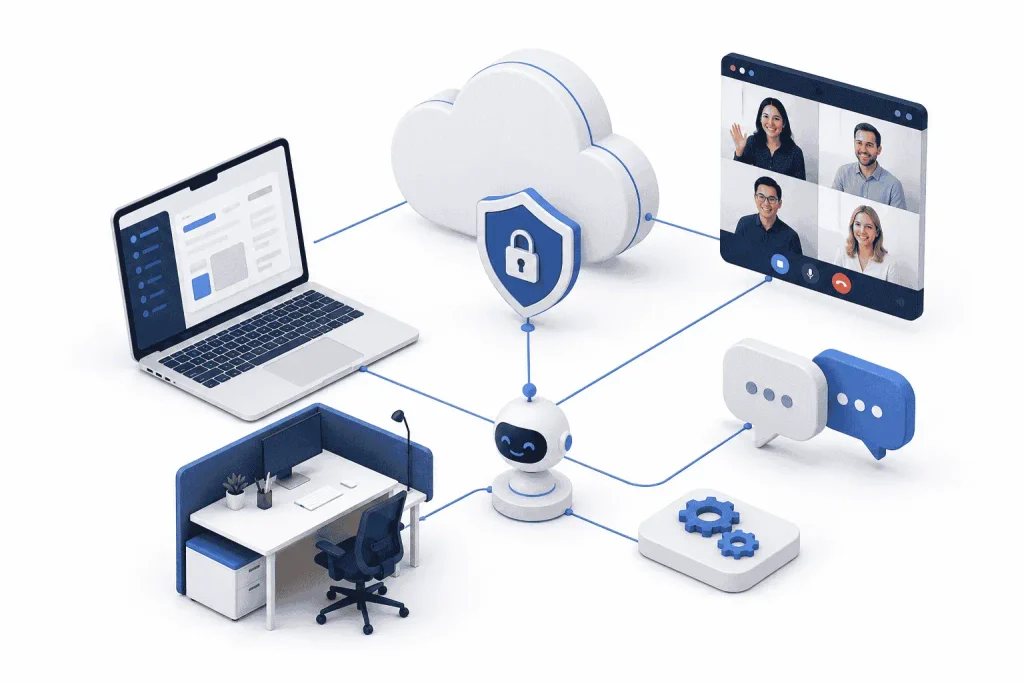
Workplace technology includes the computers, communication platforms, cloud services, automation tools, and security controls employees use to complete their work. A suitable technology setup should match each employee’s workload, connect people across locations, and protect business information without making routine tasks unnecessarily complicated.
There is no single setup that suits every organisation. A small professional firm, a creative agency and a large customer service department may use different hardware and software. The right approach is to assess how people work, identify where delays occur and select tools that solve clear operational problems.
Select computers according to employee workloads
A workplace computer should be chosen for the applications an employee uses rather than their job title alone. Email, web browsing and document editing place different demands on a computer than video production, data analysis or three-dimensional design.
The processor affects how quickly the computer completes instructions. Memory, commonly called RAM, helps the system manage several active programs. Solid-state storage improves start-up times and file access, while the graphics processor supports visual and computational workloads. These components must work together because one weak component can slow the rest of the system.
Marketing employees often keep advertising platforms, analytics dashboards, communication applications, and browser tabs open at the same time. Reviewing suitable PCs for digital marketers can help businesses compare systems according to multitasking needs instead of purchasing high-end hardware without a clear reason.
Administrative departments have different priorities. Human resources employees may work with payroll platforms, employee databases, video interviews, and confidential documents. Reliable storage, sufficient memory, security support, and multiple-monitor connectivity may matter more than advanced graphics. Evaluating business PCs for HR work can provide a useful starting point for matching hardware with these daily responsibilities.
Provide workstations for demanding tasks
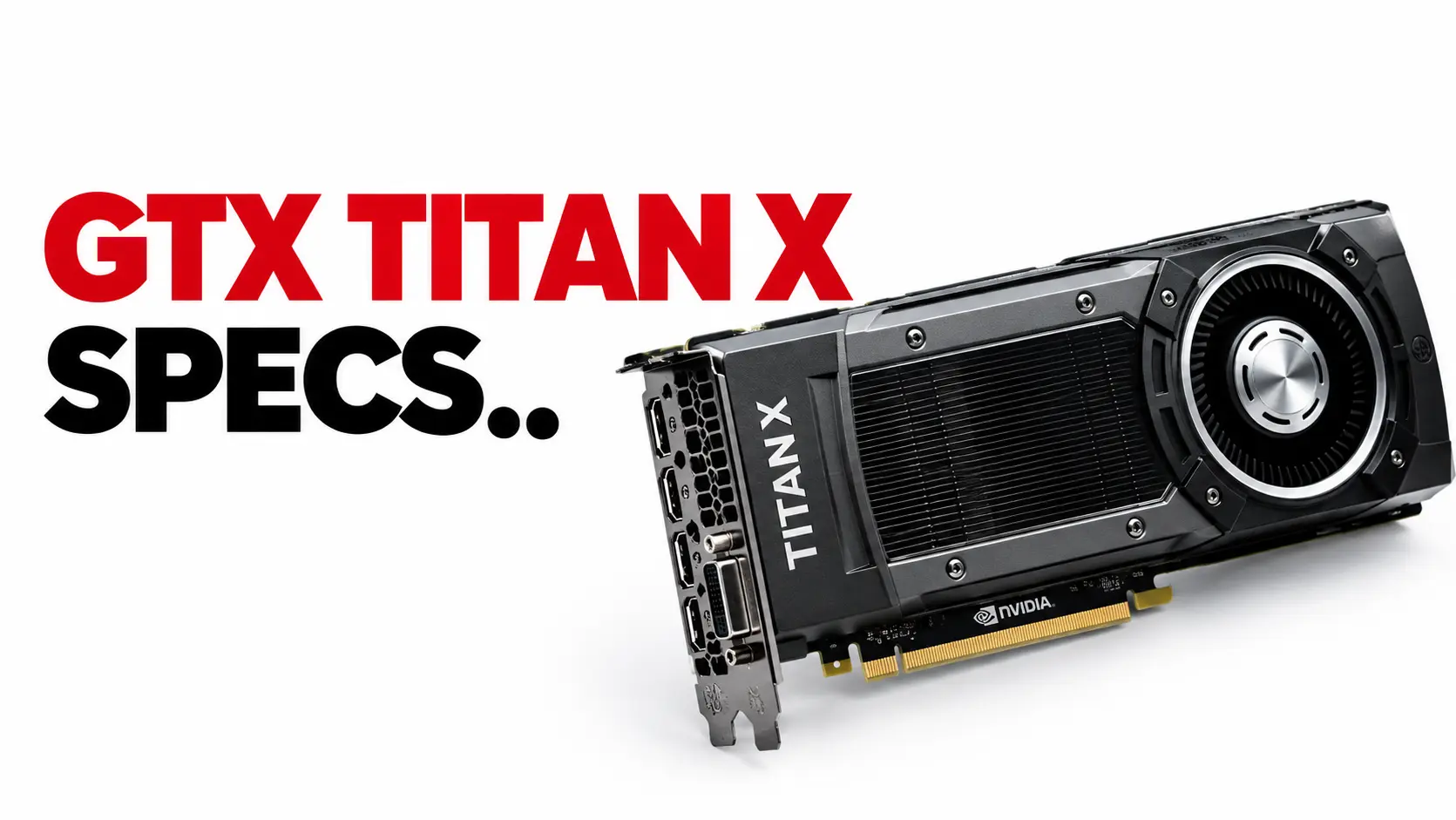
A workstation is a computer designed for sustained professional workloads. It may include a higher-core-count processor, more memory, a dedicated graphics card, fast storage, and stronger cooling than a standard office computer.
Not every employee needs a workstation. Providing one for basic office work can increase costs without producing a meaningful benefit. Workstations are better suited to roles involving video editing, engineering applications, animation, software development, large datasets, or other tasks that place the system under continuous load.
Creative employees may also require displays with accurate colours, fast external storage and enough memory to work with large project files. Businesses comparing laptops for content creators should consider the software used, project resolution, storage requirements and whether employees need workstation-level performance away from a fixed desk.
Upgradeability should form part of the purchasing decision. A desktop workstation may allow the business to add memory, storage or a new graphics card later. This can extend its useful life and reduce the need to replace the complete system when workloads change.
Support hybrid work with portable devices
Hybrid employees need consistent access to their applications and files whether they are working from an office, home or client location. Portability is important, but it should not be considered separately from performance, battery life and connectivity.
Employees who travel regularly may benefit from lightweight laptops for remote workers because a lighter device is easier to carry between locations. The laptop should still provide enough memory for multitasking, a dependable webcam and microphone for meetings, and suitable ports for displays, headsets and docking equipment.
A docking station can turn a portable laptop into a practical desk-based system. It allows the employee to connect monitors, a keyboard, a mouse, a network cable and other equipment through one connection. This arrangement supports mobility while providing a comfortable setup when the employee returns to the office.
Businesses should also define how portable devices are configured, updated and returned. Standard settings make technical support easier and reduce the risk of employees using outdated software or unapproved applications.
Connect communication and collaboration systems
Employees lose time when calls, messages, meetings, documents and customer information are spread across unrelated platforms. They may need to repeat details, search several systems or ask colleagues for information that already exists elsewhere.
A connected workplace brings communication and collaboration services into a more coordinated environment. This can help employees move between conversations, shared files and meetings while retaining the context needed to complete a task.
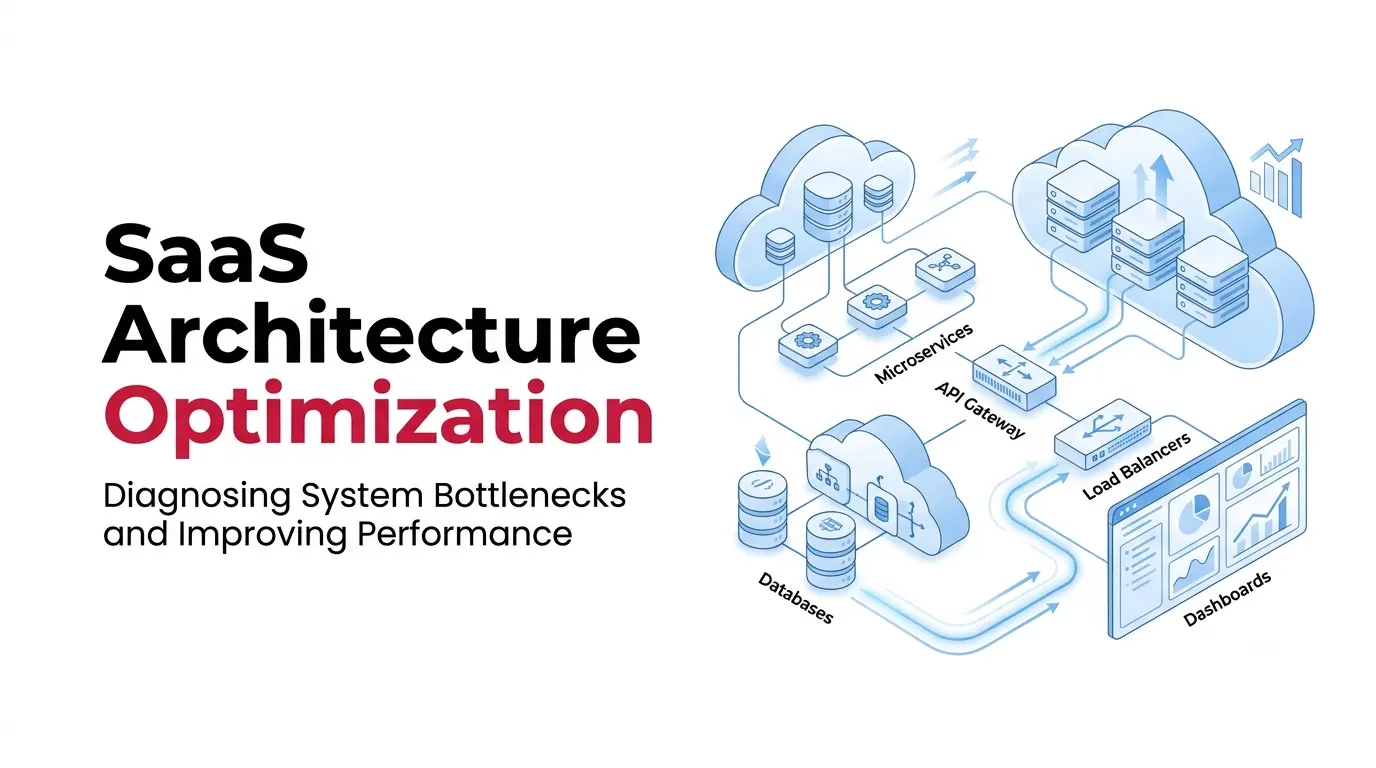
Integration does not mean every system must come from one provider. It means the selected tools should exchange information reliably and support an understandable workflow. A customer enquiry, for example, may begin through a website, move to a service employee and finish with an update in the organisation’s customer management platform.
Access permissions are just as important as integration. Employees should receive access to the information required for their roles, while sensitive financial, customer and personnel records remain restricted.
Automate routine customer enquiries
Customer service teams often answer repeated questions about appointments, operating hours, order progress and service availability. These enquiries are important to customers, but handling every one manually can reduce the time available for complex cases.
Well-configured online virtual assistants can provide approved information, collect basic details and direct an enquiry to the appropriate department. They can also support customers outside standard service hours when an immediate employee response is unavailable.
Automation is most useful when the task has a predictable process and a reliable information source. It is less suitable when a customer needs negotiation, empathy, detailed investigation or a decision with significant consequences. A clear option to contact an employee should therefore remain available.
Protect devices, accounts and business information
Every workplace device can become an access point to company systems. Security planning should cover laptops, desktops, mobile devices, cloud accounts, communication platforms and third-party applications.
Multi-factor authentication adds another identity check when an employee signs in. Software updates correct known faults and security weaknesses. Backups help an organisation recover information after accidental deletion, hardware failure or a cyber incident. The Australian Cyber Security Centre recommends multi-factor authentication, software updates and backups as starting measures for small businesses in its cyber security guidance.
Privacy also requires attention when workplace systems collect customer or employee information. Businesses should understand what information is collected, why it is needed, where it is stored and who can access it. The Australian Privacy Principles provide a framework for handling personal information and are designed to apply across changing technologies.
Maintain automation after launch
Automated systems need continuing oversight. Business details, policies, prices and service processes can change, making earlier responses incomplete or incorrect.
A virtual assistant should have a named owner responsible for reviewing its information, monitoring unsuccessful interactions and improving escalation rules. Customer feedback can reveal questions the system does not understand, while service records can show whether automation is reducing work or simply moving problems to another channel.
Employees should also understand the system’s limits. They need a process for correcting inaccurate information and taking control of an interaction when human support is required.
Measure whether the technology is working
A successful implementation should produce observable improvements. Relevant measures may include application response times, meeting reliability, customer resolution times, technical support requests, system downtime and employee adoption.
Businesses can begin with a limited trial involving one department or workflow. A trial makes it easier to identify compatibility issues, training needs and unexpected costs before the technology is introduced across the organisation.
Purchase price should not be the only financial measure. Decision-makers should also consider subscriptions, support, maintenance, energy use, staff training and future upgrades. A cheaper system may cost more over time if it creates frequent interruptions or needs early replacement.
Effective workplace technology connects suitable hardware with clear communication, controlled automation and strong security. When each tool has a defined purpose and employees understand how to use it, technology becomes part of a dependable working environment rather than another source of complexity.
Conclusion
Effective workplace technology begins with a clear understanding of how employees perform their jobs. Businesses should select computers based on workload, provide portable equipment for hybrid teams, connect communication platforms, and automate only processes with predictable outcomes. Security, privacy, employee training, and ongoing maintenance must be considered from the beginning rather than added after implementation. When every device and platform has a defined purpose, technology can reduce delays, support better decisions, and create a more consistent experience for employees and customers.